
About This Article
I recently attended a seminar called “AWS Builders Online Series” — an online event hosted by AWS aimed at beginners, covering a broad range of AWS fundamentals.
One of the topics introduced in the seminar was Amazon Bedrock — an AWS service that makes it easy to use and build generative AI applications. It looked interesting, so I tried it out myself.
That said, Amazon Bedrock is an extremely broad service, so this article covers only the features I personally used.
The seminar’s slides and recordings are available at the link in the image below — if you’re interested, going directly to the source is probably the most useful option.

Generative AI Basics
Before getting into Amazon Bedrock, the seminar provided a quick overview of what generative AI actually is.
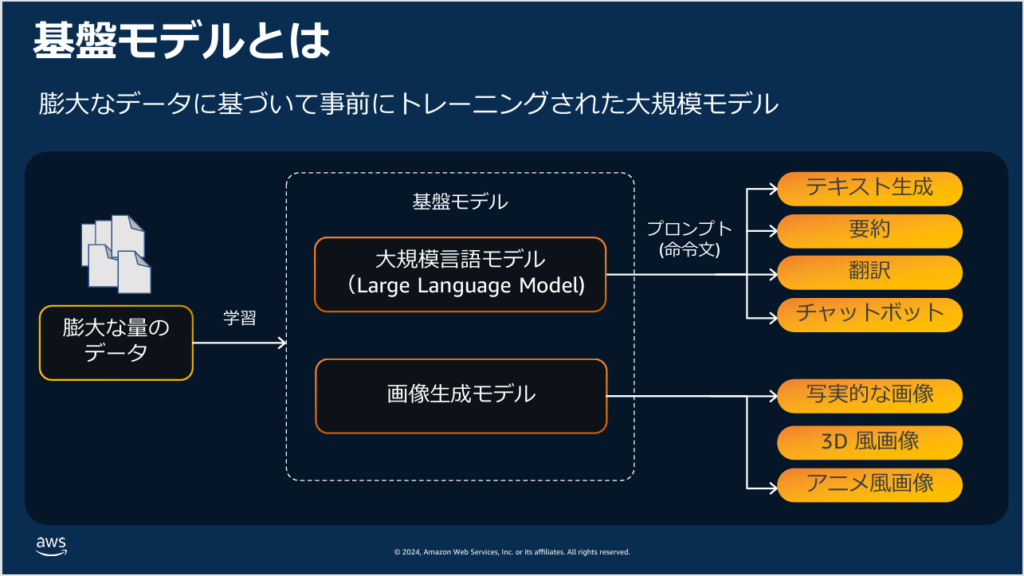
Generative AI builds on the “big data” approach used by earlier AI systems — but scales the data up dramatically (to terabyte scale) during training. This produces AI that can behave in human-like ways without needing additional task-specific training.

A model trained on terabyte-scale data is called a foundation model. Foundation models trained specifically on language data are called Large Language Models (LLMs).
Well-known services built on LLMs include OpenAI’s ChatGPT, Google’s Gemini, and Anthropic’s Claude.
Foundation models trained primarily on image data are called image generation models, and they power a range of image generation services. Foundation models trained on video are also being developed rapidly — the variety of foundation models will continue to grow.
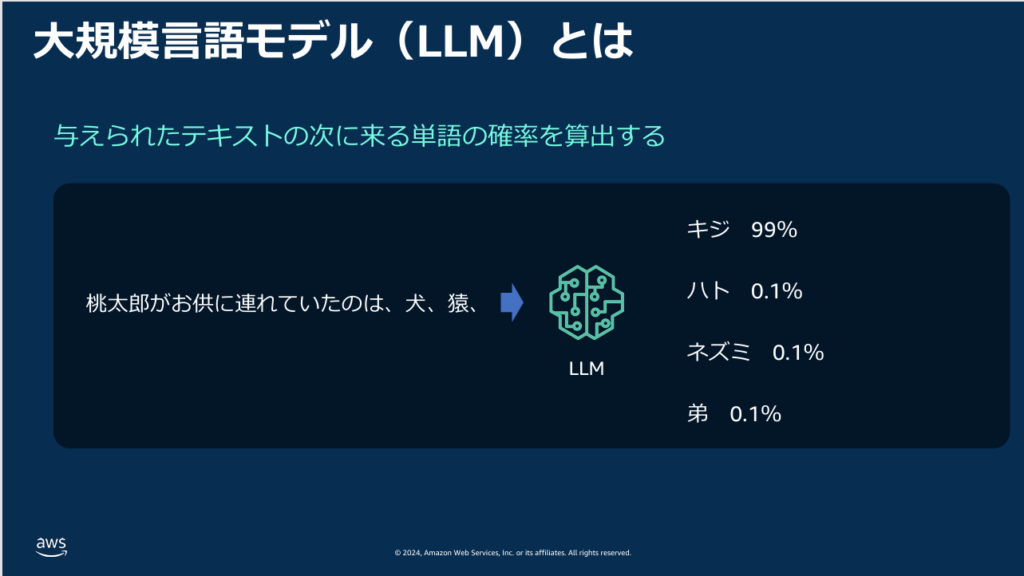
The seminar also explained how LLMs actually generate text.
As shown in the image below, an LLM takes your prompt and statistically predicts the most appropriate continuation — generating text token by token based on probability distributions derived from its training data.
If it always chose the highest-probability token, the same prompt would always produce the same answer. To avoid this, the model occasionally selects lower-probability options — which is also why generative AI sometimes produces incorrect or unexpected responses.
What Is Amazon Bedrock?
When an individual wants to start using generative AI, the most common approach is to sign up for a ready-to-use service like ChatGPT.
Amazon Bedrock offers a different path: it lets you build your own private generative AI environment and use it securely, rather than relying on a third-party service.
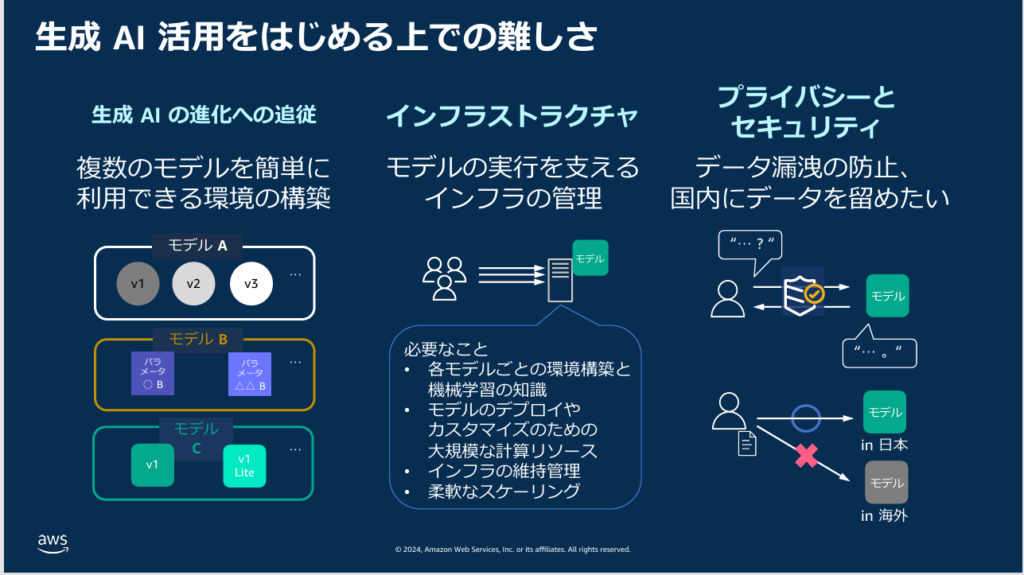
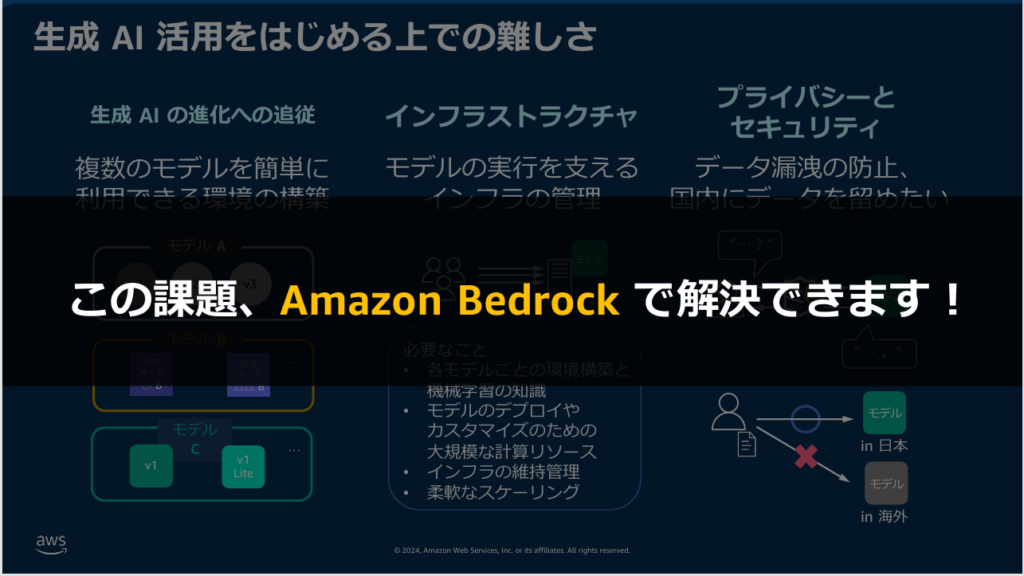
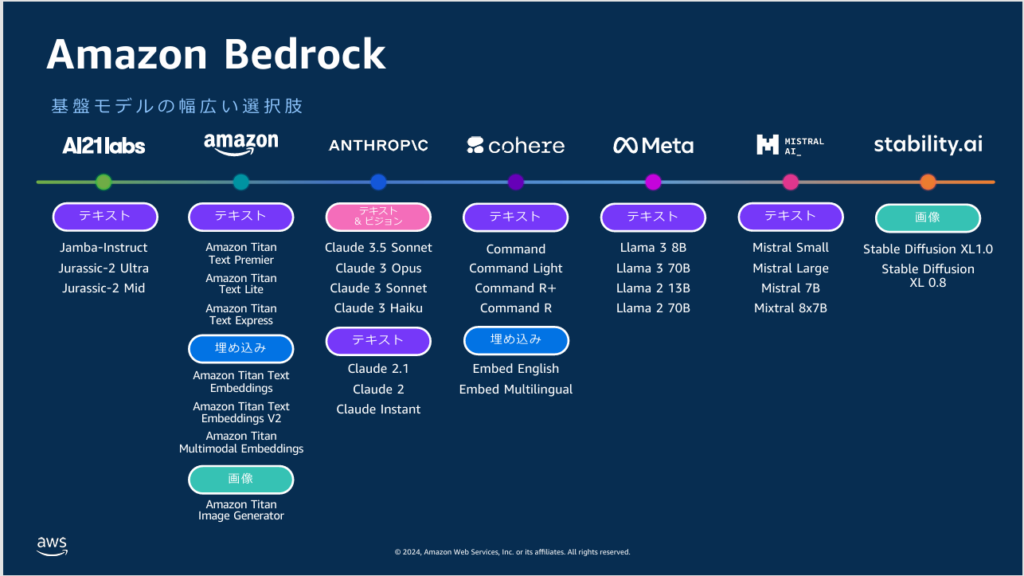
A key feature of Amazon Bedrock is the ability to freely choose from a wide range of foundation models.
By contrast, ChatGPT only provides access to OpenAI’s GPT models, and Gemini only uses Google’s models. Most generative AI services are limited to their own company’s models — which is how they differentiate themselves commercially.
Amazon Bedrock lets you switch between foundation models based on your needs — a significant advantage.
One notable gap: despite offering a broad selection, Bedrock does not include OpenAI’s GPT series. This is likely because OpenAI has a close relationship with Microsoft and doesn’t provide models to Amazon. On the other hand, Anthropic’s Claude is available — which makes sense given Amazon’s substantial investment in Anthropic.
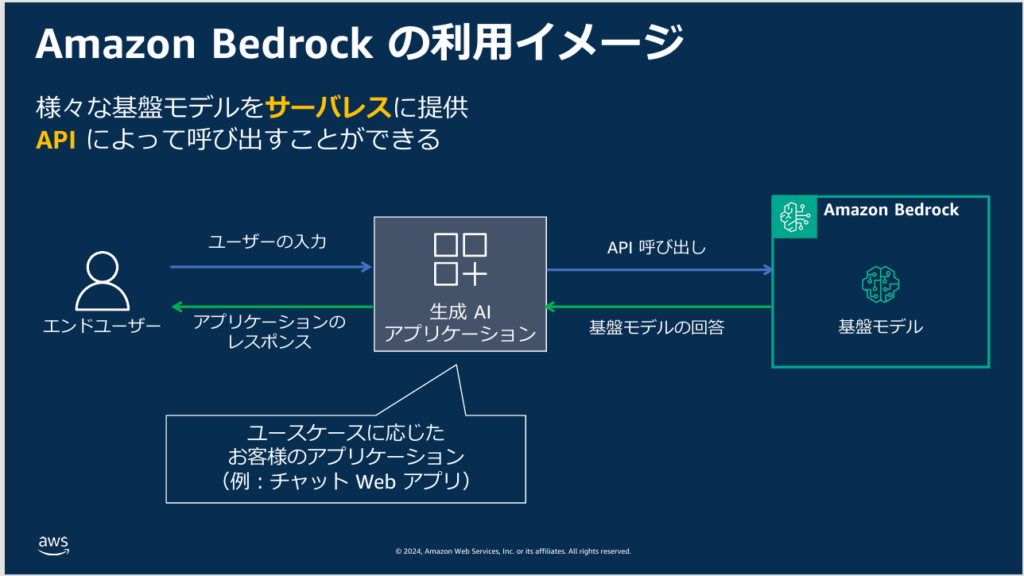
Amazon Bedrock also lets you call foundation models via API. This means you can build your own application and have it call a foundation model on the backend to generate responses.
For example, you could build an internal chatbot application that routes user questions to Claude (via Bedrock) and returns the responses to your app. Many major services like ChatGPT already offer APIs, but Bedrock’s advantage is the ability to easily switch between models from within your app — for instance, routing salary-related questions to Claude and customer negotiation questions to a different LLM.
Technically, you could build the same routing logic with other services, but Bedrock makes it significantly more straightforward out of the box.
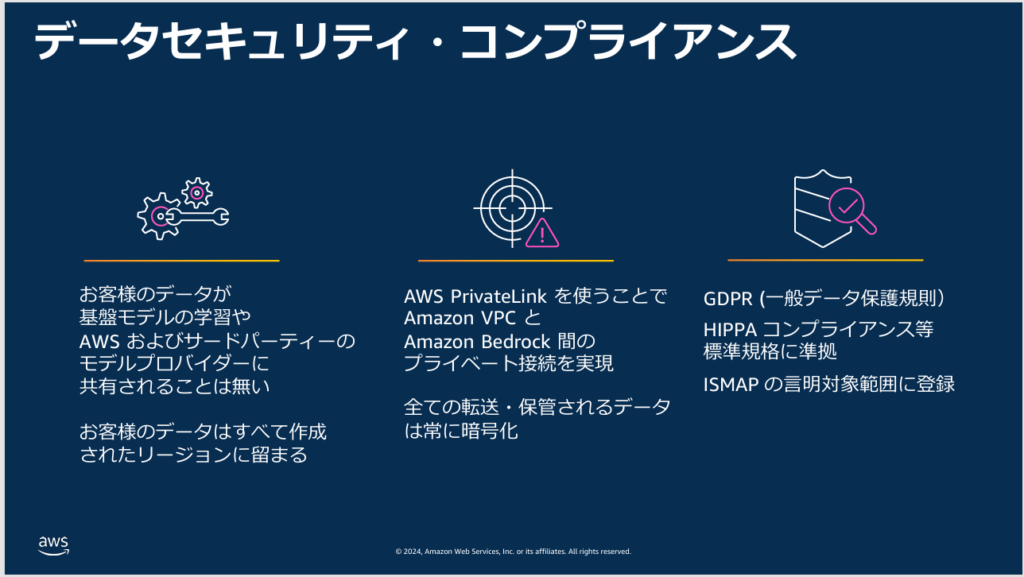
The biggest concern when building a custom generative AI application is security.
As the KADOKAWA data breach illustrates, security challenges grow more severe year by year — and it’s no longer realistic for a single company to maintain complete protection against modern attacks on their own.
This means that when running generative AI applications yourself, security awareness is always necessary. Amazon Bedrock addresses this: its security model lets you use the service without worrying about security in the same way you would with a self-managed deployment.
Trying Amazon Bedrock
Let’s walk through actually using Amazon Bedrock. Note that this is an AWS service, so you’ll need an AWS account. The steps below assume you’ve already created an account and can log into the console.
Granting Access to Foundation Models
First, log into the AWS console and search for “Amazon Bedrock” to open the service.

Before you start, change the region (top right of the console) to US East (N. Virginia). Foundation model availability is region-dependent, and the full range of models is only available in a small number of regions including N. Virginia.
The Tokyo region, which many Japanese users default to, supports a very limited set of models. Remember: if you want access to a wide variety of models, you need to switch regions.
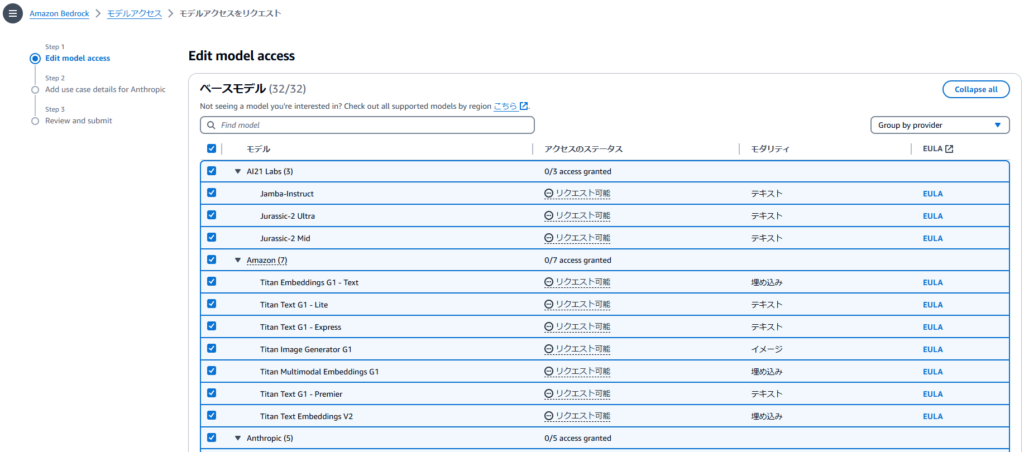
After changing the region, select “Base models” under “Foundation models” in the left navigation menu.
This displays a list of all available foundation models. By default, none are accessible — click “Enable all models” to request access.

A list of foundation models will appear. Leave everything selected and click “Next” at the bottom.

Next, you’ll be asked to enter information like your company name and website.
Requiring this level of information just to start using the service is a significant usability barrier for individuals — this is one of Amazon Bedrock’s frustrating weak points. I entered my own website details, but if you don’t have a website, it’s unclear how minimal the input can be. Either way, this step appears unavoidable if you want to use Claude. Click “Next” when done.
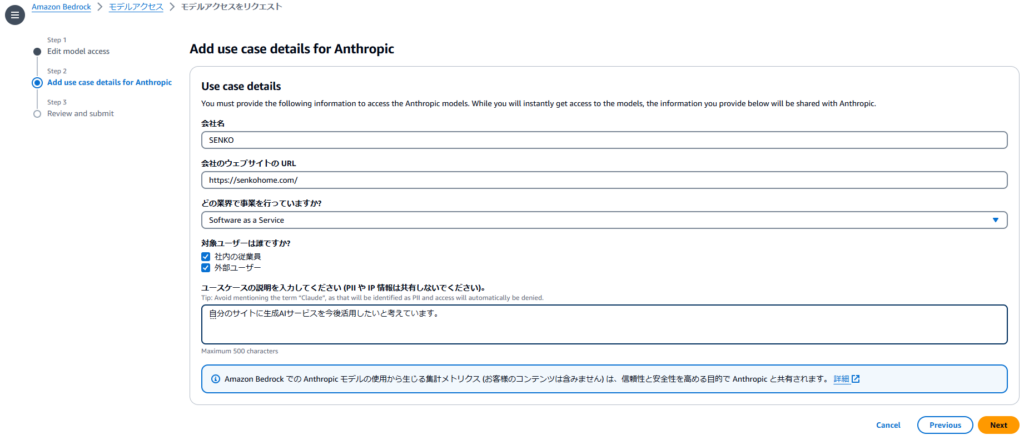
A confirmation screen will appear. If everything looks correct, click “Submit.”

Wait a few minutes for access to be granted. That said — a few of the foundation models returned an error in my case.
From the error messages, it looks like some models may have been retired. Practically speaking, Claude is likely to be the primary model most people use anyway, so not having access to a few Meta LLMs shouldn’t be a major issue.


Using the Chat Playground from the Console
Once access is granted, foundation models are ready to use. The easiest way to start from the console is to select “Chat” under “Playgrounds” in the left navigation.

The chat playground will open. Click “Select model” to choose which foundation model to use.

A list of available foundation models, organized by provider, will appear. In general, selecting the latest, highest-performance model is a good starting point.
At the time of writing, Claude 3.5 Sonnet was generating significant buzz for its performance — that’s what I chose.
The Claude series is generally considered comparable in capability to OpenAI’s GPT series. When in doubt, selecting the latest Claude model is a reasonable default.
After selecting your model, click “Apply.”
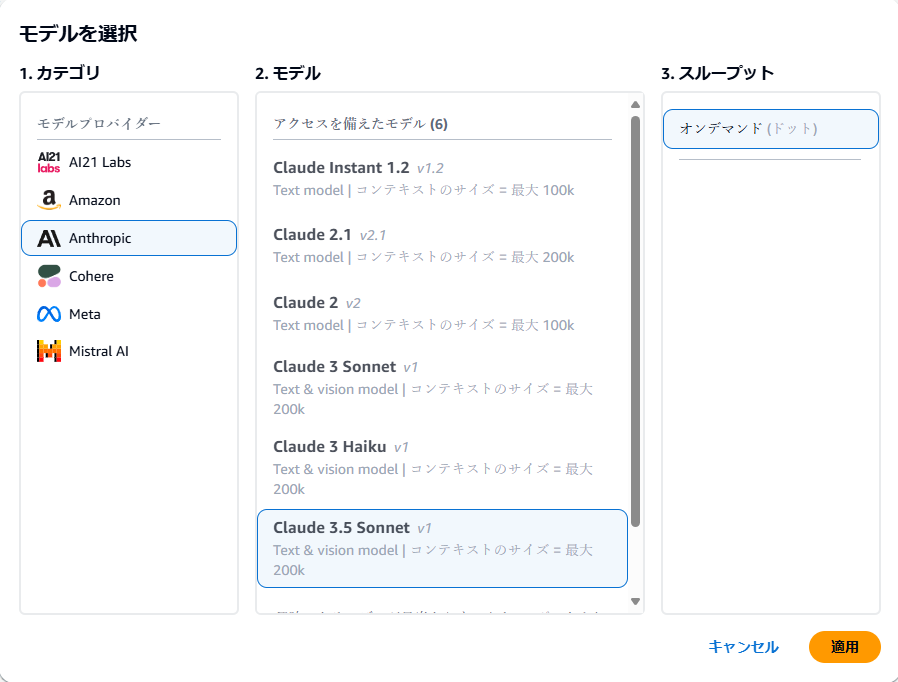
The model is now configured and the chat input area is active. I tried entering an open-ended question: “What can we do to make the world a better place?”
Click “Run” to submit the prompt.

The response was a detailed, thoughtful reply: “Making the world better begins with small individual actions. Starting with treating others with kindness, contributing to your community, and being mindful of the environment in your daily life are all places to begin. Spreading knowledge and values through education, caring about social issues, and speaking up about them are also important. Each person taking action within their own means, and those actions accumulating, is what leads to meaningful change. Rather than aiming for perfection, I think what matters is continuing to engage at your own pace.”
This is a genuinely high-quality response — clearly at a meaningful level.
The quality of responses depends on which foundation model you choose, so it’s worth exploring different models to find the one most suited to your needs.

Since this is a chat interface, you can follow up with additional questions and the model will respond with context from the prior exchange. Try it out yourself.
At the bottom of the screen, a “Model metrics” section is displayed, showing: Latency (time to generate the response), Input tokens (number of tokens in your prompt), and Output tokens (number of tokens in the response).

On the right side of the screen, you’ll see parameters labeled Temperature, Top P, and Top K — these adjust how the model generates responses. The mechanics are complex in detail, but the basic concept is as follows:
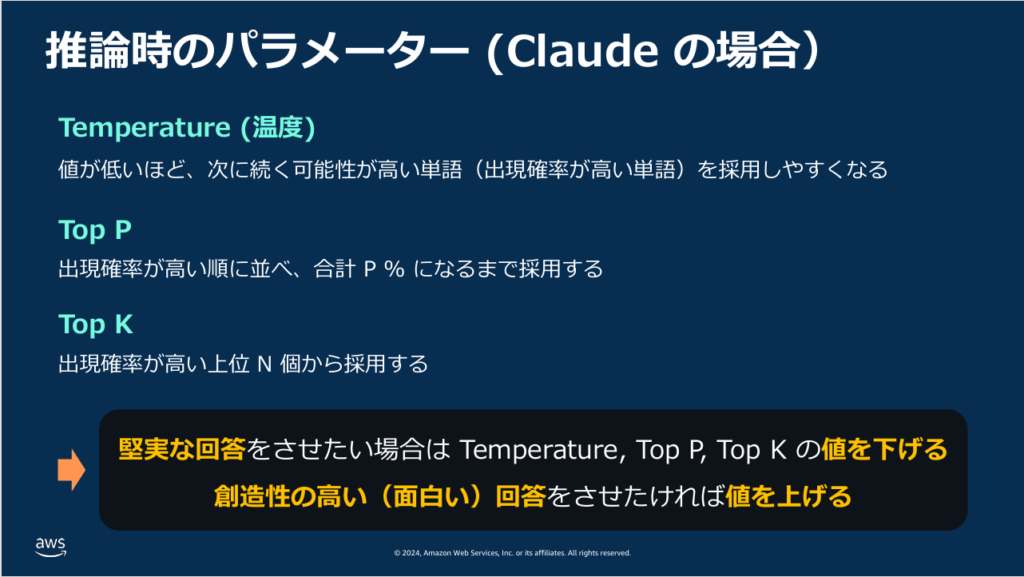
- Higher values → more creative, varied, and unexpected outputs (useful for creative writing)
- Lower values → more precise, consistent, and factual outputs (better for research or detailed analysis)
These parameters are quite important — worth remembering.
Using the Text Playground from the Console
Next is the “Text” playground, accessible from “Text” in the left navigation.
Honestly, the text feature is essentially a more limited version of the chat feature — it generates a single text response to your input rather than supporting back-and-forth conversation.

Usage is the same as chat: click “Select model,” choose a foundation model, type your input, and click “Run.”
The text playground does have a “Length” parameter, so it can be useful for generating very long text (like a creative novel excerpt). But for most purposes, the chat playground is more capable.

Using the Image Playground (Image Generation) from the Console
Finally, let’s look at the image generation feature — accessible via “Image” in the left navigation.
As with the other playgrounds, start by clicking “Select model.”

The selection is quite limited: only Amazon’s Titan Image Generator G1 and Stability AI’s SDXL 1.0 are available.
The selection may expand in the future, but for now, this limited lineup is a significant constraint.
I selected “Titan Image Generator G1” and clicked “Apply.”
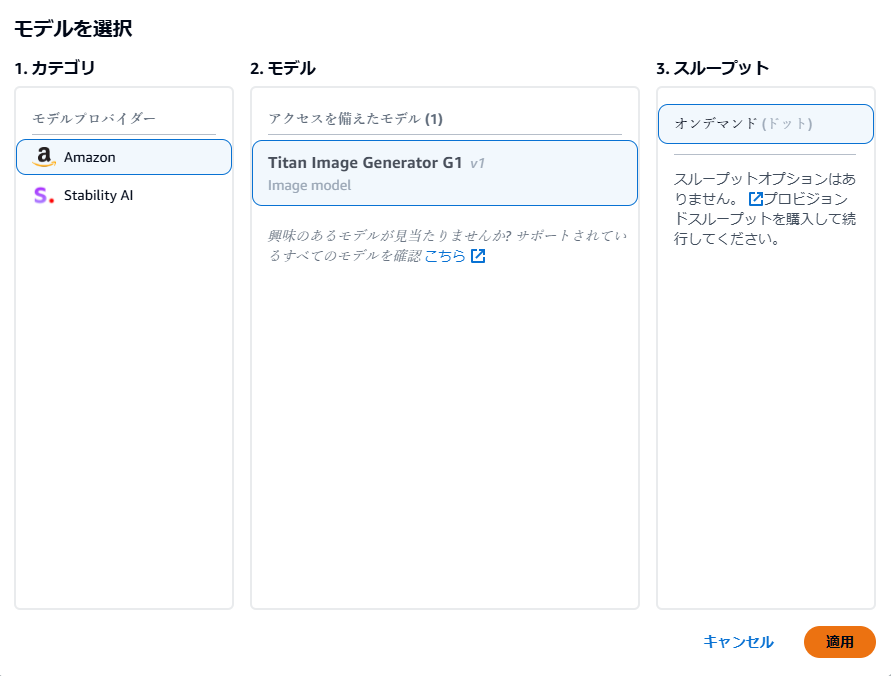
A text input field appeared. I entered “1girl” — a prompt commonly used in image generation to request a single female figure — and clicked “Run.”
For guidance on image generation prompts in general, searching Google for “image generation prompts” will give you plenty of references.
The result was three photorealistic-looking female figures. With such a minimal prompt, the variation between generated images is understandably large.
That said, the quality isn’t bad — Titan Image Generator G1 seems reasonably capable.

I clicked on the leftmost of the three images. A detail view appeared with an “Actions” dropdown offering various follow-up operations.
I clicked “Generate variations” to generate alternative versions of this particular image.

Back in the image playground, the original image was now set as the “Inference image” on the right side. I added “Crying” to the prompt and clicked “Run.”
The result was an image based on the original figure but with a crying expression. It’s not a perfect match to the original, but the model clearly interpreted the prompt and incorporated it into the generation.

That’s the image generation feature. The right panel also lets you adjust image dimensions and batch size (number of images generated at once), providing some flexibility.
That said, there are so many dedicated web-based image generation tools available that using AWS specifically for image generation probably isn’t necessary for most use cases.
Summary
This article covered generative AI fundamentals and my experience using Amazon Bedrock from the AWS console. Personally, I was surprised by how easily the generative AI features could be run — it was more accessible than I expected.
The ability to freely choose from a variety of foundation models without needing to register with multiple separate services is a genuine convenience.
That said, comparing Bedrock to purpose-built alternatives: for chat, ChatGPT offers far more features; for image generation, Stable Diffusion offers more flexibility. The core value of Amazon Bedrock lies not in console usage, but in combining it with your own applications via API (and techniques like RAG).
The seminar covered API usage as well — I plan to cover that in a separate article.
Regardless of the specifics, AI is becoming essential knowledge across virtually every industry. Getting comfortable with these tools now is time well spent.
I’ve also written about AI market size trends if that’s of interest:

Also popular with readers