Introduction
The previous article covered Canva’s AI-powered image editing features. If you’re interested in image editing specifically, check that out first:
This article focuses on Canva’s generative AI features — tools that create images, videos, and other content from scratch.
Canva’s Generative AI Features
As mentioned in the previous article, Canva offers a large number of AI features as of February 2024. Searching “AI-powered” in the Canva apps panel reveals an extensive list that will only continue to grow.
This article covers apps that generate images, videos, and other content from text input or existing assets.
Note: most of these features require the paid version of Canva. A paid plan is generally required to use AI features seriously.
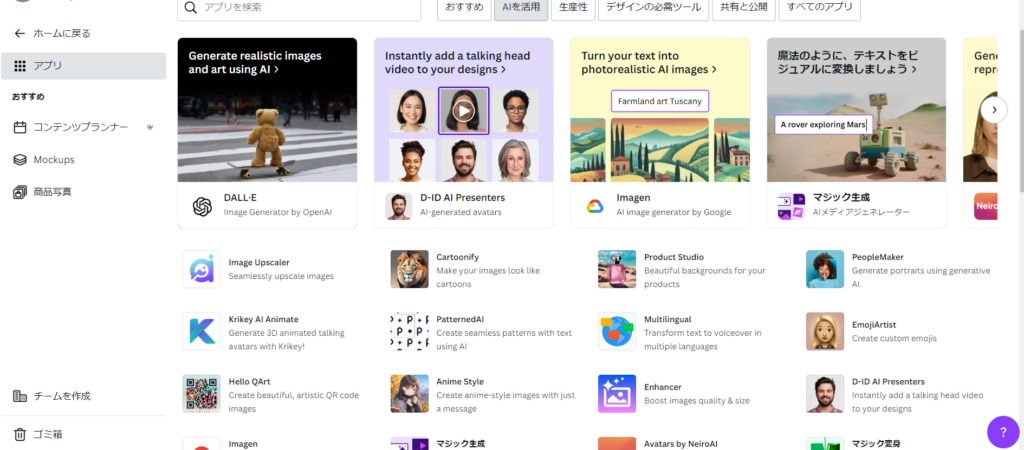
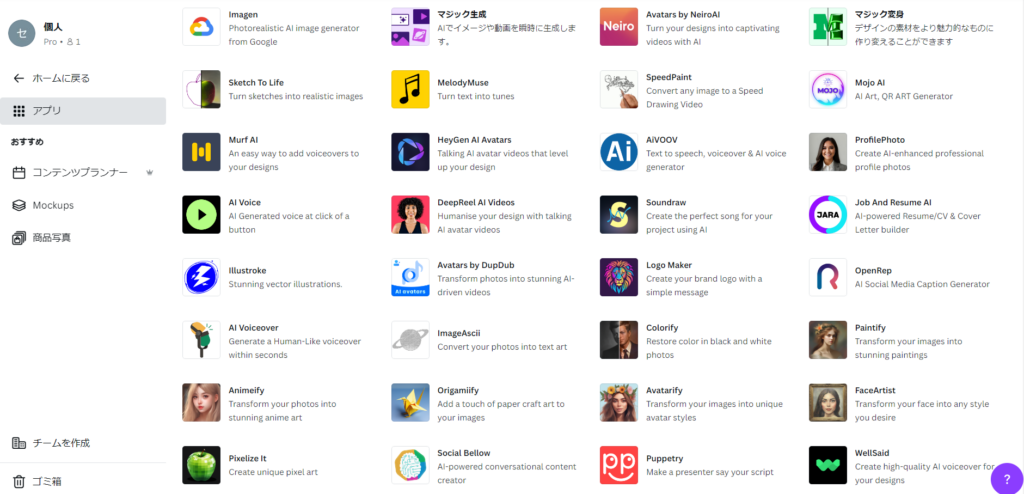
Canva’s generative AI features are primarily organized under Magic Studio (Canva’s official feature set) alongside a broader app marketplace.
Magic Studio is the most versatile and highest-frequency option for most users, but there are useful apps in the marketplace as well. This article covers:
- Magic Generate (AI image generation, AI video generation)
- Magic Write
- Magic Morph
- Soundraw
- D-ID AI Presenter
Having all of these generative AI capabilities available within a single tool is Canva’s biggest strength in this space.
Magic Generate (AI Image Generation)
AI image generation is one of the most widely known and accessible forms of generative AI — and Canva has it built in through Magic Generate.
Magic Generate creates images or videos from text input. The workflow is simple: open Magic Generate from the apps panel, select the “Image” tab, and type a description of the image you want.
For this example, I tried something fairly challenging: “Two samurai in the Edo period fighting a duel.”
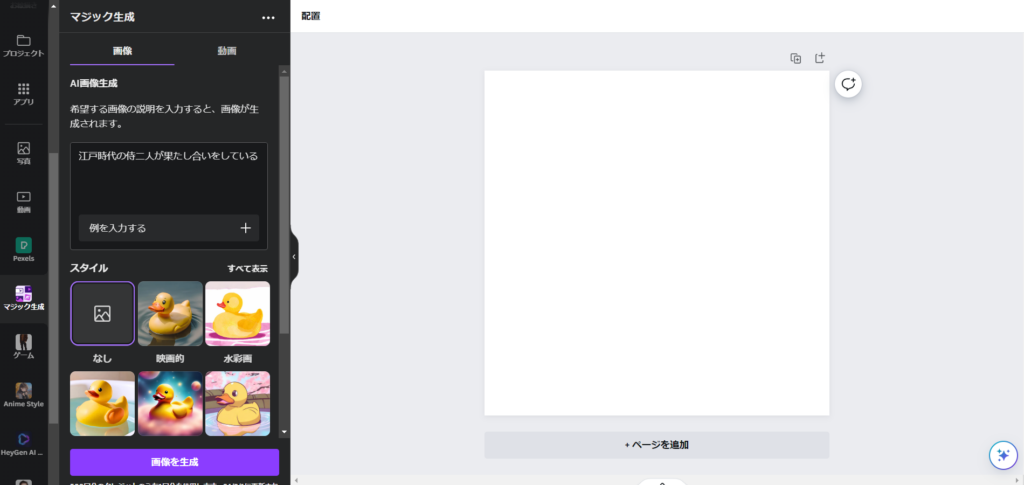
After entering your text, you can set the output style and aspect ratio. I chose “Cinematic” style in a square format.
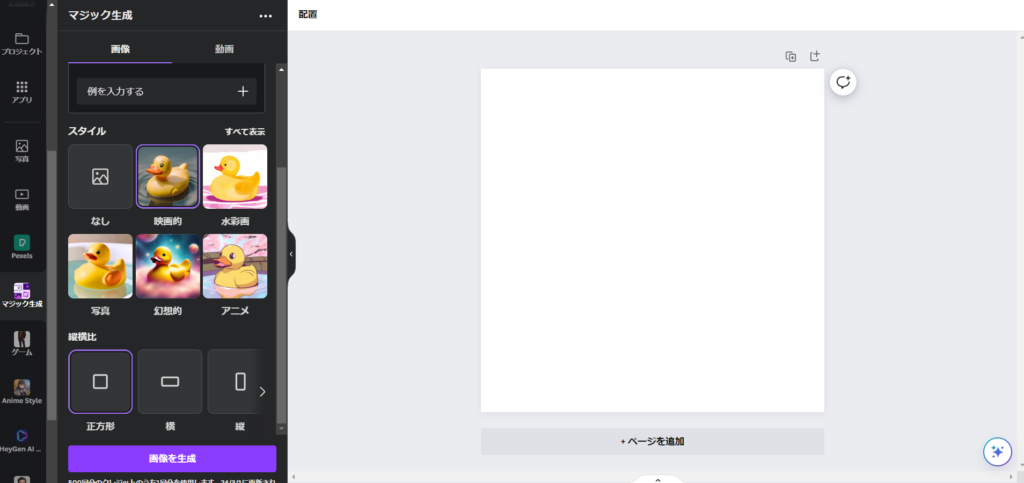
Generation takes a few dozen seconds. The exact time may vary depending on the image content and style.
Here are the results:
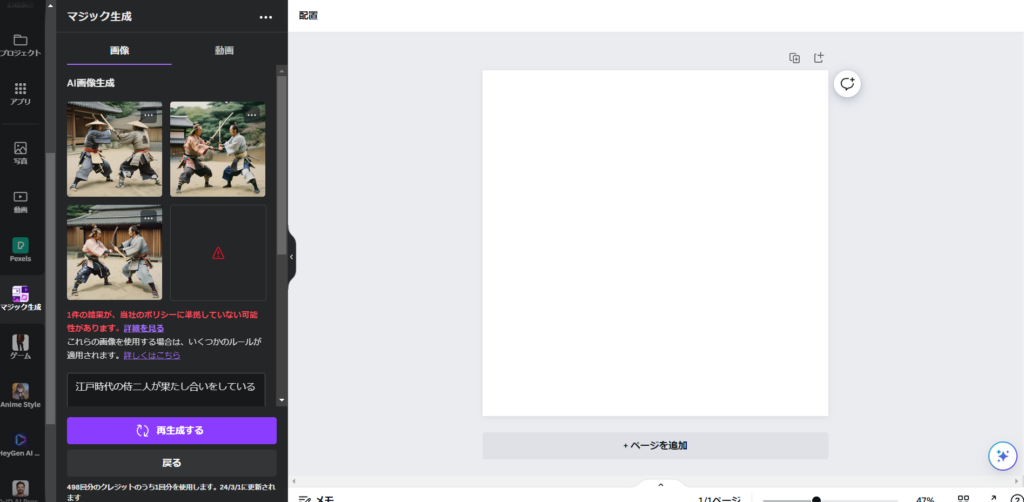
Normally, one generation produces four images — you can choose the one you like and place it on your canvas. In this case, one of the four was blocked for not complying with Canva’s policies (the specific reason wasn’t shown, but it likely flagged the sword fighting as related to self-harm based on the policy categories below).
- Medical topics such as medical advice or information.
- Self-harm and mental health topics. We recommend contacting local mental health support services.
- Content containing explicit sexual depictions.
- Political topics, such as content about politicians or elections.
I selected one of the remaining images and placed it on the canvas:
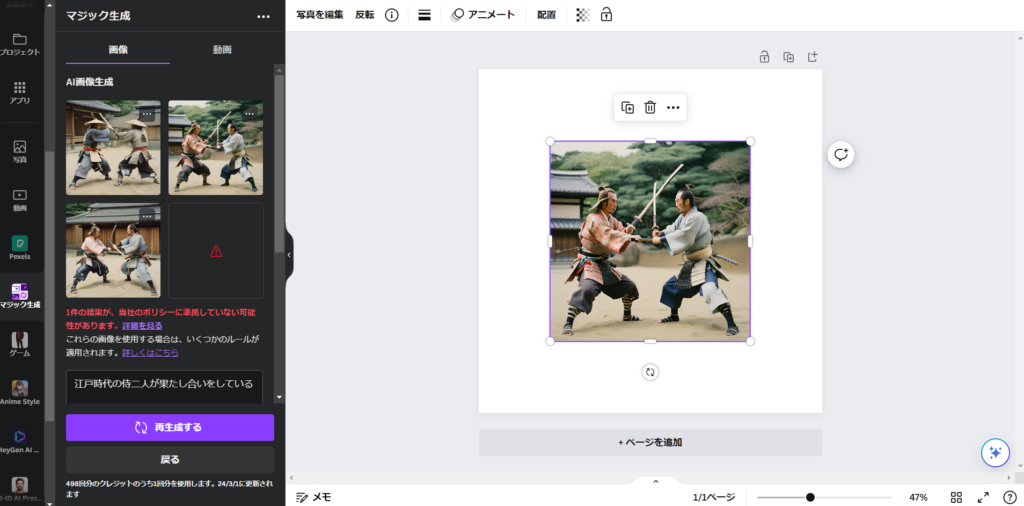
If the result looks right, save it. If you want better options, click “Regenerate” to produce four new images.
One important thing to note: Magic Generate uses credits. Free users get 50 uses total (non-refillable). Paid users get 500 per month — plenty for occasional use, but potentially limiting for heavy users.
For higher-volume image generation, a local installation of Stable Diffusion on your own PC would be more practical.
Magic Generate (AI Video Generation)
Magic Generate also supports AI video generation — enter a description of the video you want, then click “Generate video” and wait about 1–2 minutes.
For something that would look dynamic, I tried: “Two boxers fighting in a ring.”
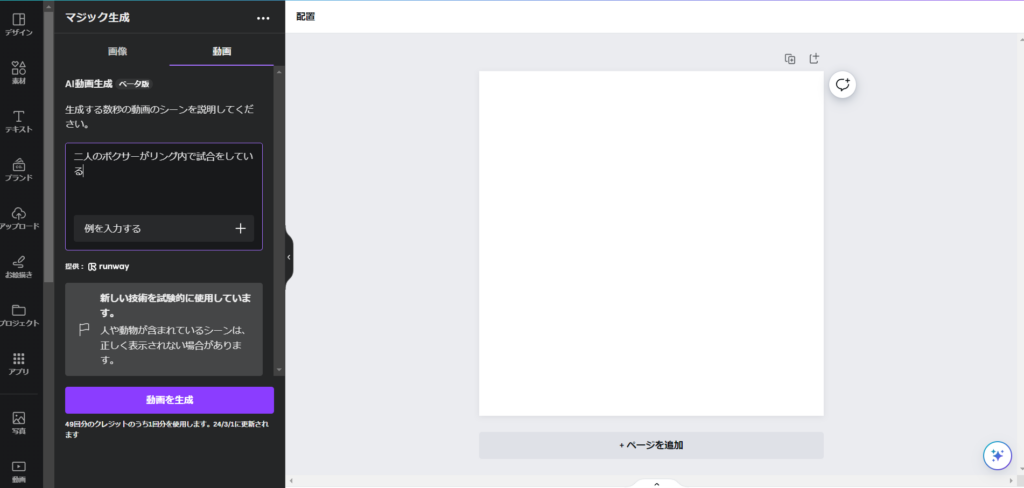
The result? Almost no movement at all.
I tried different prompts afterward and managed to get some minor motion, but recreating fast, dynamic action wasn’t achievable.
My assessment: AI video generation in Canva isn’t at a practical level yet. The feature is still labeled “Beta,” so it’s reasonable to expect improvement when it officially launches.
Video generation also consumes credits — and paid users are limited to just 50 videos per month, which reinforces the sense that this feature isn’t quite ready for regular use.
Magic Morph
Magic Morph is distinct from image generation: it takes an existing image and transforms it into a different visual style, rather than generating from scratch.
Here’s an example: I placed a simple paw print graphic on the canvas and applied Magic Morph with a “balloon” theme:
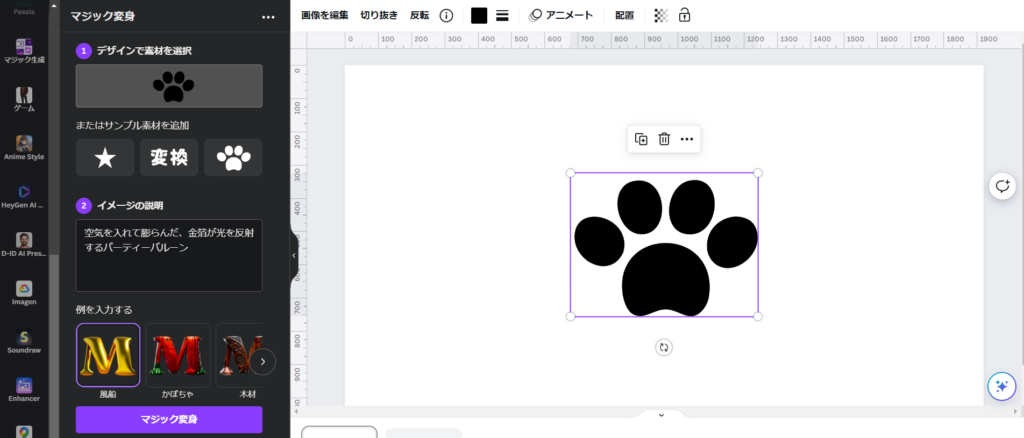
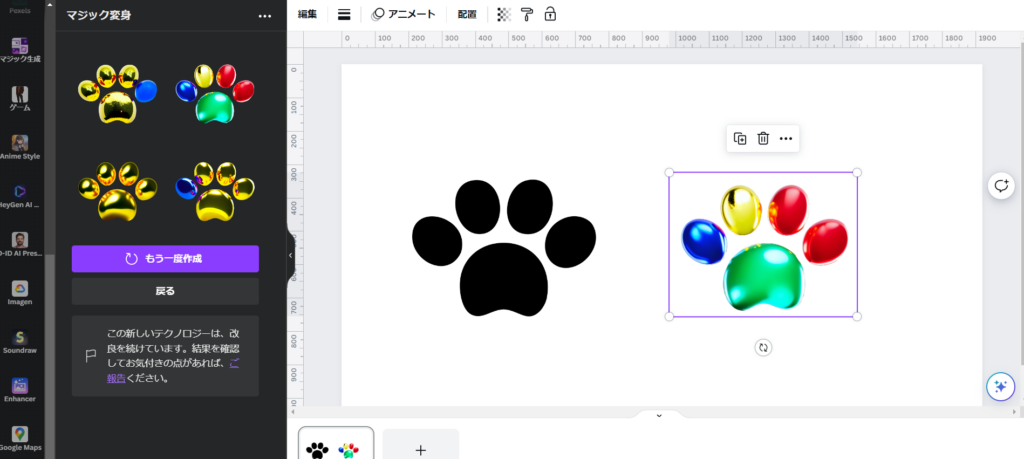
The plain black graphic was transformed into a colorful balloon-inspired image.
This feature works best on simple, symbolic graphics — it doesn’t handle complex photographs well. But for converting simple designs into polished, stylized visuals (like book covers or video thumbnails), it’s quite useful.
Magic Write
Text generation AI — similar to what ChatGPT offers — is also available in Canva through Magic Write.
Unlike ChatGPT’s chat interface, Magic Write is designed to work with text that’s already on your canvas. It can continue a piece of writing, summarize it, or rewrite it in various ways.
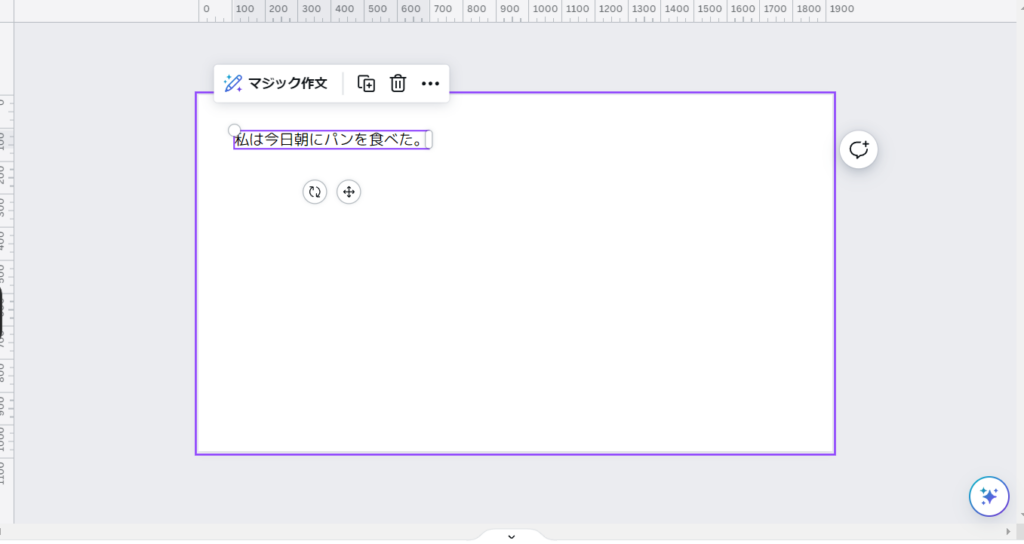
For example, if you type “I had bread for breakfast this morning.” in a text box and select it, you can access Magic Write:
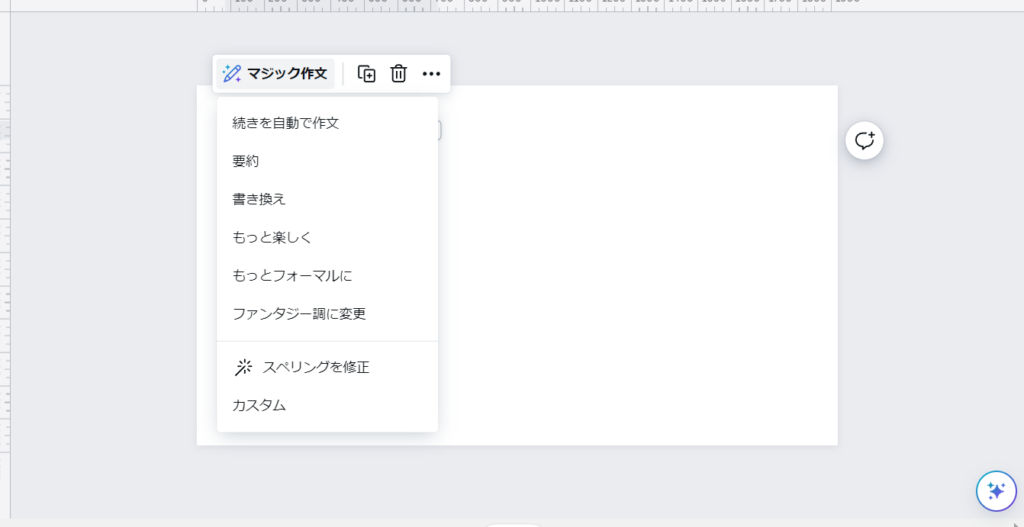
Clicking “Continue writing automatically” from that single sentence produces:
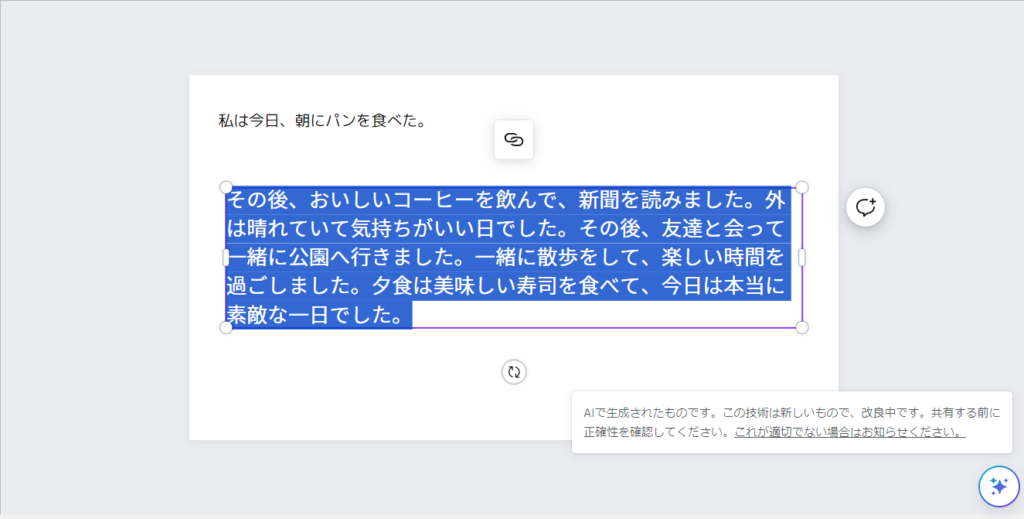
It’s a surprisingly capable generator from minimal input — useful for getting unstuck when you’re not sure how to continue a piece.
The “Summarize” function can then condense that extended text back down:
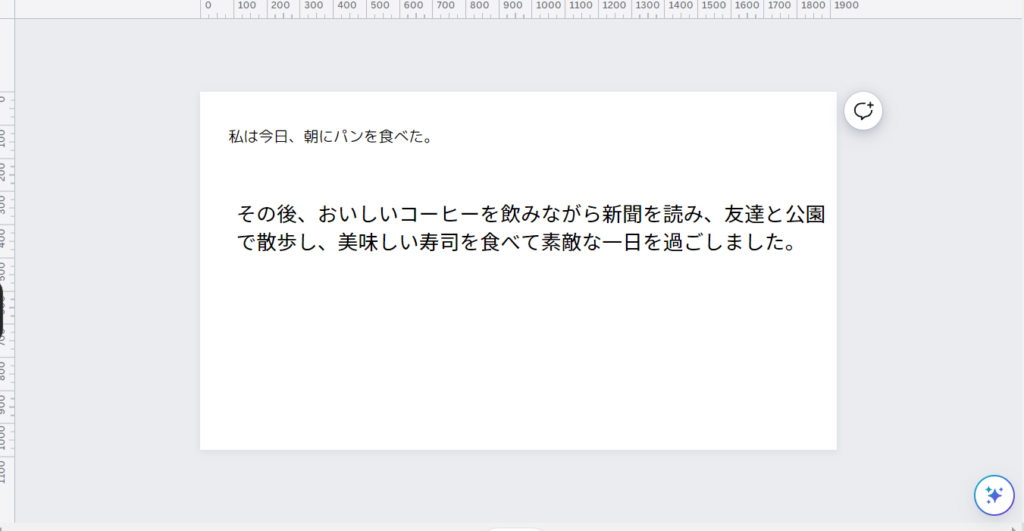
The summary is coherent and reads naturally. Most of the other Magic Write options work similarly.
One standout function worth highlighting: Fix spelling. This automatically corrects unnatural phrasing and errors in your text.
Here’s an example — the original sentence with informal slang, and the corrected version below it:
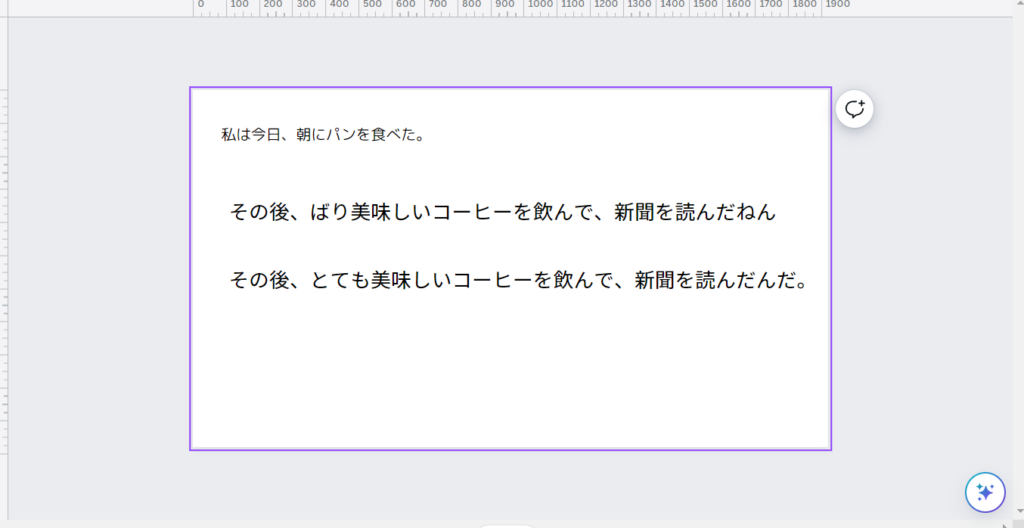
The casual/slangy expressions were replaced with natural standard language. Getting into the habit of running Fix spelling after writing in Canva will prevent awkward phrasing from slipping through.
Soundraw
This one was borderline to include, but it’s a rare music generation AI — worth mentioning.
Soundraw is originally a standalone web service, not a native Canva feature. Its primary use case is generating background music for videos and games. Note that selling the generated music directly (without modification) is prohibited by Soundraw’s terms.
Through Canva’s app integration, you can access Soundraw directly within Canva. However, you’ll need to register a Soundraw account separately, and Soundraw’s free tier only lasts two weeks — meaning you’ll need a paid plan for Soundraw in addition to your Canva paid plan.
Unlike the image and video generation features (which are included in the Canva paid plan), music generation has this additional cost layer. Worth being aware of.
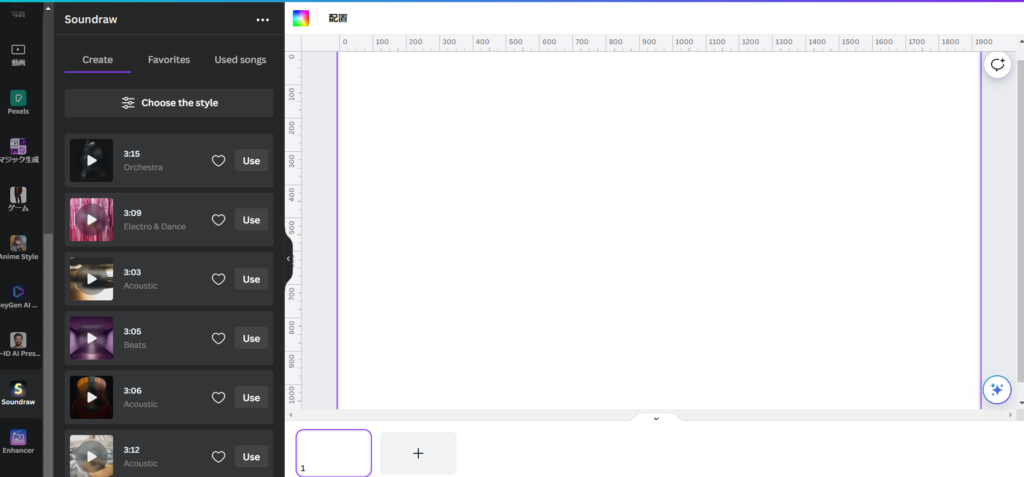
When you open the Soundraw app in Canva, it immediately generates a range of sample tracks:
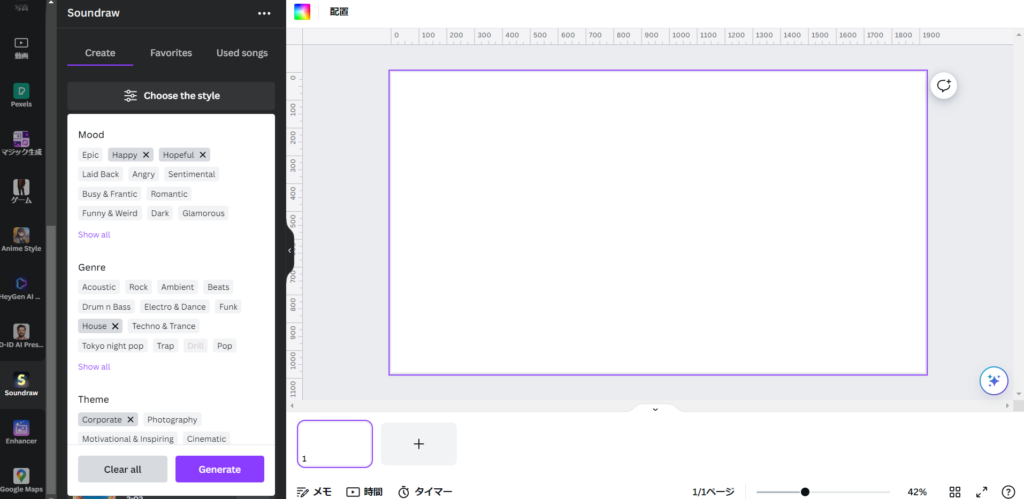
If you have a specific type of music in mind, click “Choose the style” to set parameters. You can specify Mood and Genre among other options. I selected “Happy,” “Hopeful,” “House,” and “Corporate” for this test:
This produces a collection of music samples:
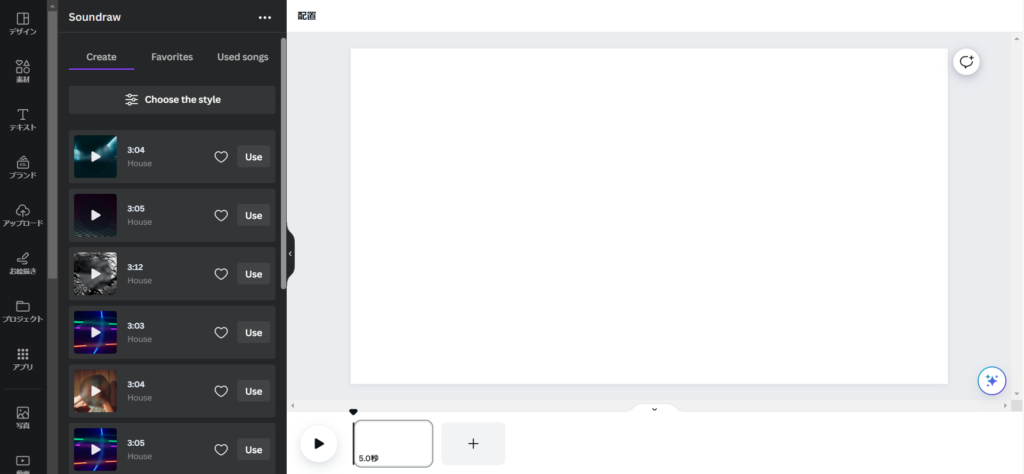
Whether the selected mood descriptors are clearly audible is debatable, but the output is genuinely listenable. For video and game background music, it’s at a practical level.
If you’re willing to pay for Soundraw as well, using it through Canva is a convenient option.
D-ID AI Presenter
D-ID AI Presenter is an app that creates a video of an avatar speaking text you provide — functioning as an AI voiceover with a visual presenter.
Whether it strictly qualifies as “generative AI” is debatable — it’s more in the AI voice/avatar category.
Like Soundraw, D-ID is an external service. You’ll need to register separately, and there’s an additional cost beyond the Canva paid plan.
To use it: open the app, choose a presenter image, input your text, select the language and voice style, and generate.
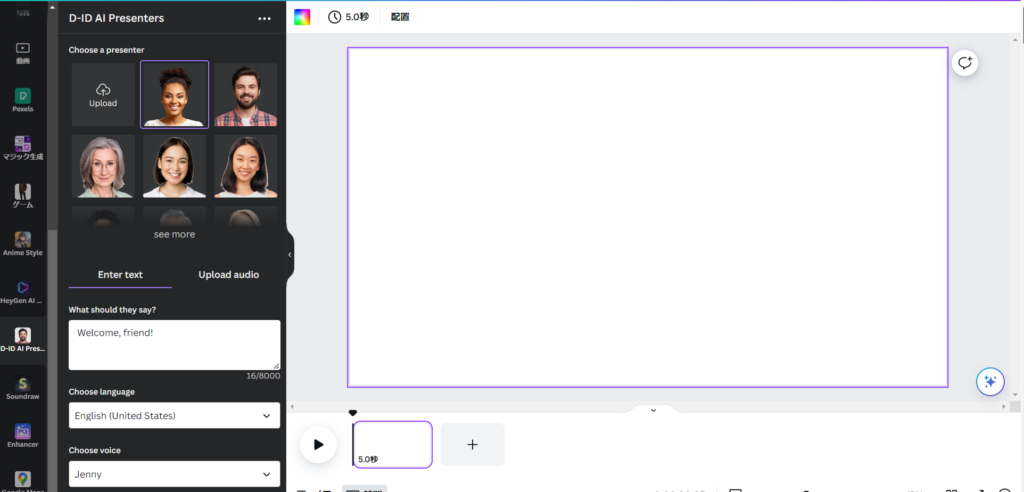
The selected AI presenter then reads your text aloud in the chosen voice and language.
Convenient in principle — though in Japan, there are many free or low-cost voice synthesis tools available, so the value of paying extra for this specifically is debatable.
Summary
This article covered Canva’s generative AI features.
There are many more apps available beyond what I covered here, and the lineup will certainly keep growing. Canva is well-suited for learning and experimenting with generative AI in a single accessible platform.
That said, many of the more powerful features require external integrations, and unlocking them fully means paying for services beyond your Canva subscription. That adds some friction.
If you’re willing to invest a bit extra, these features deepen your understanding of generative AI considerably and open up a lot of creative possibilities.
The next article will either cover more generative AI features or look at how to combine the tools from this article and the previous one in practical workflows. I hope you’ll come back to check it out.
Also popular with readers