Introduction
This article covers two Canva features: logo creation and presentations. If you’re completely new to Canva, start with the beginner introduction article first:
Creating a Logo in Canva
Canva makes it easy to create professional-looking logos. When creating a logo, use Canva’s dedicated logo canvas (an Instagram Post square canvas works as a substitute, since they’re both square).
From the Canva home page, select “Logo.” If it doesn’t appear on the home screen, type “Logo” in the search box at the top.

A square canvas for logo design opens:
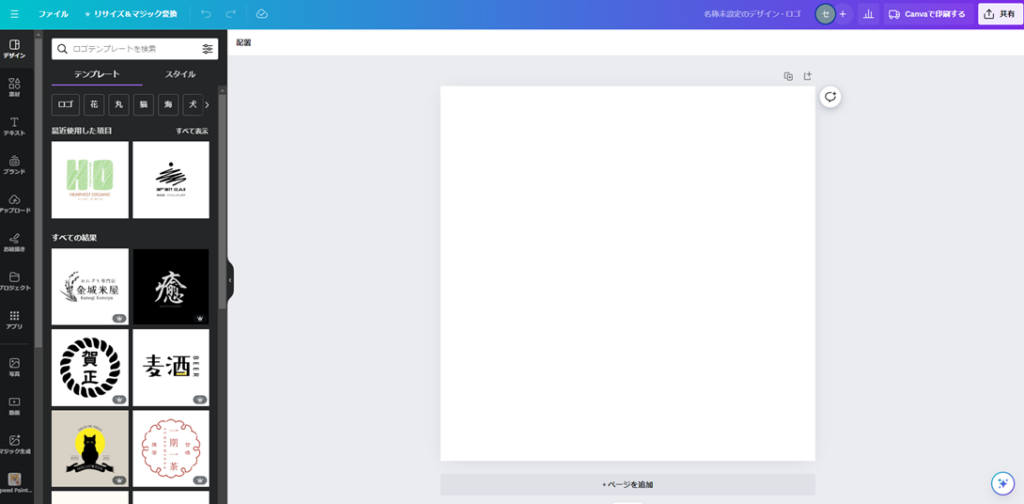
From here, you could design a logo from scratch — but that’s difficult without a design background. This is where templates shine.
Browse the logo templates displayed in the left panel and choose one that appeals to you.
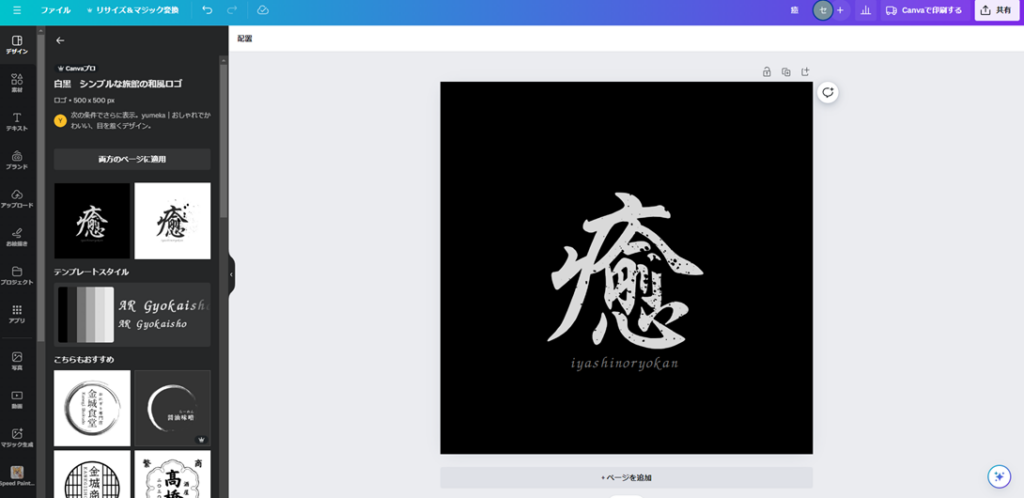
The selected template appears on your canvas. From there, change the text, colors, and other elements to make it your own.
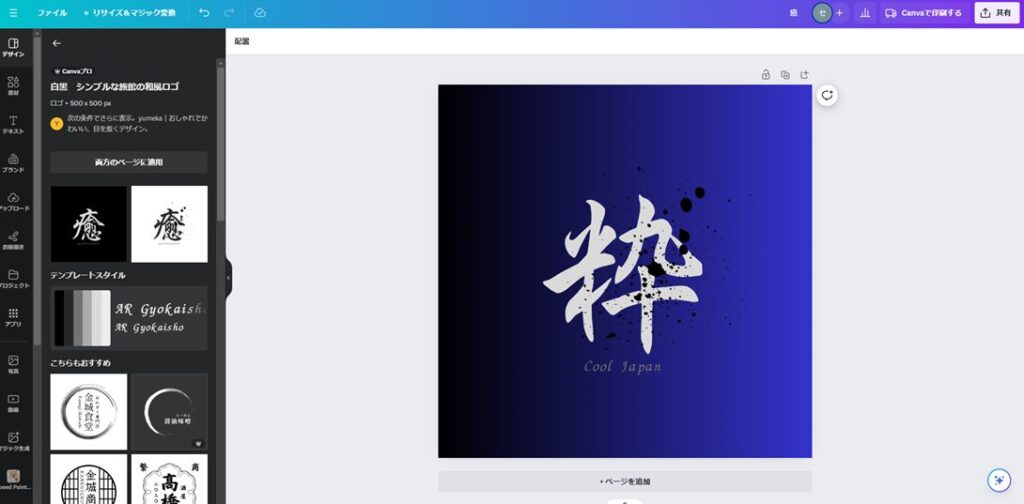
The result maintains the template’s design style while expressing completely original content. Canva’s strength is exactly this: using templates as the foundation to create something that looks original without starting from zero.
Presentations in Canva
The standard tool for presentations is Microsoft PowerPoint. But Canva includes its own presentation feature — and in my opinion, it produces more visually polished results than PowerPoint for most use cases.
To create a presentation, select “Presentation (16:9)” from the Canva home page.

A wide-format canvas opens that will look familiar to anyone who has used PowerPoint:
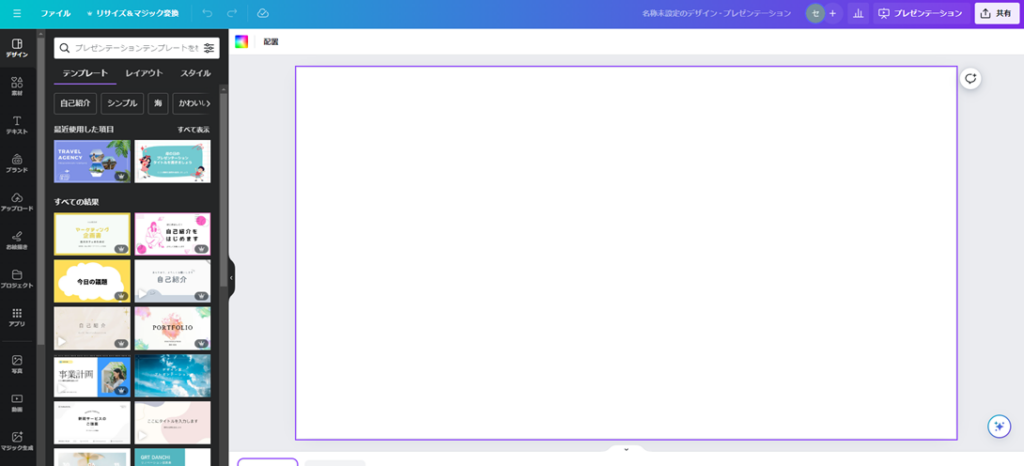
In PowerPoint, you’d typically start from a blank slide or pick from the “Designer” options. In Canva, you have access to an enormous template library — search for your presentation topic to find a relevant starting point.
For example: search “business report” for an annual report presentation, or “new product” to promote a product launch. Relevant templates will appear.
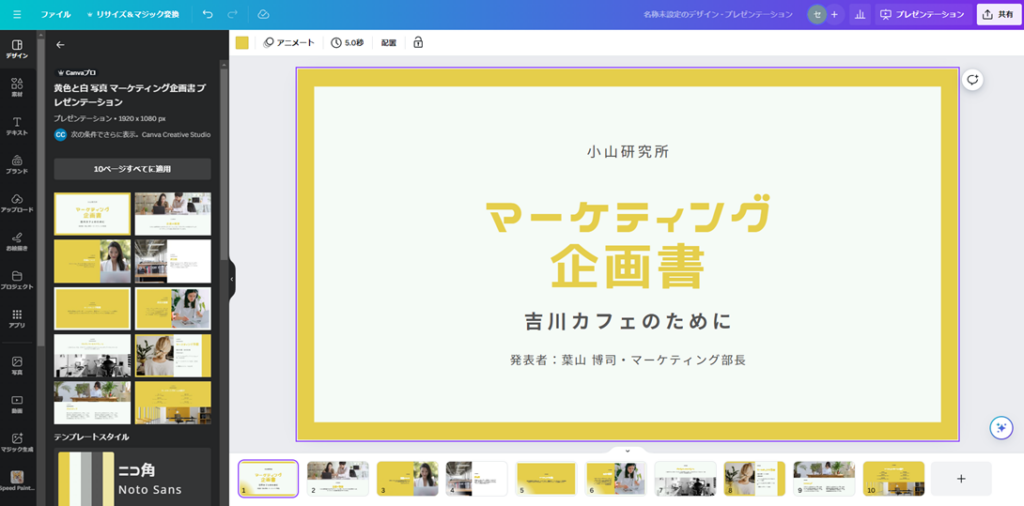
Selecting a template gives you a complete presentation flow — from opening to closing — that you then customize with your own content. All the text, element, and editing tools described in previous articles apply here as well.
Presenting: Presenter Mode
Once your presentation is ready, click “Present” in the upper right corner of the canvas to choose your presentation mode.

The most common option is Presenter view. If you want to record the presentation as a video, select “Present and record.”
Select Presenter view:

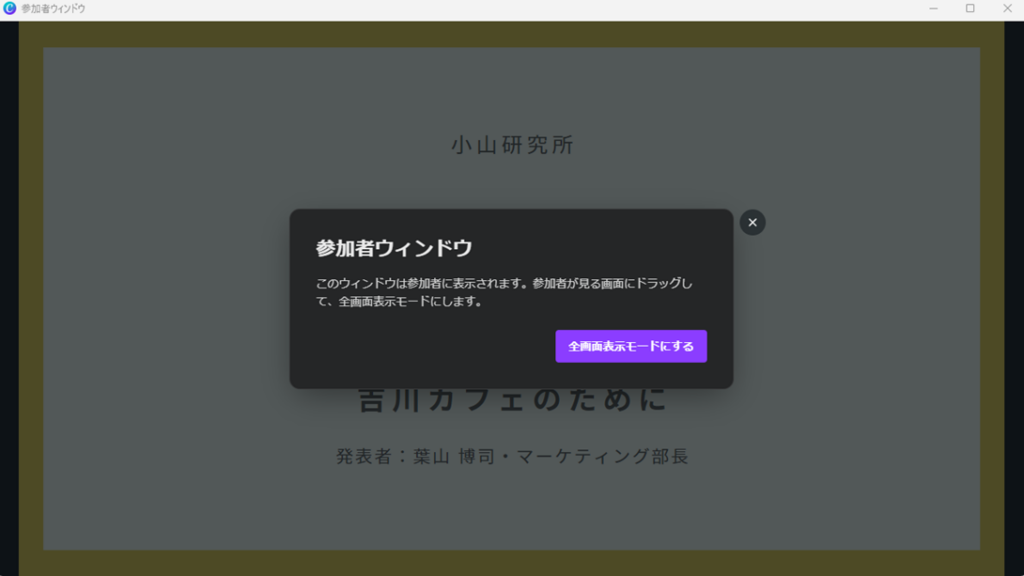
Two windows appear: a Presentation window (your control view) and an Audience window (what your audience sees). When presenting remotely, share the Audience window with your audience while you control the Presentation window yourself.
As you advance slides in the Presentation window, the Audience window updates in sync. This two-window system makes for smooth, controlled presentations.
Other useful features in presentation mode include Animate (covered in the video editing article):
The experience is similar to PowerPoint overall, but Canva’s richer template selection and better integrated design tools generally make it easier to create visually appealing slides.
Summary
This article covered logo creation and presentations in Canva.
Canva is a versatile tool with a wide range of applications — creating a stylish logo for a business or personal project is just one more thing it makes accessible.
For presentations, Canva offers a more design-forward experience than PowerPoint, with templates that are easier to customize into something polished. I’d encourage you to give it a try next time you need to put together a presentation.
For the beginner’s introduction to Canva:
Canva for Beginners: How to Use It, AI and Pricing Plans
Also popular with readers