Introduction
This article explains Canva’s elements (shapes, graphics, photos, etc.) — what they are, how they differ, and when to use each type. If you’re completely new to Canva, start with the beginner introduction article:
Canva Elements: What They Are
In Canva, “elements” is the collective term for the visual assets built into the app that users can freely use in their designs — photos, graphics, shapes, videos, and more.
“Freely use” comes with one caveat: what’s available depends on your plan.
When browsing elements, you’ll notice that some assets display a crown icon in the lower right corner and some don’t:
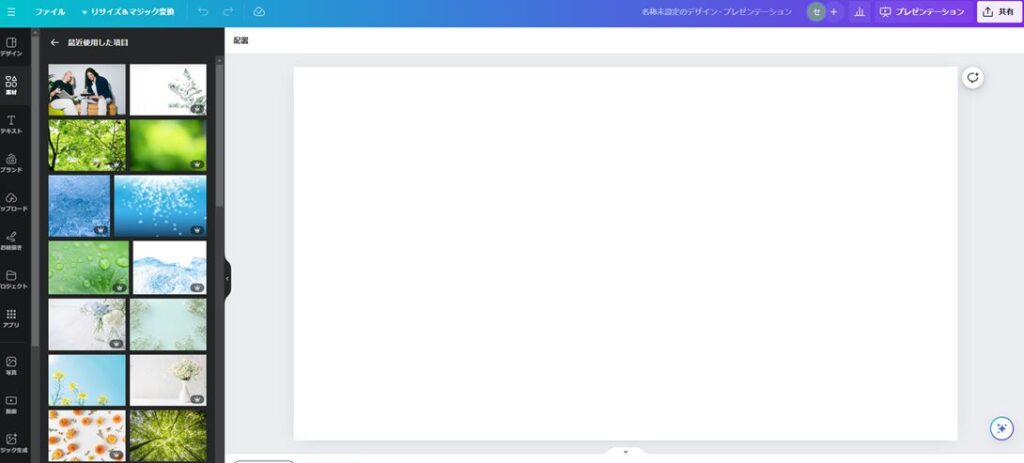
Assets with the crown icon are paid plan only. Free users must check for the absence of this icon before using an asset.
Shapes vs. Everything Else (Graphics, Photos, etc.)
There’s one fundamental difference in how elements work that every Canva user should know: the distinction between shapes and all other element types.
In the image below, the gray square on the left is a “shape” and the black-and-white square on the right is a “graphic”:
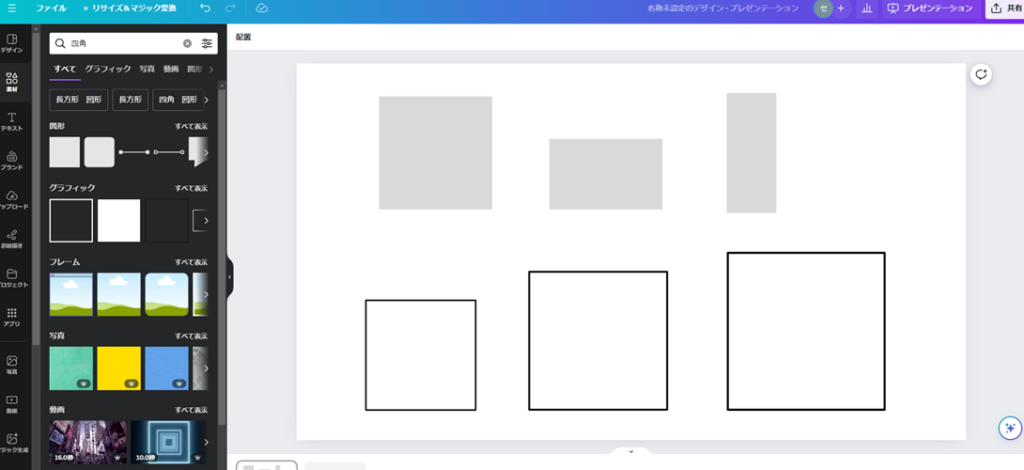
Painted the same color, these look virtually identical. But they behave very differently.
A shape can be resized with a free aspect ratio — you can stretch it into a wide rectangle, a tall rectangle, or any proportion you like.
A graphic (and all other non-shape elements) has a fixed aspect ratio. You can scale it up or down, but you cannot change its proportions. Photos work the same way.
This means: only shapes can have their aspect ratio changed freely. Everything else maintains its original proportions when resized.
This is a critical detail to understand. Failing to know it leads to frustration when you can’t reshape a graphic the way you want. Remember: shapes are the only element type that can be freely resized in any proportion.
Available Shape Types
To see all available shapes: open the “Elements” panel on the left side of the canvas, then click “See all” next to the “Shapes” section.
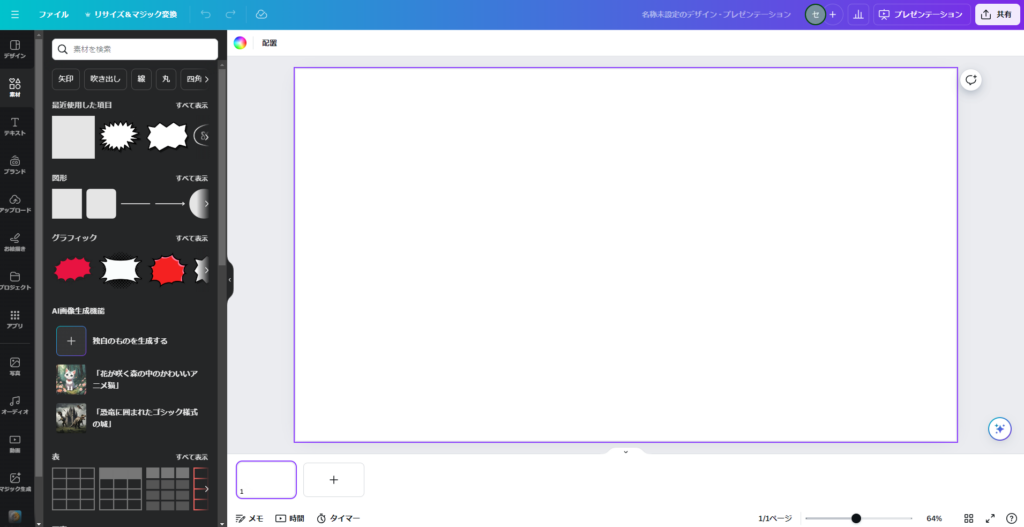
Here’s the full shape library:
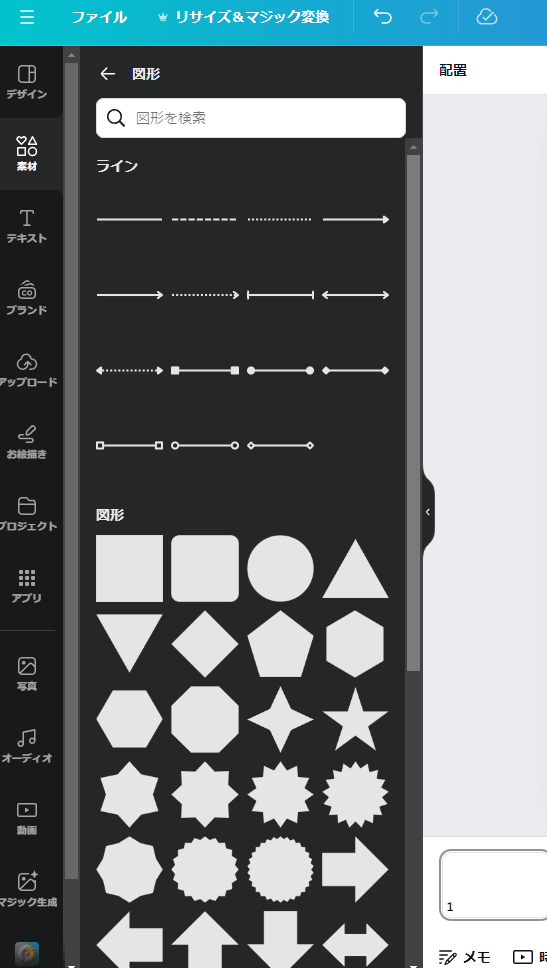
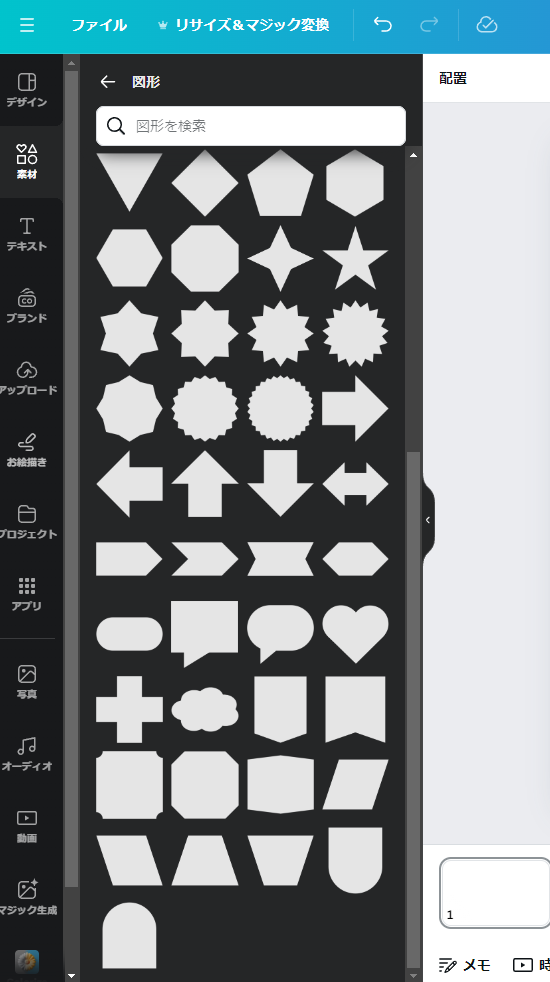
In practice, this shape library is somewhat limited. Notably, there are only two speech bubble shapes, and the position of the “tail” on the speech bubble can’t be moved — a common frustration. When shapes can’t do what you need, graphics are the alternative.
Graphics
“Graphics” in Canva covers a broad category — essentially all illustrations and icons that fall outside the shape category.
This ranges from stylized, polished illustrations to simpler icon-like images. Graphics are the most versatile element type in terms of visual variety, but they have limited editability: aspect ratio is fixed, and your main editing options are resizing, flipping horizontally or vertically, and adding a border.
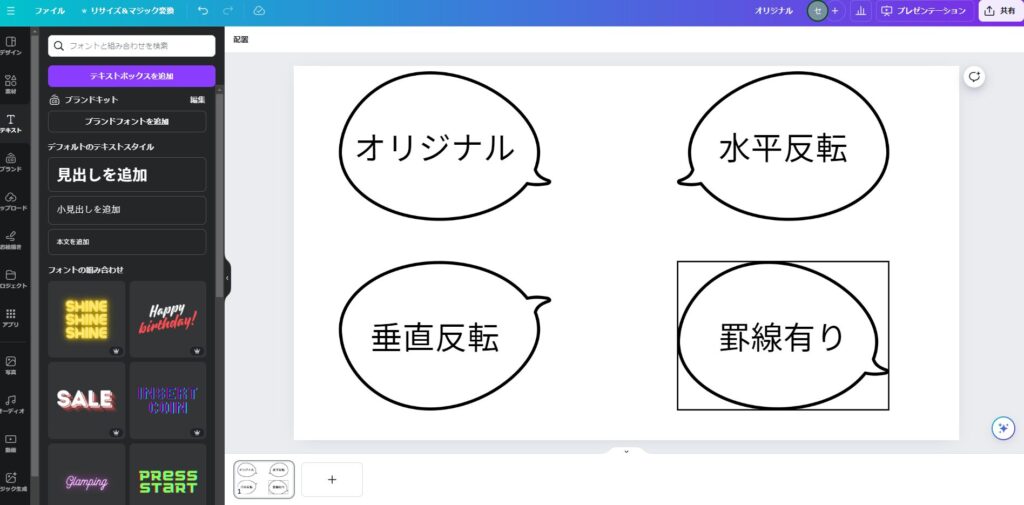
Horizontal and vertical flip are genuinely useful and worth remembering — they let you adapt a graphic to different layouts without needing a mirrored version. Borders, on the other hand, tend to look unnatural on most graphics and are rarely useful.
Photos
Photos in the element library are exactly what they sound like: real photographic images (as opposed to illustrations). These are essential for creating polished, professional-looking designs.
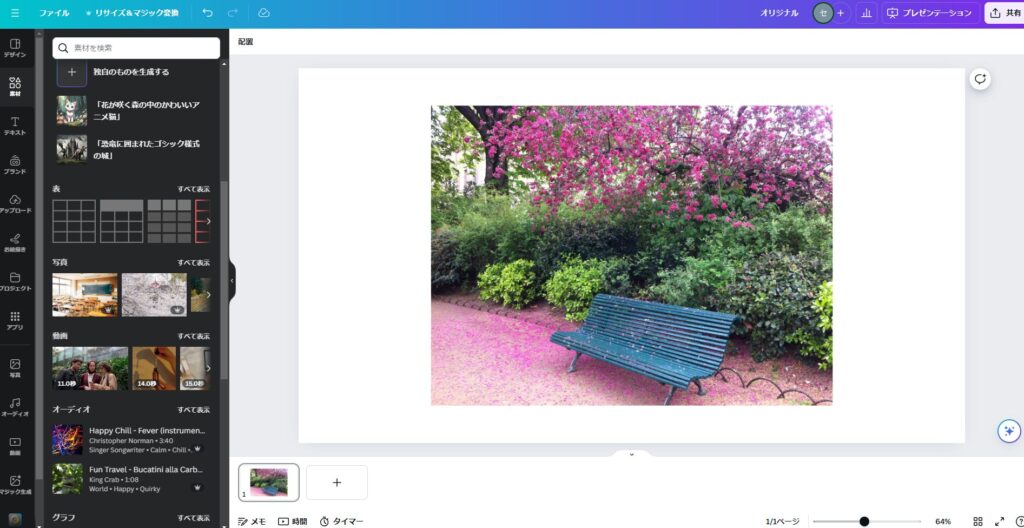
Photos behave the same as graphics in terms of aspect ratio and flip functionality. However, photos have one major advantage: they support AI editing features (Magic Studio) that graphics do not.
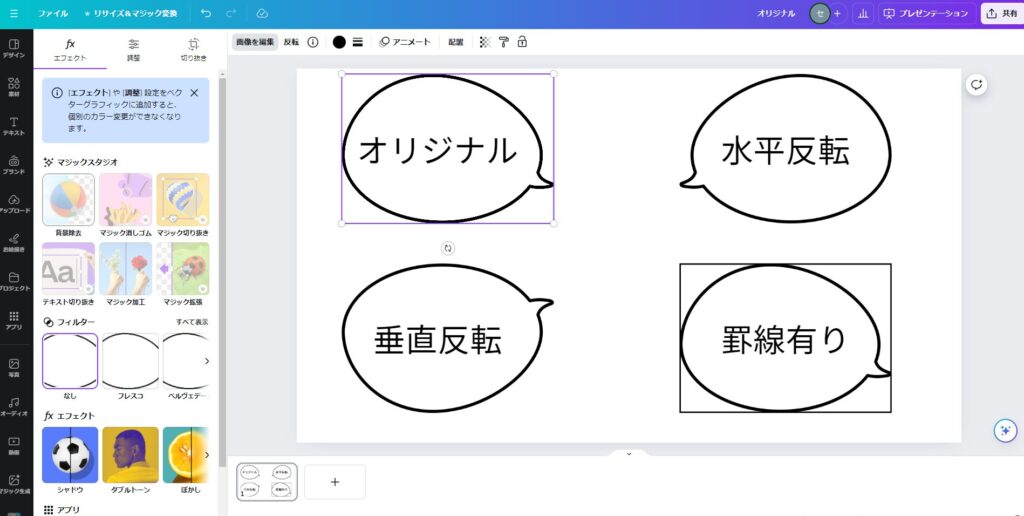
For example, if you click a graphic and select “Edit image,” you’ll find the Magic Studio options are disabled:
But the same speech bubble in photo form has Magic Studio fully enabled:
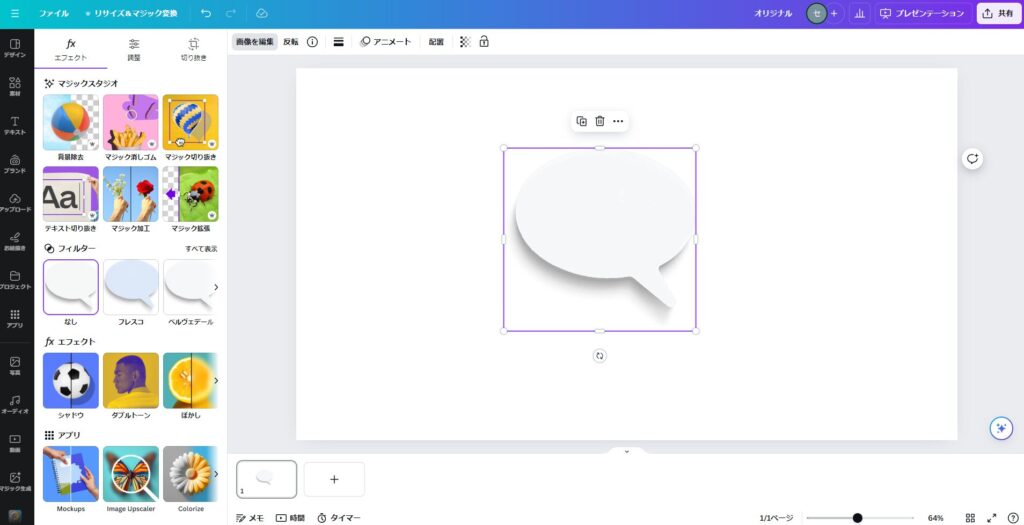
Magic Studio’s photo editing capabilities dramatically expand what you can do with images. For a guide on using Magic Studio, see:
Summary
This article covered Canva’s element types — shapes, graphics, and photos — their differences, and how to use each effectively.
Each element type has distinct characteristics, and knowing when to use which one is key to getting the most out of Canva:
- Shapes are the only elements with a freely adjustable aspect ratio — great for backgrounds, containers, and structural layout elements
- Photos unlock Magic Studio AI editing, greatly expanding your creative options
- Graphics offer the widest visual variety for decorative and illustrative elements
More Canva feature articles are coming — I hope you’ll continue reading.
For the beginner’s introduction to Canva:
Canva for Beginners: How to Use It, AI and Pricing Plans
Also popular with readers