
Introduction
This article explains how to create a website using Canva. If you’re completely new to Canva, start with the beginner introduction article first:
Building a Website in Canva
One of Canva’s more surprising features is the ability to create and publish personal websites and landing pages.
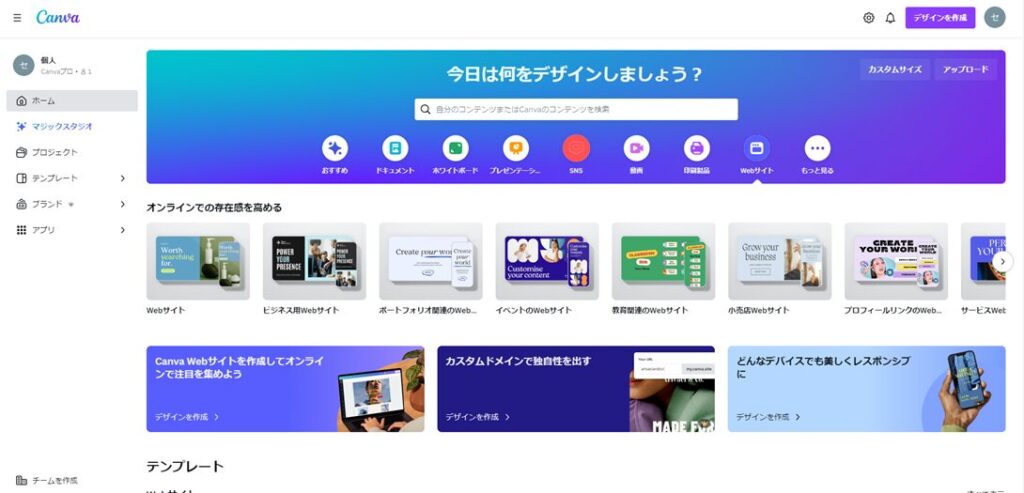
To get started, select the “Website” tab from the Canva home page, then click the design labeled “Website.”
A canvas opens — similar to image editing:
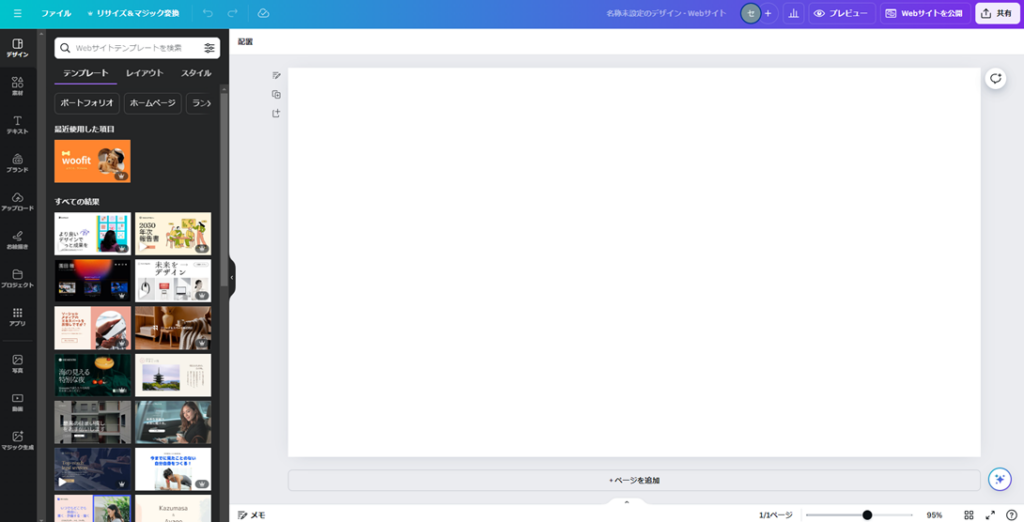
If this is your first time, browse the left panel’s “Design” section and pick a template to start from. Even when building a new site from scratch in the future, starting with a template and editing from there is the most efficient approach.
After selecting a template, click “Publish website” in the upper right corner of the canvas.
A dialog appears where you can configure the URL and publish settings. For now, leave everything at the defaults and click the “Publish website” button at the bottom.

After a moment, a “Your website has been published” confirmation appears. Click “View website” to verify it.
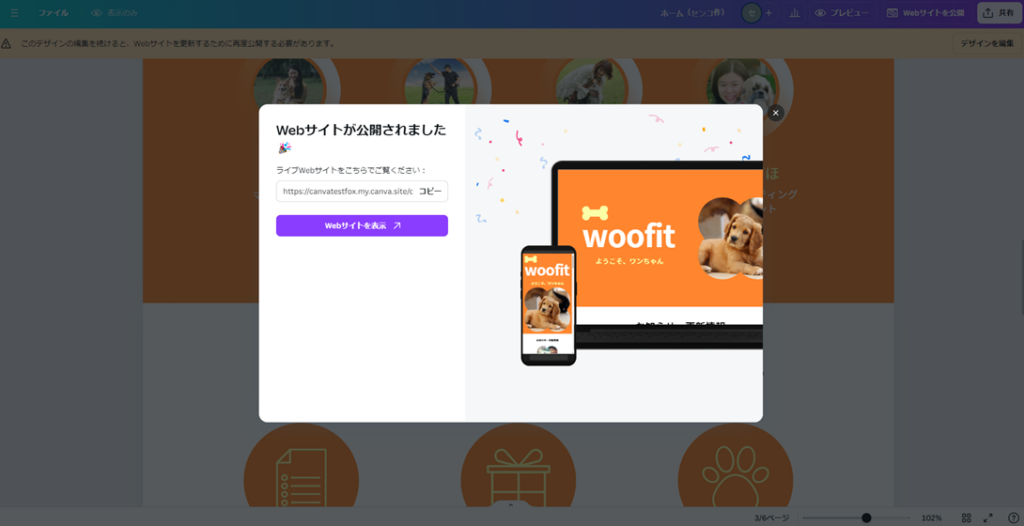
A browser window opens showing your published website — exactly as it looked on the Canva canvas.
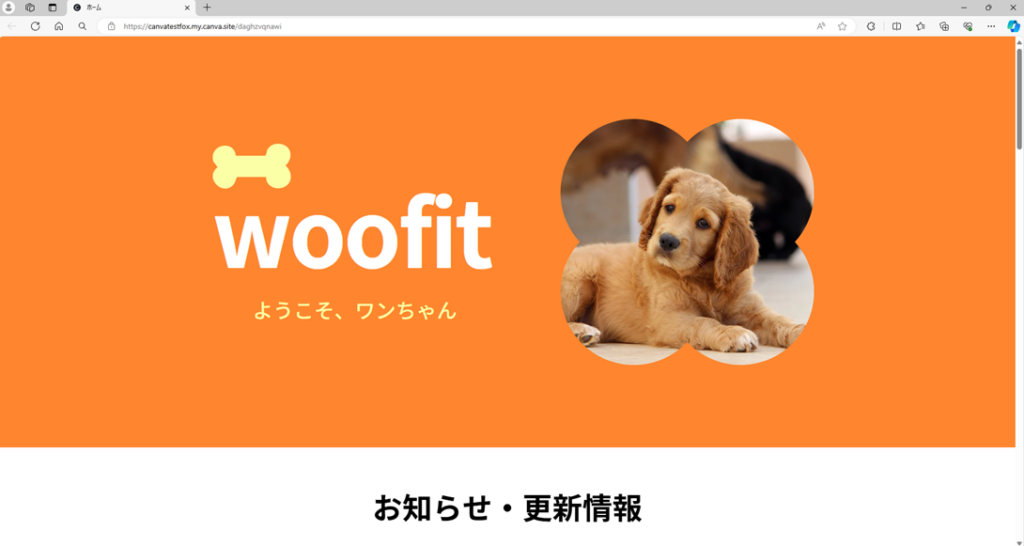
In this example, the site was published to a Canva-provided domain (the default). If you own your own domain, you can specify it during the publish settings step to host the site on your own domain instead.
This feature makes it very easy to create landing pages — standalone pages used to introduce and promote products or services, commonly linked from social media.
If you’re planning to create any kind of product or service introduction page in the future, this feature is worth remembering.
One practical note: this example published the site immediately without previewing. In practice, use Canva’s “Preview” function to check for any visual issues or broken elements before publishing — it’s worth the extra step.
Summary
This article covered Canva’s website creation feature.
Normally, building a website requires either writing code yourself or using a tool like WordPress with hands-on configuration. With Canva, you can create and publish a website using the same familiar design workflow — working with templates and visual elements just as you would for any other design project.
One particularly useful aspect: any design you create in Canva can be published as a website using the same steps. A presentation you made for a meeting, for instance, could be turned into a website with virtually no additional effort.
Keep this in the back of your mind as you use Canva for other projects — if something you’ve designed would work as a web page, publishing it is quick and simple.
For the beginner’s introduction to Canva:
Canva for Beginners: How to Use It, AI and Pricing Plans
Also popular with readers