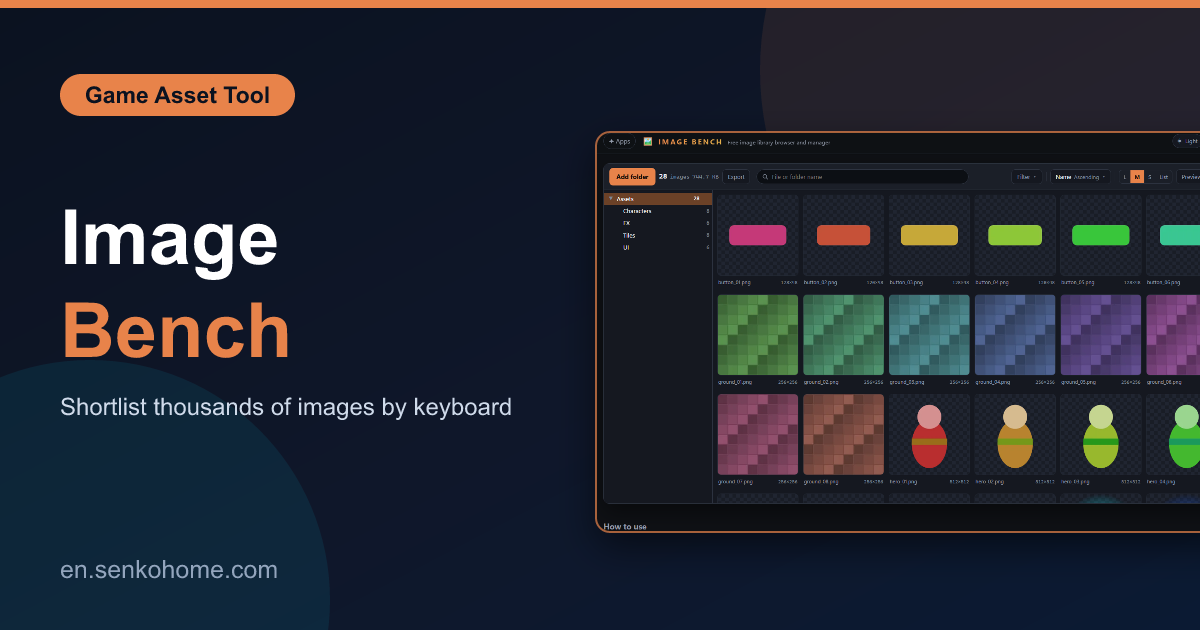
Thank you for visiting the site. This article is about “Image Bench”, a free browser tool for going through a very large folder of image assets and deciding, one key press at a time, which ones you will actually use.
It is the sister of Sound Bench, and it came from the same problem. Image managers like Eagle or Billfish pull everything into their own library, so the moment you move a folder in Explorer the two fall out of step. Adobe Bridge has everything but is heavy. XnView and IrfanView are fast viewers with no notion of “keep rating and narrowing until a shortlist is left”. That narrowing is the job, so I built a tool for it.
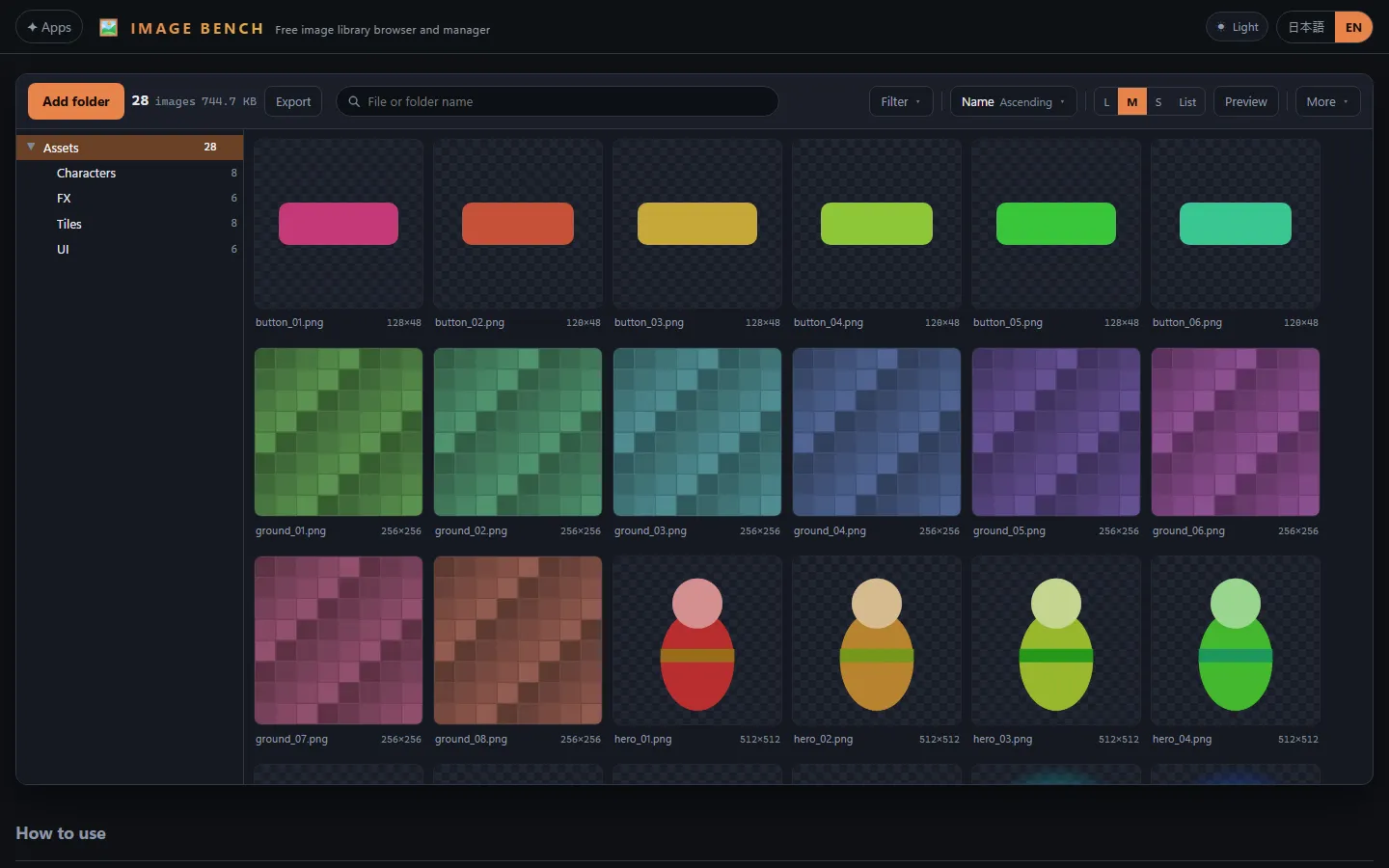
🖼️ Open Image Bench (free)No sign-up, nothing to install. Add a folder and the grid fills in
A Grid That Respects Your Folders
Add a folder and the images appear in a grid, arranged by the folders they are already in. Thumbnails are generated only for what is on screen, so a folder with tens of thousands of files is usable within a second or two, and the second time you open it the cache is warm. Nothing is moved, renamed or uploaded; the tool only reads.
The filters are the first thing that makes a huge folder manageable. Set a minimum long edge and every icon disappears, leaving the real assets. Filter for transparency and only the cut-out sprites remain. You can narrow by format, PNG, JPEG and so on, and by file size. PSD and TGA files are decoded in the browser too, which most web tools cannot do.
Rate, Adopt, Reject, Next
The selection loop is built so that “marking something moves you to the next one”. Press 1 to 5 to rate, A to adopt, X to reject, Shift plus a number for a colour label, and each press advances to the next image. With a few hundred candidates you never have to reach for the arrow keys between decisions. Rejected images are hidden rather than deleted, and Ctrl+Z takes back a mistake.
Holding Shift or Ctrl while selecting lets you mark or export a batch at once. Favourites go into collections, filters you use often can be saved under a name, and pressing ? shows the keys that work on the current screen.
Checks for Game Assets
The zoomed view is where the game-specific checks live, and it is what makes this different from a viewer.
- Swap the background behind a transparent image between black, white and a checkerboard, so you can see it against the colour it will actually sit on
- Pixel art switches to nearest-neighbour scaling once you zoom in, so it stays crisp instead of blurring
- Tile a texture in a grid to see immediately whether the seams show
- View the R, G, B and A channels one at a time, which is the only way to know what is packed into a mask texture
- Images whose dimensions are not a power of two are flagged, and the proportion of transparent margin is shown, because both matter the moment the image goes into an engine
The comparison tray keeps zoom level and position when you switch between candidates, for the same reason Sound Bench keeps the playback position: a fair comparison has to look at the same spot.
Summary
This article introduced Image Bench.
It takes the part of asset work that is pure volume, looking at thousands of images and keeping a few, and turns it into a keyboard rhythm that does not break your folder structure. If you have an asset library that you bought and never properly looked through, this is how I finally looked through mine.
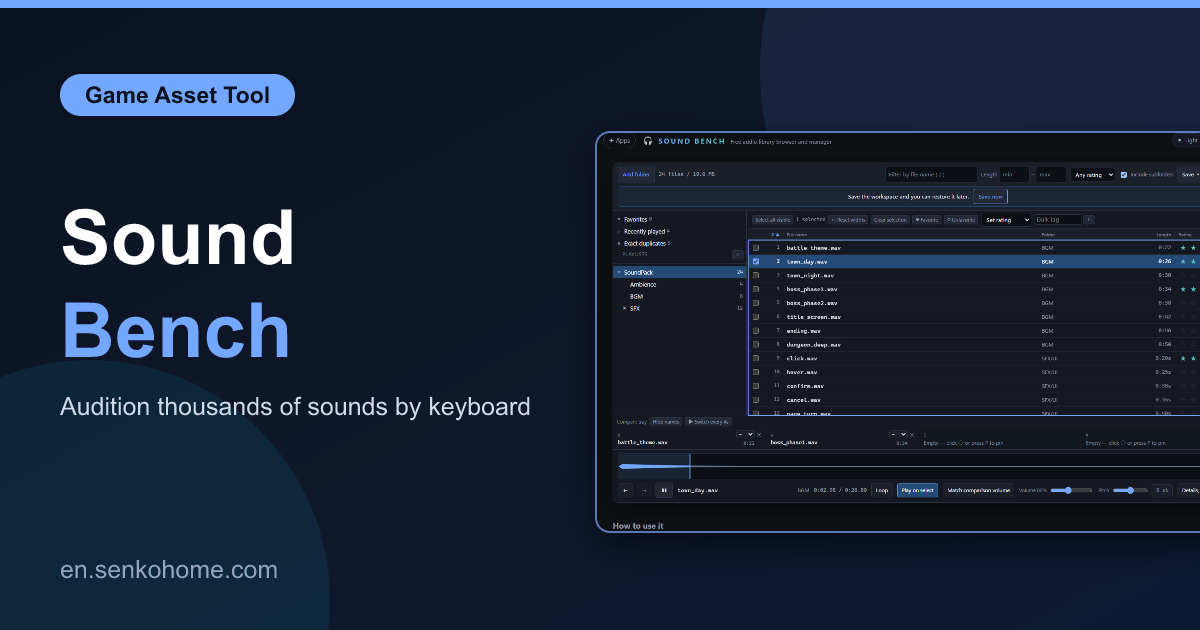
The audio version of the same idea is here.
I hope you will read the next article as well.
Also popular with readers
📚 Series: Free Browser Apps I Built (11/11)