Introduction
This article is a beginner’s guide to Canva — a tool available for free. It covers basic usage, what generative AI features are available, and how the free and paid plans differ.
For a detailed look at what Canva can do, the official Canva website is the best resource. I’d recommend browsing it after reading this article.
What Is Canva?
Canva is a graphic design tool that lets anyone create professional-looking designs — images, graphics, and visual content — without needing design expertise.
Founded in Australia in 2013, Canva’s defining characteristic is its accessibility: anyone can create visual content with just a few clicks, regardless of design background.
Today, millions of people around the world use Canva — from individual users to large enterprises.
Canva’s mission — “to empower everyone to design anything from anywhere” — reflects this commitment to being usable by everyone.
And while it’s called a graphic design tool, the scope is much broader: video creation and editing, PowerPoint-style presentations, icon and logo creation, and more.
What Makes Canva Worth Using
Over 1 Million Templates
Canva offers more than 1 million templates for creating designs — business cards, flyers, business proposals, social media post images, and many more. Even design beginners can create polished images simply by selecting a template and changing the text.
Over 100 Million Assets
Beyond templates, Canva provides access to over 100 million assets — photos, videos, illustrations, and music. Combine templates with custom photos and your content becomes truly original.
Works on Any Device, No Installation Required
One of Canva’s biggest features is that you don’t need to install anything on your computer. Log into Canva through any browser, and you can use its full feature set from there.
This means you can work on the same design file from multiple computers or devices. There’s also an installable desktop version if you prefer working offline — I personally use the installed version. Android and iOS apps are also available, making Canva accessible from virtually any device.
Intuitive UI Makes Design Easy
Creating and editing images, presentations, and videos in most design tools typically requires specialized knowledge and technical skill. Canva changes that — its intuitive interface, combined with the templates and assets described above, makes it genuinely accessible to complete beginners.
Try it and you’ll understand: Canva requires no technical background whatsoever. Anyone can create professional-looking images.
This relentless commitment to user-friendliness is what makes Canva unique.
How Canva Compares to Competing Tools
Tools similar to or competing with Canva include:
- Adobe Express (also beginner-oriented)
- Adobe Photoshop (professional image creation and editing)
- Adobe Illustrator (vector design for logos and illustrations)
- PicMonkey (very similar to Canva)
- Photopea (feature-rich and completely free)
None of these perfectly overlaps with Canva’s feature set, but all fall within the broad “design tool” category.
Where Canva Excels
Canva’s advantages over these alternatives are the same features highlighted above: intuitive UI, accessibility for beginners, extensive templates and assets, and cross-device support. No other design tool combines all of these at the same level, in my view.
Where Canva Falls Short
Canva’s weakness compared to other design tools is in specialized, professional-level features.
Canva is designed to be accessible to everyone — which means it falls short of pro-level tools like Adobe Photoshop in terms of granular control. Fine-level editing and adjustments aren’t always possible, font selection is limited, text can only be set at block level, and asset scaling is constrained by fixed aspect ratios.
In short: Canva is excellent for design beginners, but professionals who need precise control will find it insufficient for specialized work.
This is by design — Canva is a versatile, general-purpose tool, not a professional illustration suite. For professional-grade illustration work, a specialized tool is the right choice.
Basic Canva Usage
Creating an Account
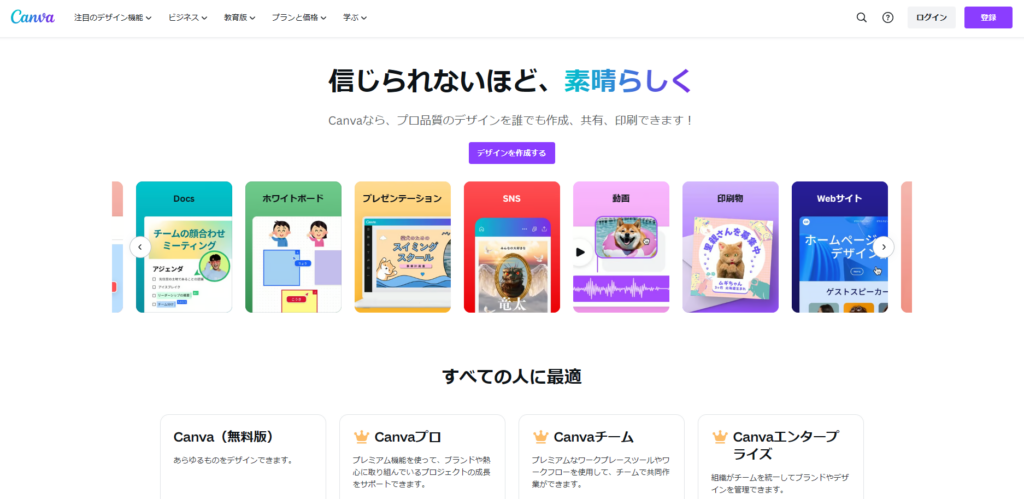
Open the Canva website in your browser and click “Sign up” at the top of the page.
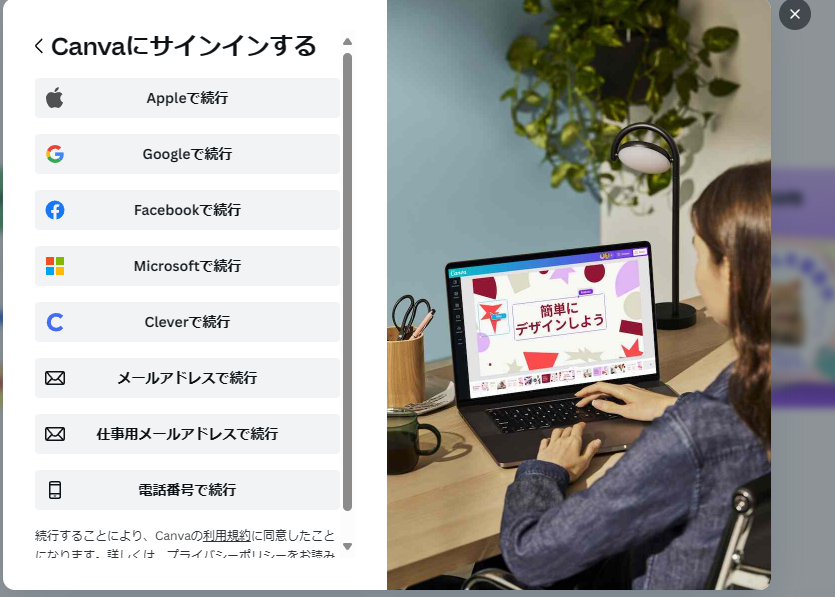
You’ll be asked how you want to sign up. Most people already have a Google or Apple account — linking one of those is the easiest option. If not, use your email address or phone number.
Once linked, you’ll be taken to the Canva home screen. If a plan selection screen appears, refer to the plan explanation section below.
Starting a New Design
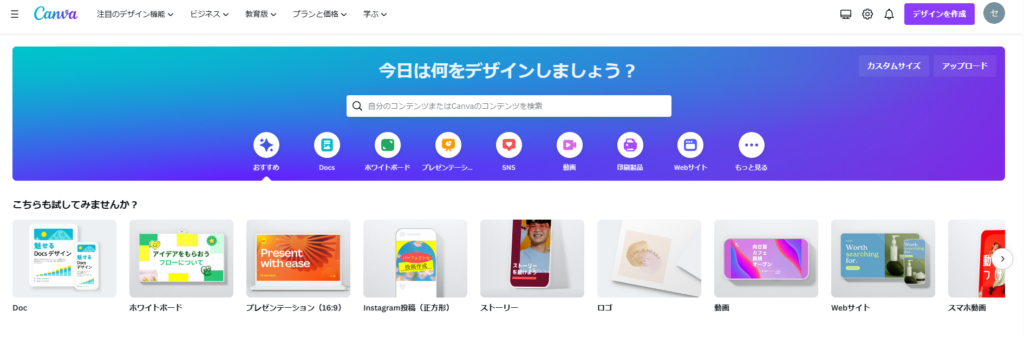
After logging in, the home screen offers options for what type of design you want to create. Your choice here determines the canvas size. Changing canvas size later is slightly inconvenient, so it’s worth thinking about your target size in advance.
If it doesn’t matter, any option works. For this example, I’ll use “Presentation (16:9)” — the format I use most often.
If the size you want isn’t listed, click “Custom size” in the upper right to set specific dimensions.
A blank white canvas opens at the selected size.
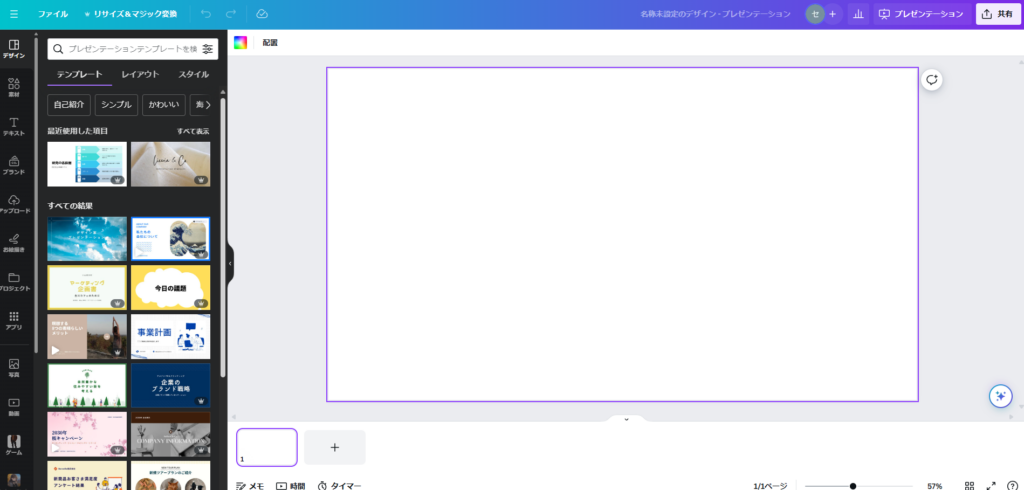
A blank canvas is a bit overwhelming if you’re starting from scratch. That’s where Canva’s templates and assets come in.
Using Templates
On the left panel of the editor, select “Design.” A range of templates will appear — browse or search for one you like. Click a template to apply it to your canvas.
From there, customize it: change the text, swap in your own photos, adjust the background color. Even minimal changes transform a template into something original.
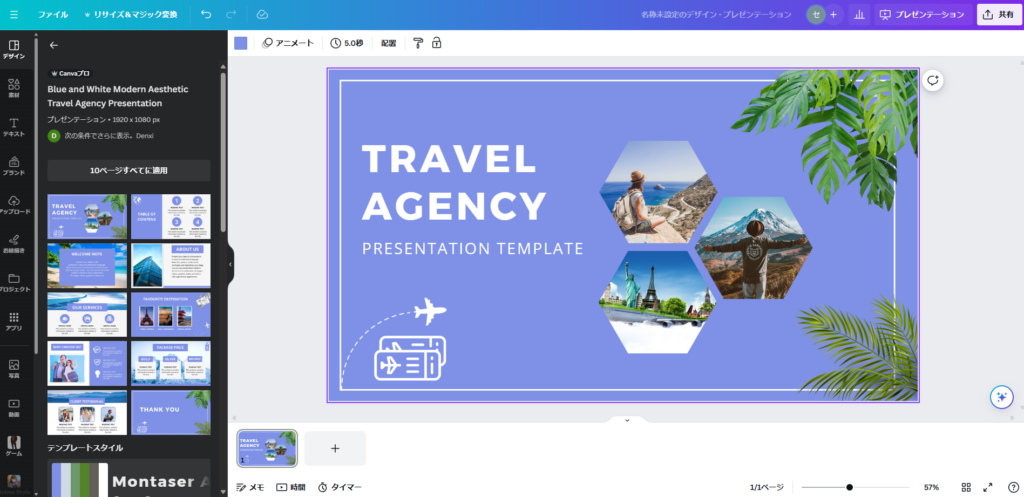
Using Assets
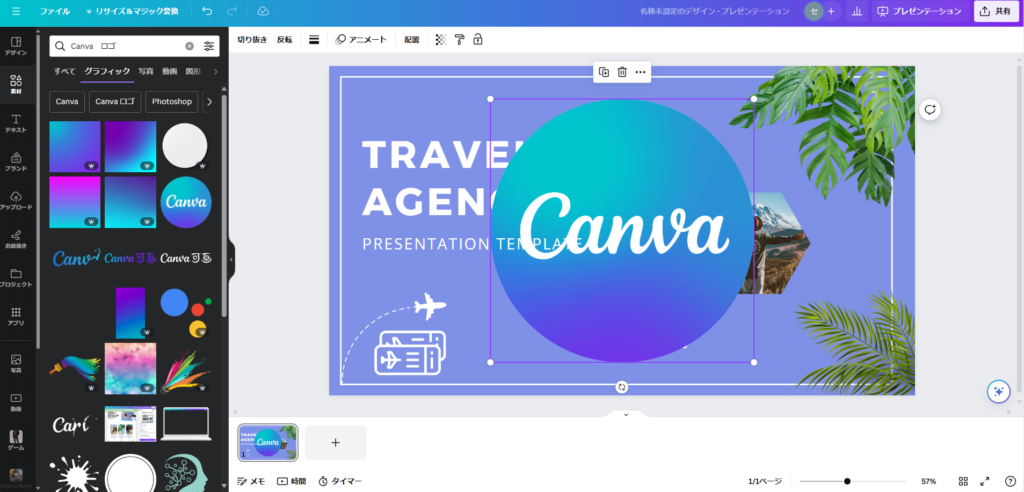
From the left panel, select “Elements.” A panel of assets will appear. Because there are so many, searching for what you need is the practical approach.
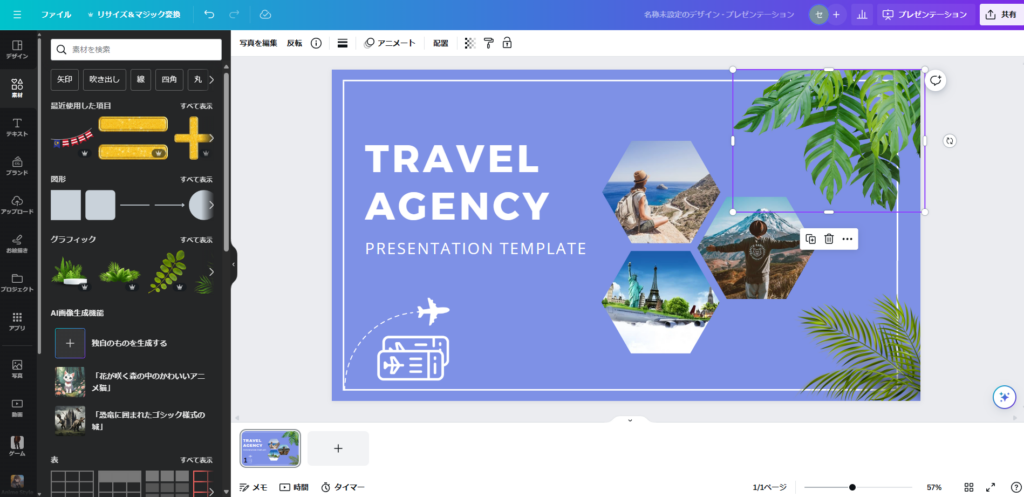
For example, searching “Canva logo” returns many Canva logo options. Clicking an asset places it on your canvas.
Combining Templates and Assets
Once you know how templates and assets work, mix and match them freely. For example, I deleted all the default content from the template I selected earlier and replaced it with text relevant to this article plus the Canva logo:
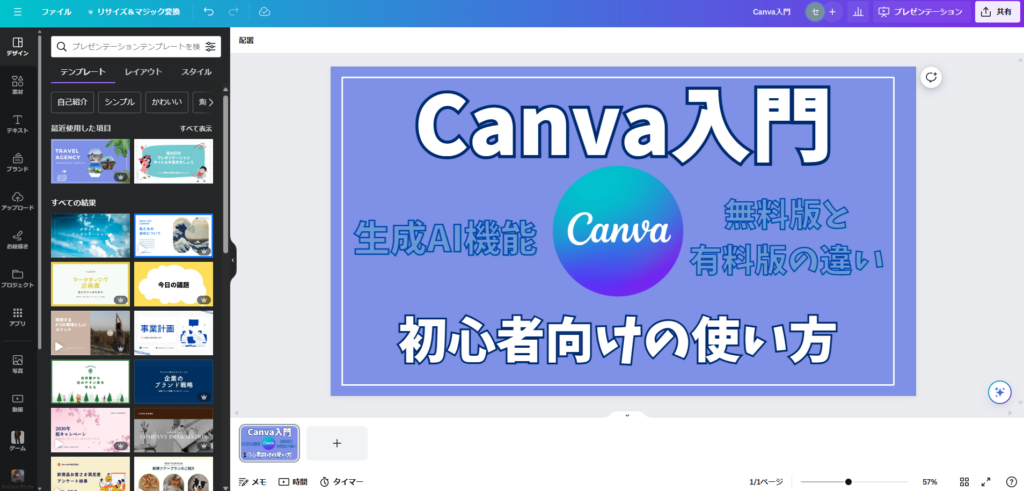
This stripped out most of the template, but even someone with zero design instincts (like me) can produce something that looks reasonably polished.
Detailed operations aren’t covered here, but once you understand templates and assets, the rest becomes intuitive through practice.
Saving as an Image File
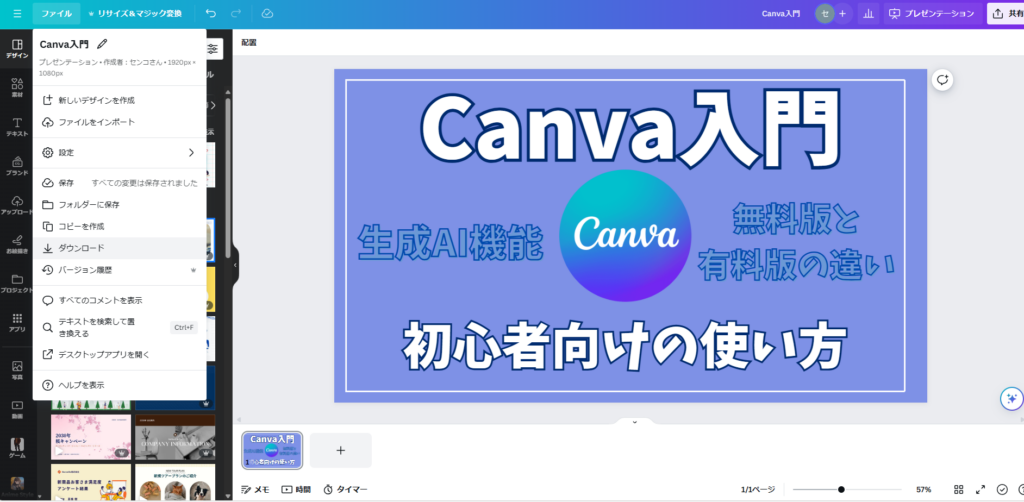
To export your canvas as an image file, select “File” in the upper left, then click “Download.”
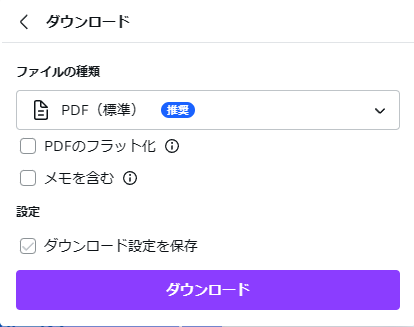
Choose your preferred file format from the dropdown, then click “Download” to save the file to your device.
Canva’s Generative AI Features
As of May 2024, Canva already has a large number of generative AI features — and more are expected to be added over time.
However, most generative AI features are only available in the paid version. A paid plan is essentially required to use them seriously.
For a detailed look at what’s available, see the articles below:
Canva’s AI Generative Features: Magic Generate, AI Image & Video Generation, and More
Canva’s AI Image Editing Features: Background Removal, Magic Studio & More
Canva Free vs. Canva Pro
Canva offers both a free and a paid plan. The paid plan unlocks additional features, and anyone who plans to use Canva seriously should consider it.
That said, the free plan covers a large number of features, templates, and assets. Start free, and upgrade when you find yourself wanting features that are only in the paid plan.
The four plans available are: Canva Free, Canva Pro, Canva for Teams, and Canva Enterprise.
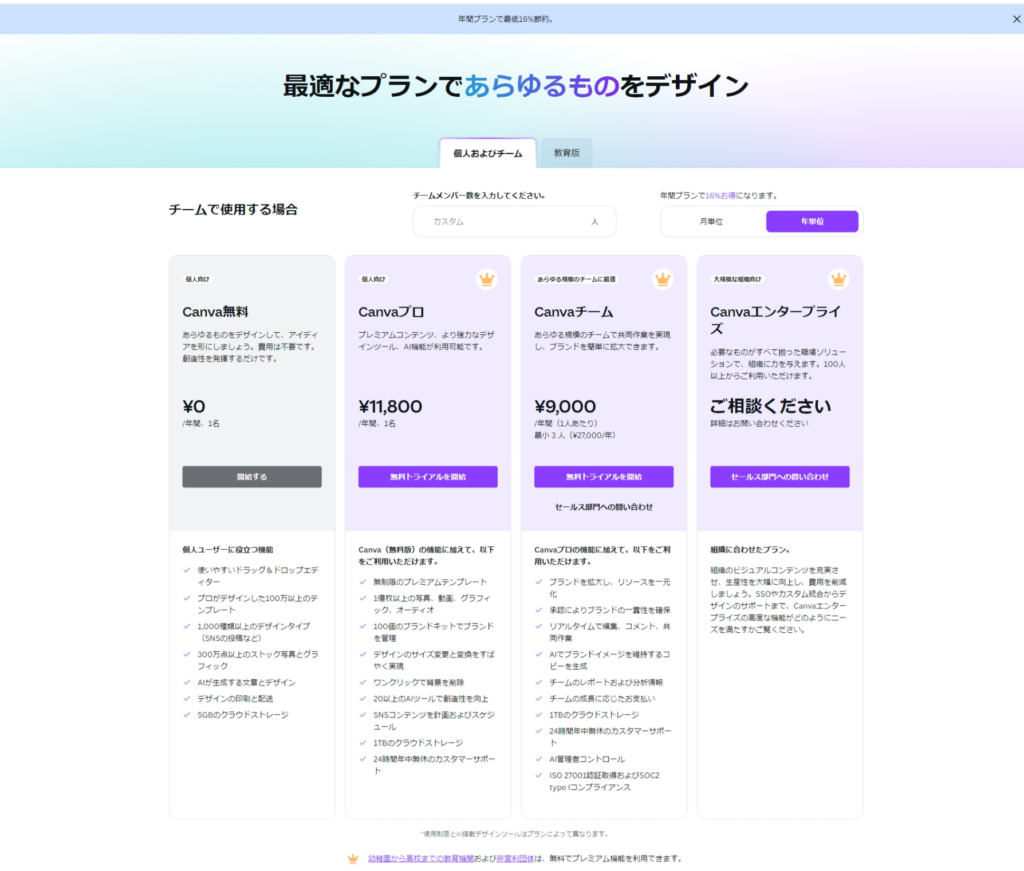
For most individuals, it’s a straightforward choice between Canva Free and Canva Pro (the other plans are designed for multiple users).
As of May 2024, Canva Pro costs ¥11,800 per year (approximately ¥1,000/month). Monthly billing is available but more expensive — an annual plan is better value if you’ve committed to using it.
Consider whether you’re comfortable paying around ¥1,000/month before subscribing.
Canva Free vs. Canva Pro: Key Differences
The main differences are in templates (Free: 1M+; Pro: unlimited), assets (Free: 3M+; Pro: 100M+), and generative AI features (Free: limited access; Pro: full access).
I started with the free plan and eventually upgraded because I frequently encountered templates and assets that were Pro-only, and I wanted to experiment with AI features more freely.
That said, the free plan has genuinely plenty of templates and assets. There’s absolutely no reason to force yourself to upgrade. Start free, use it extensively, and switch to Pro when you feel the limits.
Commercial Use of Canva Designs
Designs created in Canva — images, slides, etc. — are generally available for commercial use, even under the free plan. No attribution is required, as stated on Canva’s official page.
There are some restrictions, however:
- Selling Canva assets (photos, music, video, etc.) without modification
- Using Canva designs to register trademarks
- Selling Canva assets on stock photo platforms
These restrictions apply across all design tools — they’re the standard limitations on any design platform. As long as you add your own customization to templates or assets, you’re essentially free to use them commercially.
Real Uses for Canva
Here are some ways I actually use Canva:
Blog Cover Images
I use Canva to create the cover images for all my blog articles. At this level of complexity, it takes just a few minutes. You could do this without Canva — but Canva makes it effortless.
Self-Published Book Covers (Kindle)
I’ve self-published books on Kindle, and I use Canva to create the cover images. Creating a cover from scratch is time-consuming — but Canva’s templates and assets make it very fast.

Presentation Slides
Canva isn’t the most feature-rich design tool, but its versatility is its strength. That versatility includes creating presentation slides (like PowerPoint) and text documents (like Word).
For slides specifically, Canva can produce more design-forward results than PowerPoint — I recommend it over PowerPoint for presentations.
Summary
This article covered the basics of Canva. The content here is an introduction — more detailed coverage will be in separate articles.
Canva is an extremely accessible design tool, and it’s especially well-suited for people who have never done any design work. I had no design background whatsoever, but using Canva let me produce images that at least look presentable.
If this article has piqued your interest, start with the free plan. I hope you give Canva a try.
Also popular with readers