About Canva
Canva is a graphic design tool with a generous free tier — most of its core features are available at no cost.
Despite being called a graphic design tool, its uses span a huge range: document creation (Docs), presentations, and image and video creation/editing for every major social platform.
Think of it as a combination of Microsoft Office (Word, PowerPoint, Excel) and Adobe Express, Photoshop, and Illustrator — blended into one tool.
Canva does a lot, and its interface is intuitive and approachable. The tradeoff is that it doesn’t match the depth of any single specialized tool. But for someone trying document creation, image editing, or video editing for the first time, Canva is an excellent recommendation.
The free tier covers a large number of features. Even the paid version runs around ¥12,000 per year (approximately $80 USD), which is quite affordable given the breadth of functionality you get.
Canva’s other standout feature is its enormous library of templates and free image assets. Combining templates and free images makes it easy for beginners to create original images and videos. If you’re new to image or video editing, start with Canva — and once you’re comfortable, branch out to specialized tools as needed. The official site is https://www.canva.com/.
Canva’s AI Features
Canva has been actively expanding its AI capabilities. As of February 2024, there are a large number of AI features available.
To browse them, select “Apps” in Canva’s interface and search for “AI-powered” — you’ll find an extensive list.
Note: most AI features are available only in the paid version. To use Canva’s AI features seriously, a paid plan is generally required.
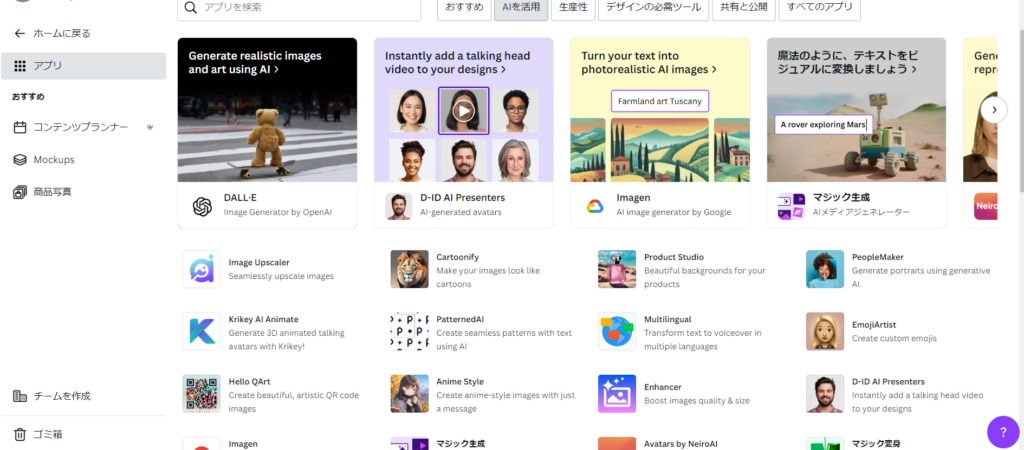
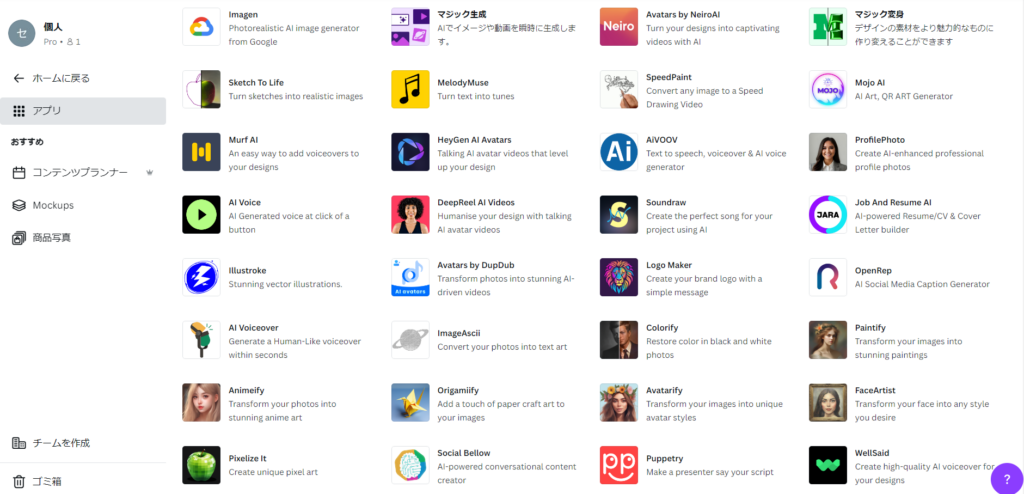
The AI features listed in the apps section are standalone apps within Canva. Separate from those, there are also AI-powered image editing tools available directly within the editor.
This article focuses on those image editing AI features.
Specifically, when you select an image in the Canva editor and click “Edit photo” at the top, you’ll see the Magic Studio section with the following tools.
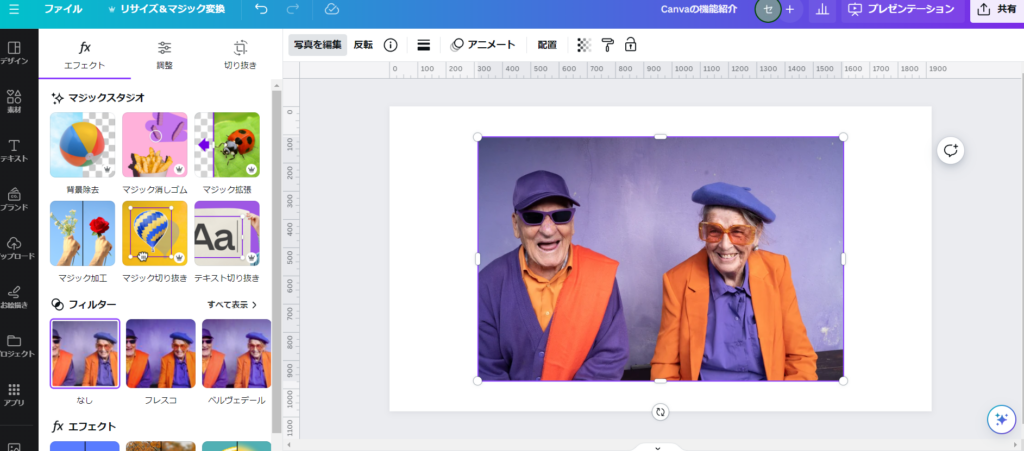
Magic Studio currently offers six features:
- Background Remover
- Magic Eraser
- Magic Expand
- Magic Edit
- Magic Grab
- Text Extractor
Each has equivalent functionality in other software, but as noted, those alternatives are typically more expensive. Canva’s value is making these AI features accessible at a low price point.
Background Remover
Background Remover is the most intuitive and most frequently useful editing feature.
When you apply it, the AI identifies the subject of the image and removes everything it considers “background.”
For a photo of a person, the result is straightforward — everything behind the person disappears.
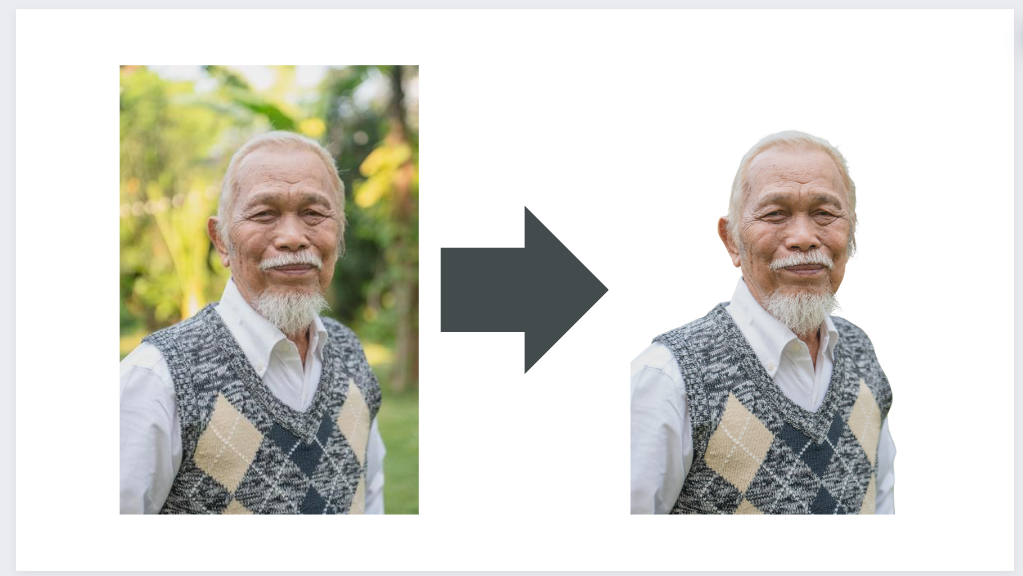
That said, the AI determines what counts as “background” automatically, so complex images may have some areas missed or accidentally removed.

In those cases, you can follow up with the Magic Eraser tool to clean up the remaining background areas.
Magic Eraser
Unlike Background Remover, Magic Eraser lets you precisely select specific areas to remove — and the AI fills them in naturally.
For example, if Background Remover left some background behind, you can paint over the remaining area with Magic Eraser.

The selected area is cleanly removed. (My selection was a bit rough, which is why slightly more disappeared than intended — user error.)

When you need to remove a specific element from an image, Magic Eraser is the right tool.
Magic Expand
Magic Expand is slightly more niche, but uniquely powerful: rather than removing parts of an image, it adds content that doesn’t exist in the original using AI generation.
For example, if you have an image showing only a person’s upper body, Magic Expand can generate the lower body below the original frame.
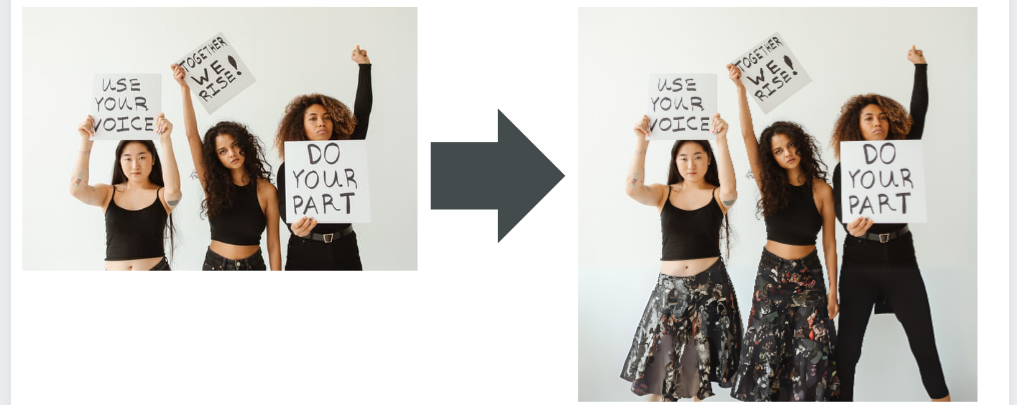
As shown, the base image on the left has its lower half generated on the right. It’s a genuinely useful feature, though AI-generated additions can sometimes look unnatural.
To help with this, Canva generates multiple output options when you use Magic Expand — you can pick whichever result looks best.
Magic Edit
Similar to Magic Expand, Magic Edit lets you select an existing part of the image and replace it with something different using AI generation.
For example, selecting one side of a wine glass clinking in a toast image and replacing it with a hand holding a rose:
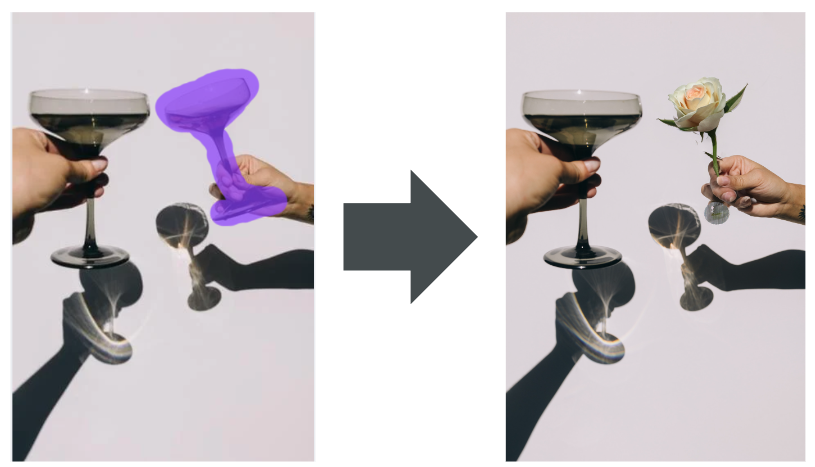
Like Magic Expand, AI generation means you’ll sometimes get unnatural results — plan on trying it multiple times until you get something you like.
Magic Grab
Magic Grab is closely related to Background Remover — both separate the subject from the background. The difference becomes clear in the results.
Background Remover removes the background, leaving just the subject:
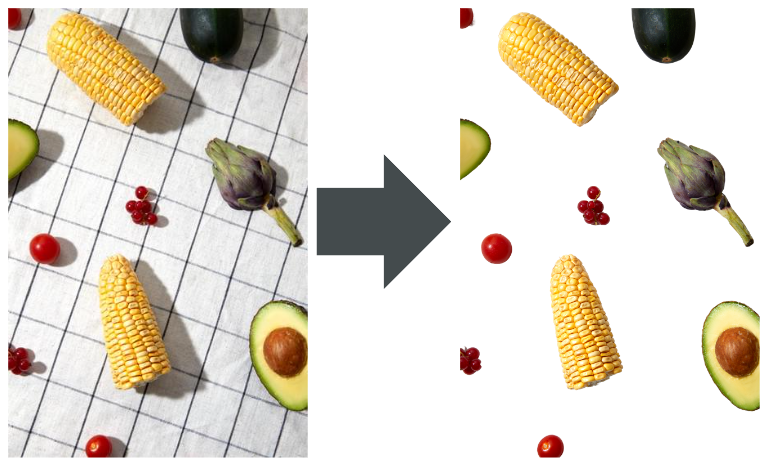
Magic Grab separates the image into two distinct layers — subject and background:
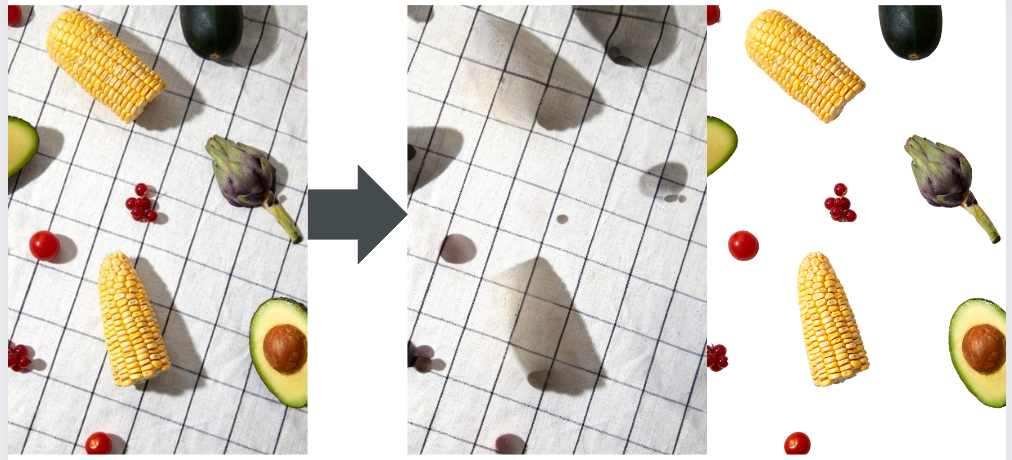
Because the background remains as a separate image, you can do things like shift the subject dramatically out of position against the preserved background to create new compositions. You can also save the background layer separately to composite it with other images.
As a general rule: use Background Remover when you want to extract the subject; use Magic Grab when you want to extract the background.
That said, thinking about it while writing — Magic Grab can do everything Background Remover does, so the two might eventually be merged into one feature.
Text Extractor
Text Extractor identifies and extracts text contained within an image.
In my testing, it couldn’t extract text from photos of buildings — but it can separate text from images where the text is the main content (like typographic designs).

The top portion of the example shows text as part of a single flat image; the AI recognizes the individual characters and outputs them as separate text elements below.
A practical use case: take a screenshot of a PDF or image file where text can’t be selected directly, paste it into Canva, and use Text Extractor to retrieve the text. I personally use this to extract AI prompts that people share as images on social media — it lets me copy the prompts and try them myself.
Summary
This article covered Canva’s AI-powered image editing features.
Beyond image editing, Canva has many other AI apps — I plan to cover the most useful ones in a future article.
In particular, tools like “Magic Generate” (AI image generation) and “Anime Style” make it easy to create AI-generated images from scratch. Combined with the editing features covered here, creating fully original images is well within reach.
For Canva’s generative AI features, see the related article below.
Canva’s AI Generative Features: Magic Generate, AI Image & Video Generation, and More
Also popular with readers