Introduction
This article covers two Canva features: Canva Doc (Canva’s document creation tool) and the Whiteboard feature.
If you’re completely new to Canva, start with the beginner introduction article first:

Canva Doc: Document Creation
Canva isn’t limited to images and videos — it also includes a document creation feature comparable to Microsoft Word. That feature is called Canva Doc.
To open Canva Doc, click “Docs” on the Canva home page.
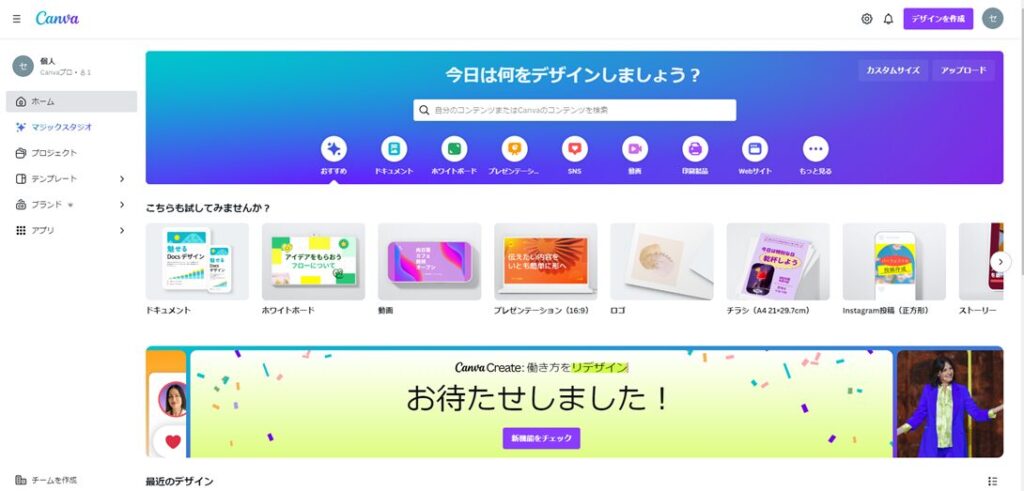
A document-style canvas opens — quite different from the design canvases used for images and video:
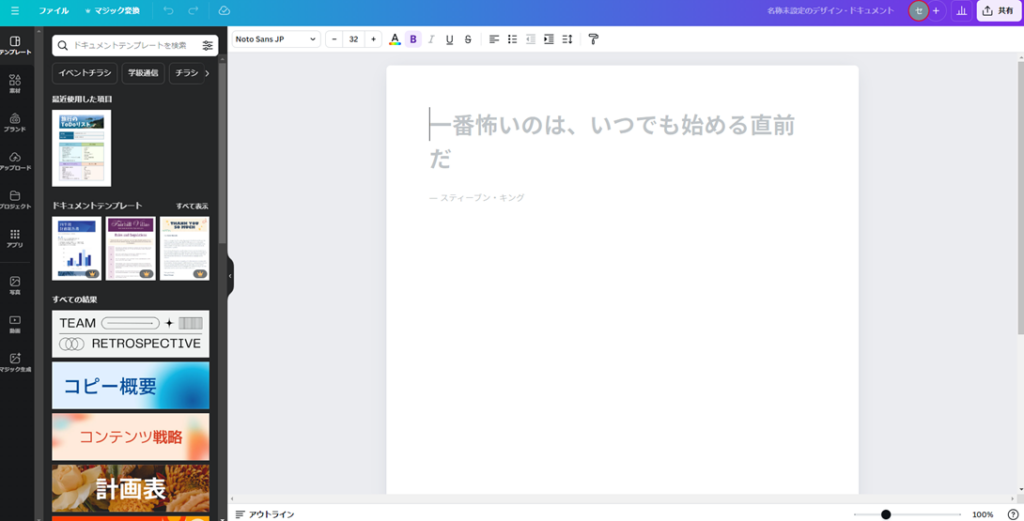
Like other Canva features, Canva Doc offers a range of templates you can use as a starting point:
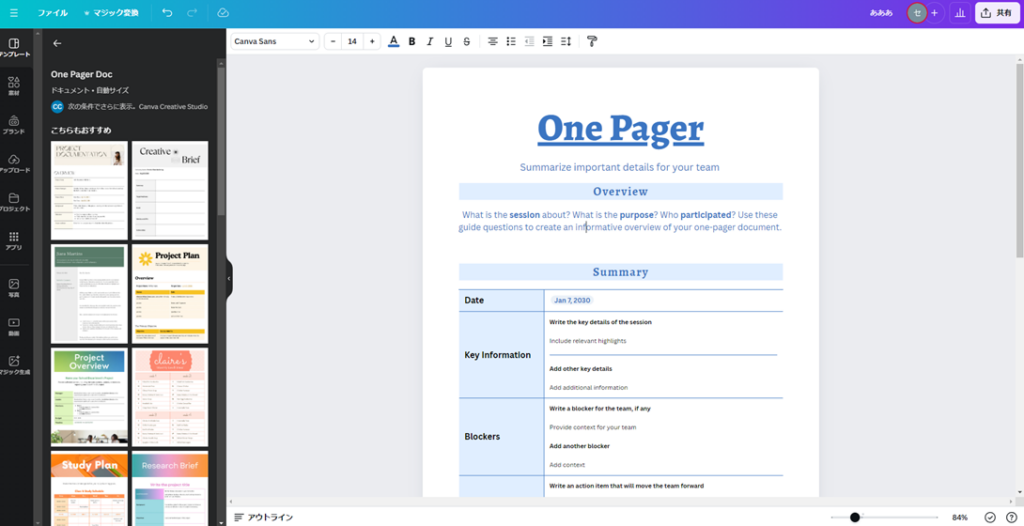
Being able to start from a stylish template is one advantage Canva Doc has over Word’s blank page.
The most important thing to learn in Canva Doc is the Quick Action button. This is the ”+” button that appears when you click anywhere in the document.
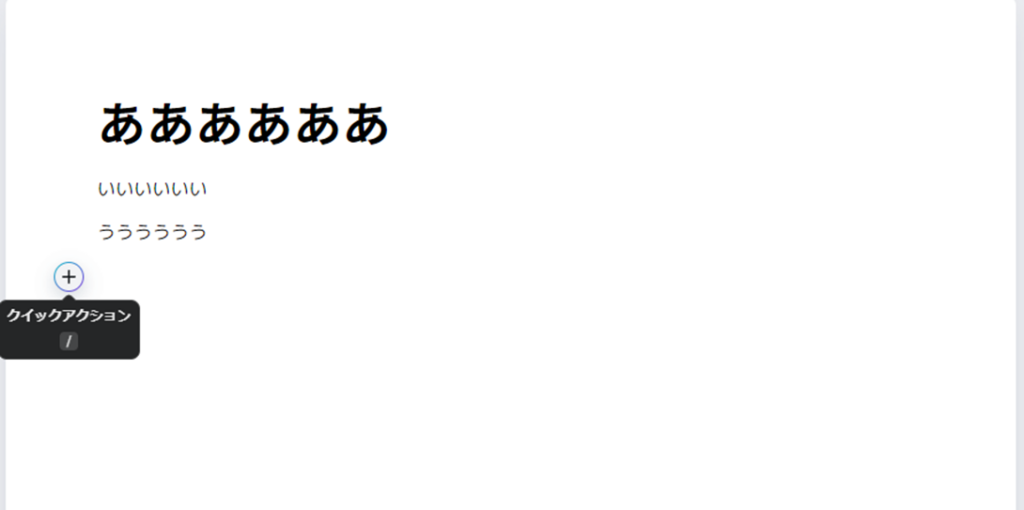
Clicking Quick Action reveals a menu of all the major actions available in Canva Doc:
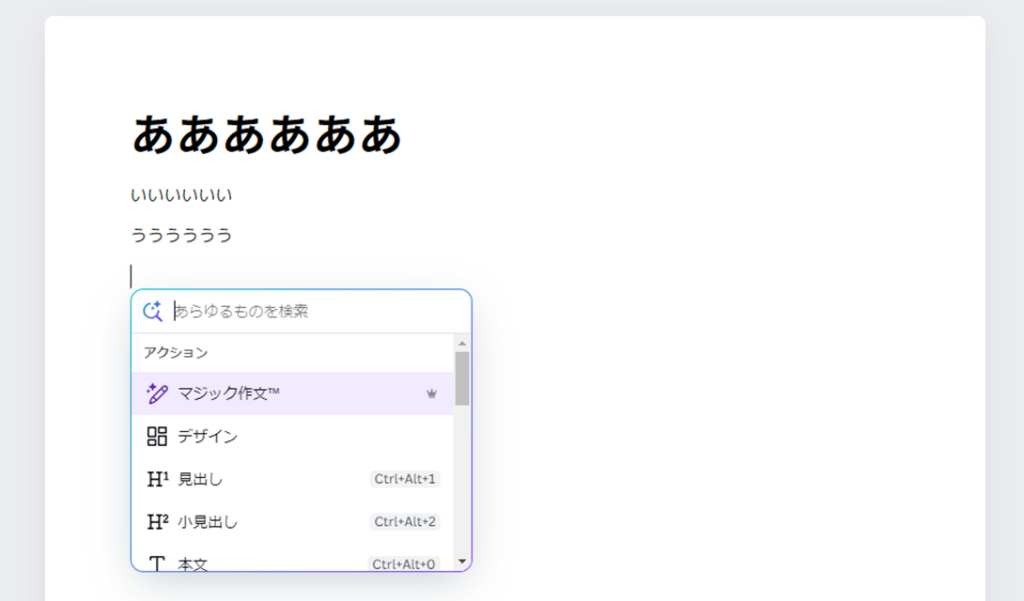
From Quick Action, you can add headings, insert page breaks, add tables, insert charts, and more — most of what you’d do in Word is available here.
Another useful feature is the Outline, accessible by clicking “Outline” in the lower left corner of the canvas.
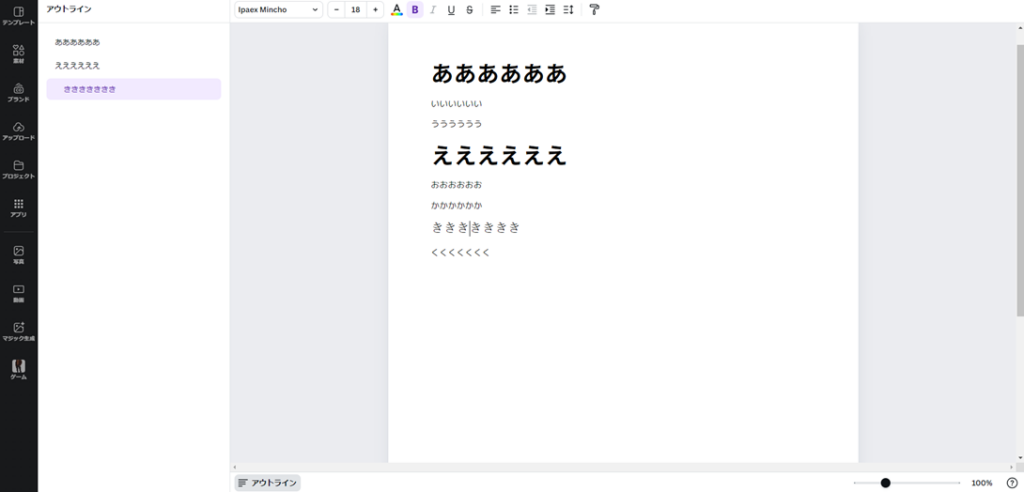
The Outline panel displays only “Headings” and “Subheadings” — not body text or other elements. In other words, if you set your headings and subheadings consistently, the Outline functions as a navigable table of contents for your document.
This may seem like a minor feature, but for long documents, being able to jump to any section from the outline is genuinely convenient. It’s worth remembering.
Beyond Quick Action and the Outline, you can also add visual elements from the Elements panel.
My honest assessment of Canva Doc: Compared to Microsoft Word, Canva Doc has advantages in design flexibility and visual appeal, and the template selection is strong. But as a pure document creation tool, it’s noticeably inferior. There’s no linked table of contents, overall document formatting controls are limited, and it feels underdeveloped in places where Word just works.
Canva pushes Canva Doc prominently in its marketing — it clearly believes in it — but I continue to use Word for any serious document work.
That said, Canva Doc is available on the free plan without meaningful limitations (only a few AI features are restricted). For anyone without access to Microsoft Word, Canva Doc is a perfectly capable and free alternative.
Canva Whiteboard
Canva’s Whiteboard feature is designed for collaborative group work. Think of it as a virtual version of a physical whiteboard — ideal for brainstorming sessions, workshops, and group discussions.
To open it, click “Whiteboard” on the Canva home page.

A whiteboard canvas opens — quite different from the typical design canvas:
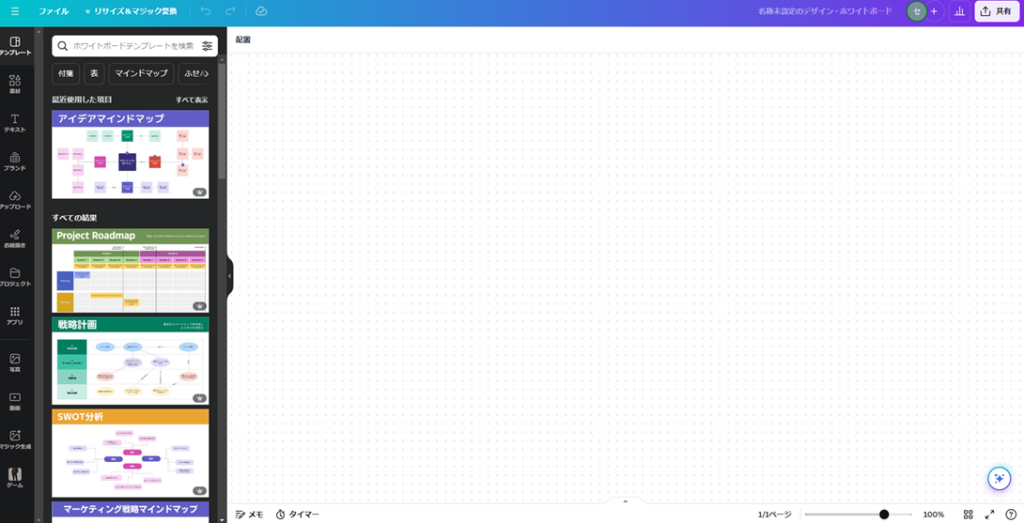
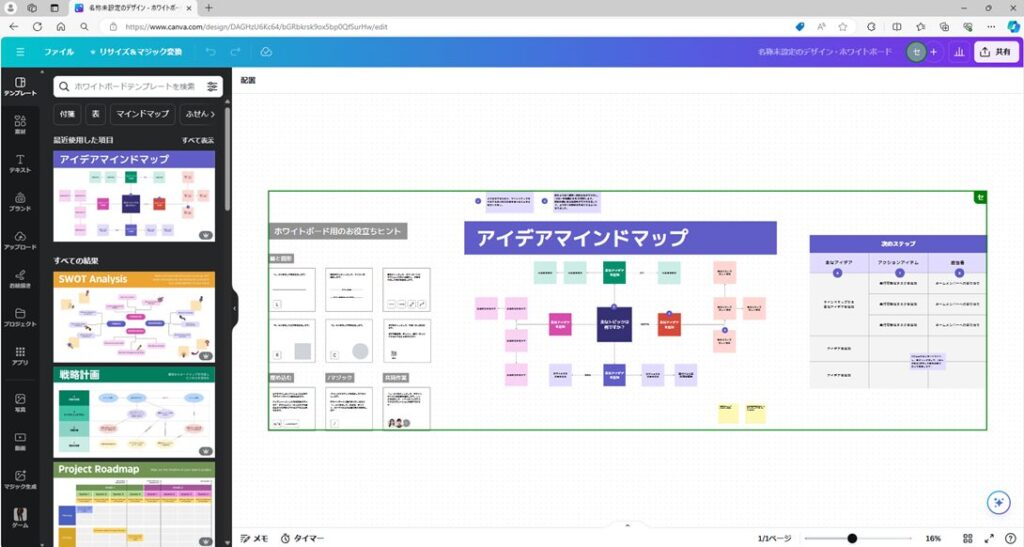
As with other Canva features, templates are available to give you a starting point for your session.
One major difference from other Canva features: the Whiteboard has no fixed canvas size. You can write or add elements anywhere, and the canvas expands infinitely in all directions.
Since the Whiteboard is designed for multiple people, you’ll need to share it. Click “Share” in the upper right corner.
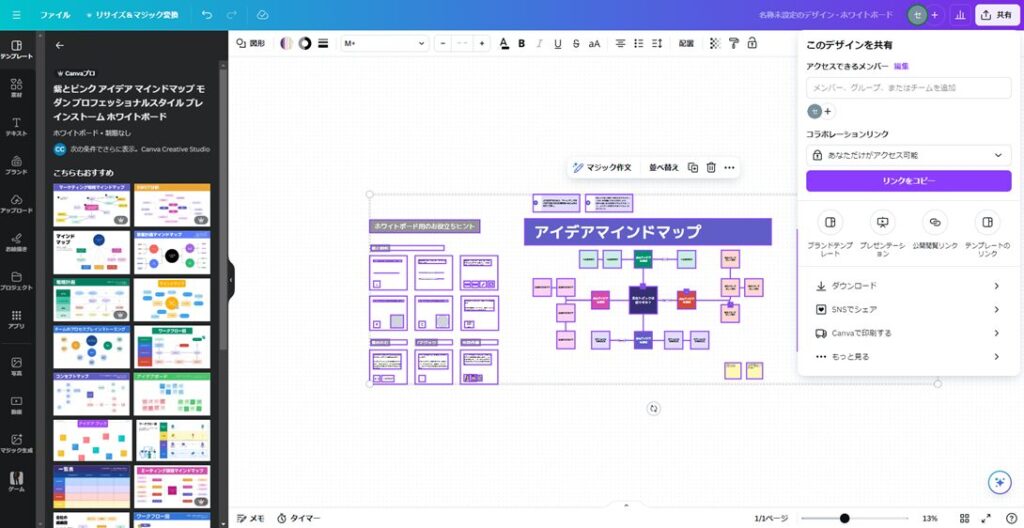
In the share dialog, find the “Collaboration link” section and change it to “Anyone with the link”:
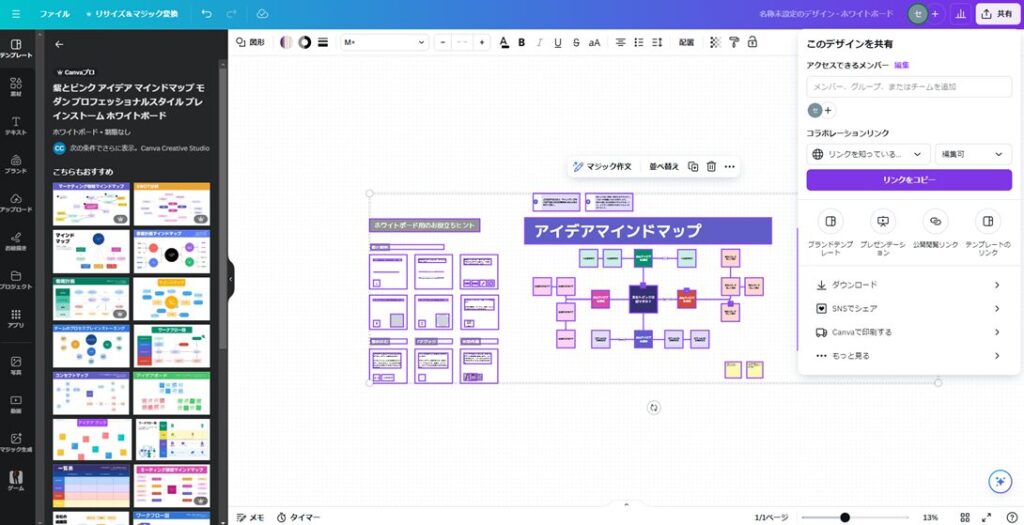
After a moment, a “Copy link” button will appear. Click it to copy the URL, then share that URL with your collaborators. Anyone who opens the link in their browser can now edit the whiteboard in real time.
For finer access control (limiting who can edit vs. view), you can add specific members instead of using the open link option.
This sharing feature actually works across all Canva content types — not just Whiteboard. If you ever want to collaborate on an image or document with others, this is how.
The signature element of the Whiteboard feature is sticky notes. Open the Elements panel on the left and you’ll find a rich selection of sticky note styles. Placing them on the whiteboard:
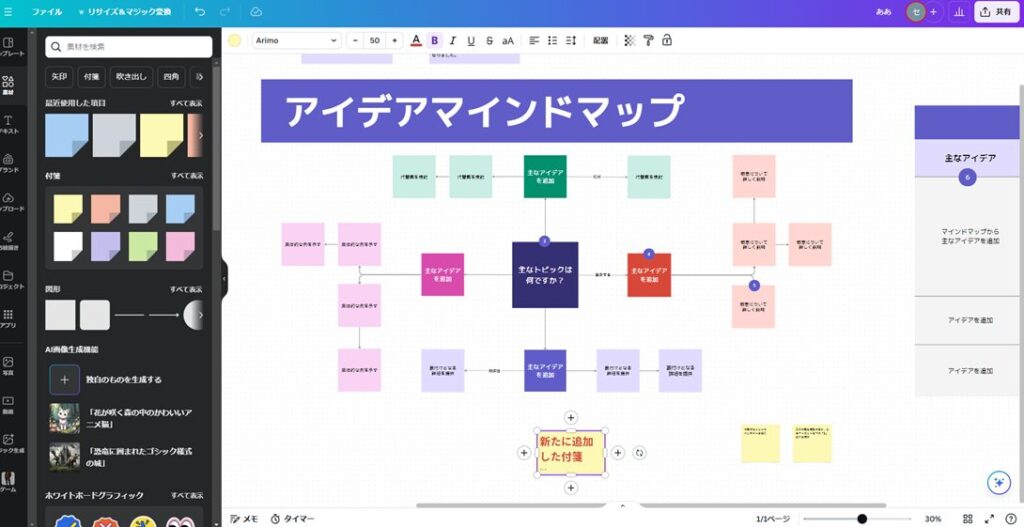
Filling a whiteboard with sticky notes — just as you would in a real meeting room — lets you run exactly the kind of brainstorming and discussion sessions that whiteboards are known for.
Summary
This article covered Canva Doc and the Whiteboard feature.
Canva Doc offers more design flexibility and better templates than Word, but falls short as a pure document creation tool. It’s most valuable for people who don’t have access to Word.
The Whiteboard is a collaboration-focused feature that replicates the physical whiteboard experience in a digital format. It’s well-suited for distributed teams who need a shared visual workspace for discussions and planning.
Canva’s sharing functionality — highlighted by the Whiteboard — makes it possible for multiple people to work on the same canvas simultaneously. Worth keeping in mind for any collaborative work.
For the beginner’s introduction to Canva:
Canva for Beginners: How to Use It, AI and Pricing Plans
Also popular with readers