
Introduction
This article covers Canva’s video editing features. If you’re completely new to Canva, I recommend reading the beginner introduction article first:
Video Editing in Canva
Canva includes video editing functionality. The tools most people think of for video editing are Adobe Premiere Pro or the free DaVinci Resolve — and to be upfront: Canva’s video editing is significantly less capable than either of those.
That’s because Canva’s video editing isn’t aimed at professional-grade production. It’s designed for casual use — adding simple captions to existing footage, inserting background music, and similar lightweight tasks.
Canva is not the right tool for producing polished YouTube videos with complex effects and transitions. Please understand that going in.
That said, for simple editing, Canva’s intuitive UI makes the work itself very straightforward.
Basic Usage
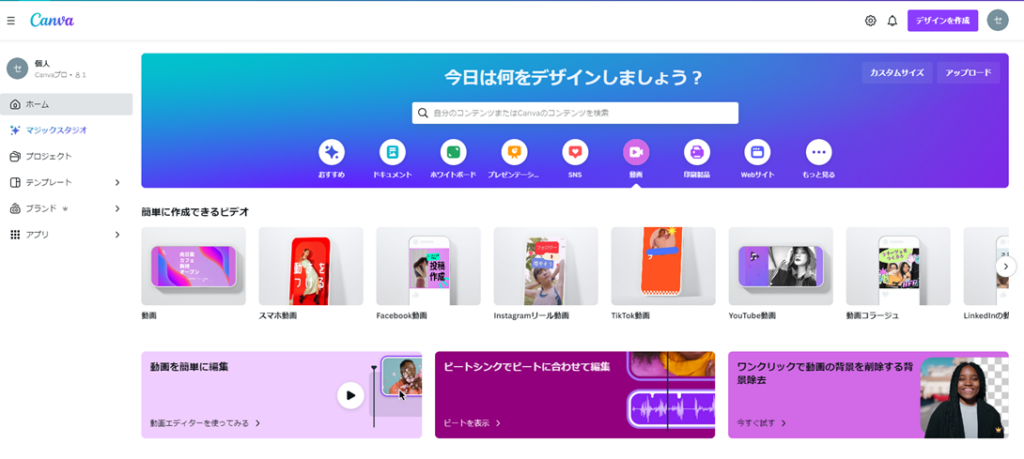
To start video editing in Canva, select the “Video” tab from the home screen and choose “Video” or “Mobile Video” (for vertical format).
A canvas opens — similar to image editing, but with a timeline.
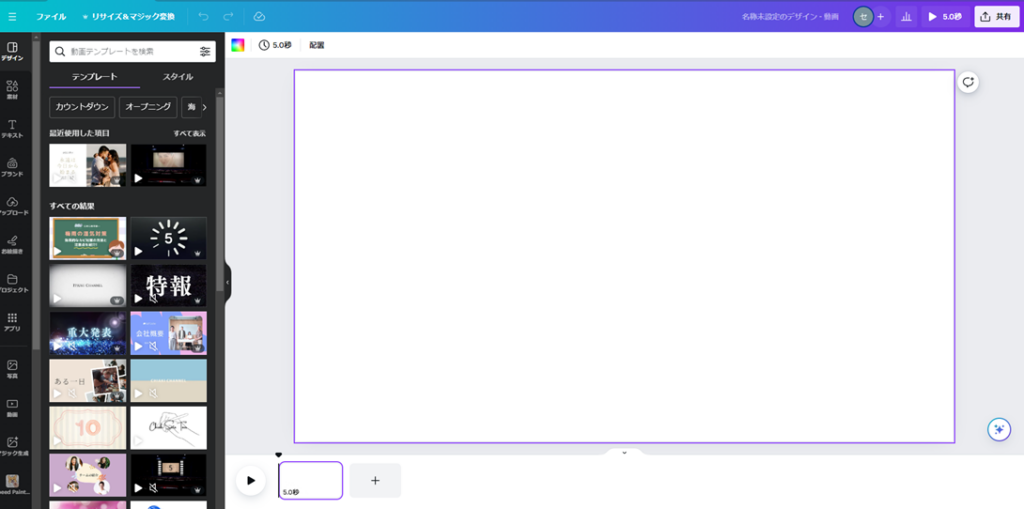
At the bottom of the canvas, you’ll see a mini-scene bar showing “5.0s” — this represents each scene/clip in your video. This timeline is where you manage individual scenes.
Import your own video via “File” → “Import file,” just like importing images. If you don’t have a video to use, click a video from the “Designs” panel to try a stock clip.
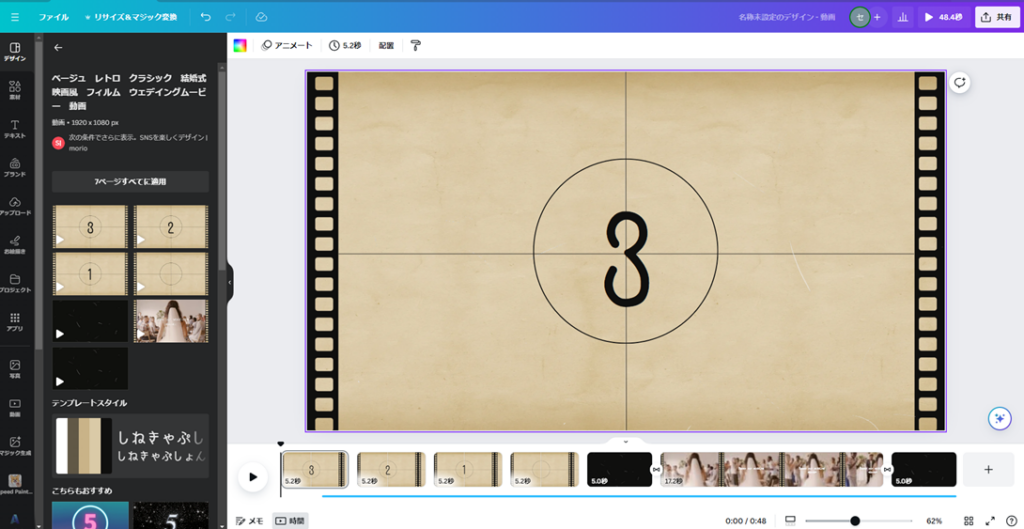
When selecting a stock asset, a message may appear asking “Apply to all pages?” — this appears for multi-scene video assets. If you’re unsure, go ahead and apply to all pages (you can delete unused scenes later).
To change a scene’s duration: click the clock icon at the top of the canvas (which shows the current duration like “5.0s”).
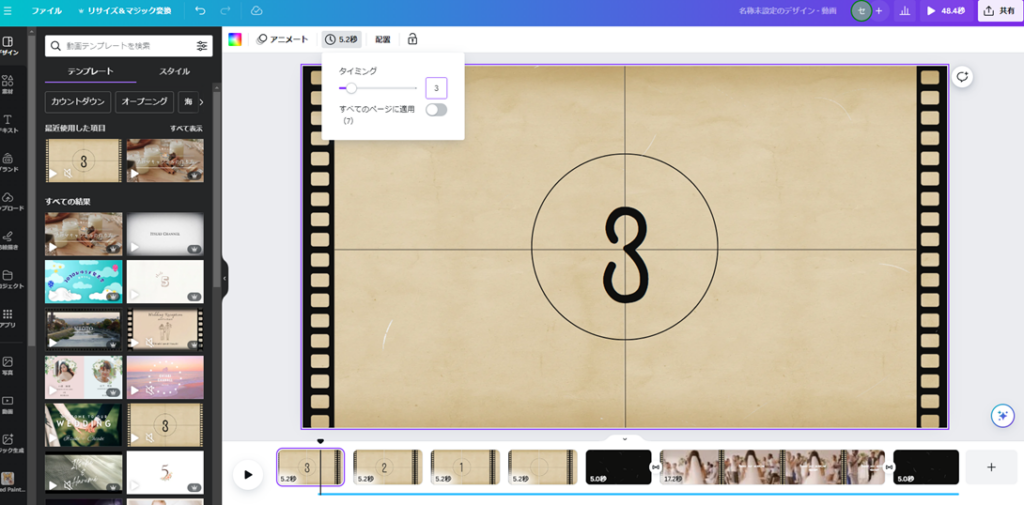
After adjusting the duration, you’ll see the change reflected in the timeline at the bottom of the canvas.
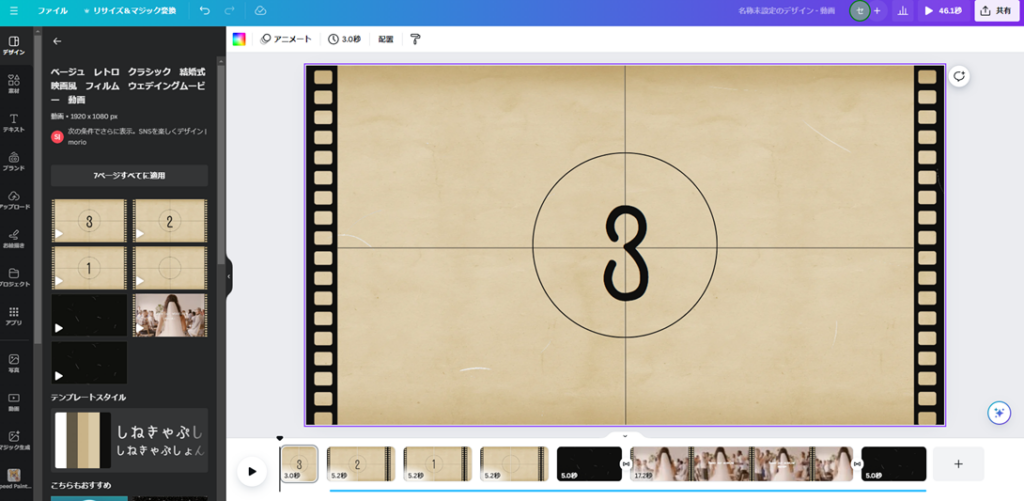
Click the play button (triangle icon) at the far left of the timeline to preview the video and confirm the duration change.
Animate
Videos can have Animate transition effects applied. Click “Animate” in the toolbar at the top (just to the left of the clock icon).
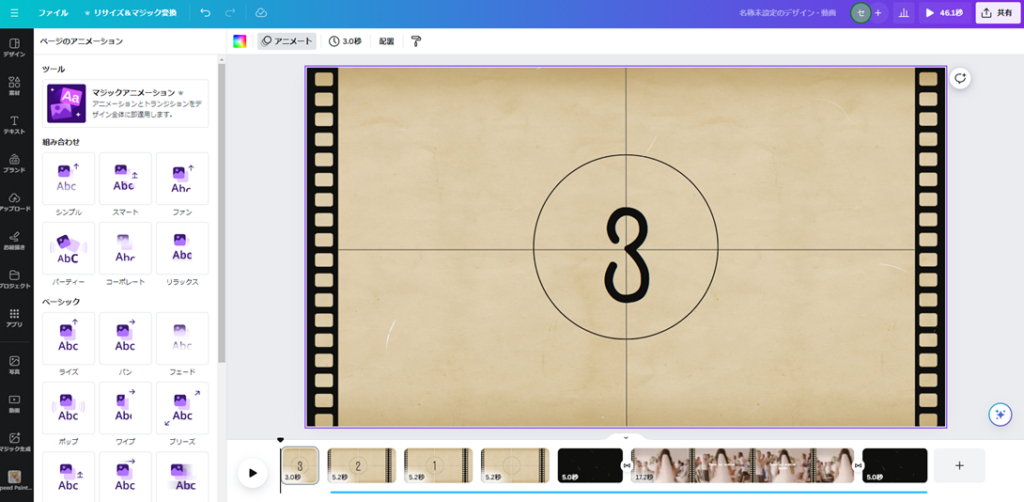
Many animation types are available. Hover over each one to preview the effect on the canvas in real time — no need to play the full video to see what it looks like.
This kind of instant preview is one of Canva’s thoughtful UI choices, making it much easier to experiment than with professional software.
You can also add text and other elements to videos the same way you add them to images — use the “Elements” or “Text” panels on the left.
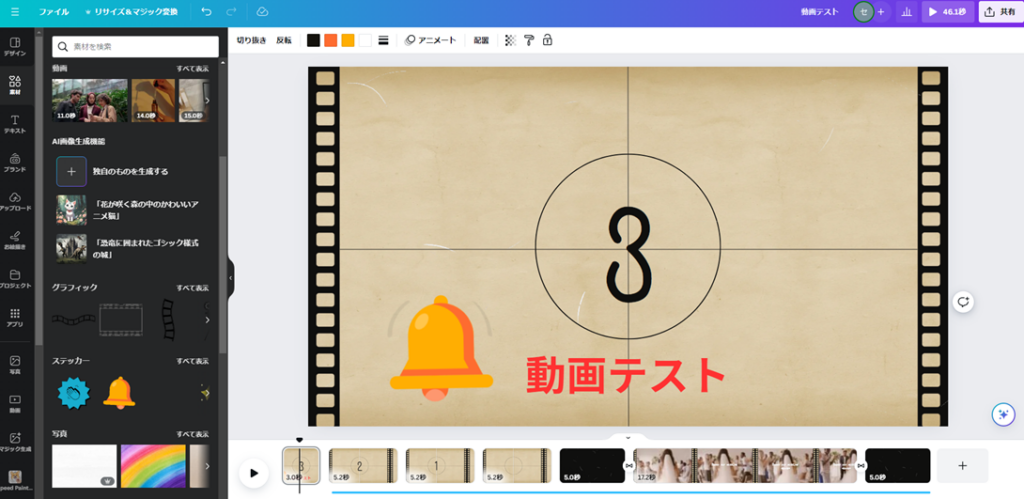
One thing to note: text elements can be timed to appear at specific moments in a scene, but image/graphics elements persist throughout the entire scene once added.
This distinction is easier to understand by experimenting with it directly — add both text and an image element to a video and observe the difference in behavior.
Record Yourself
Canva includes a feature that lets you record video directly within Canva — recording your face alongside the current canvas content. To use it, select “Video” from the left menu and click “Record yourself.”
(If “Video” doesn’t appear in the menu, click “Apps” and find “Video” from the list.)
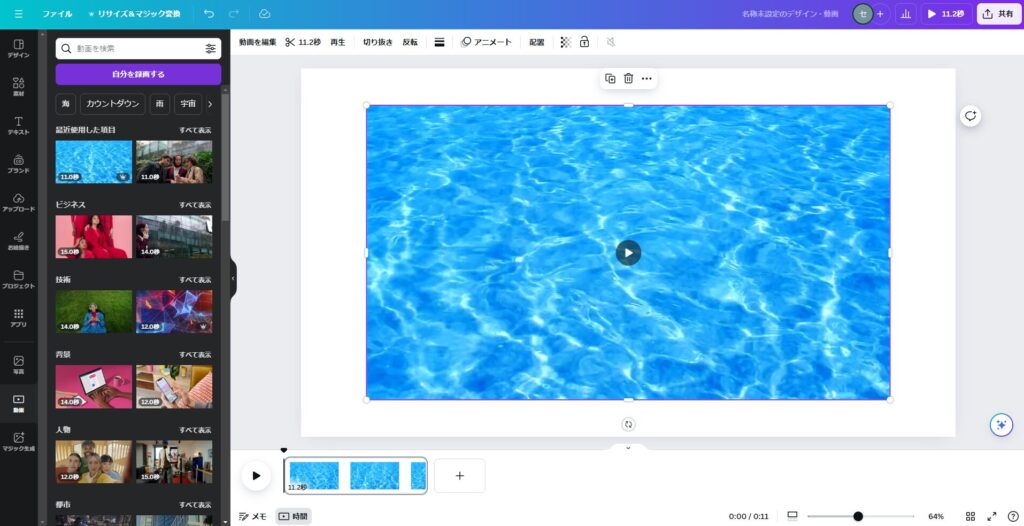
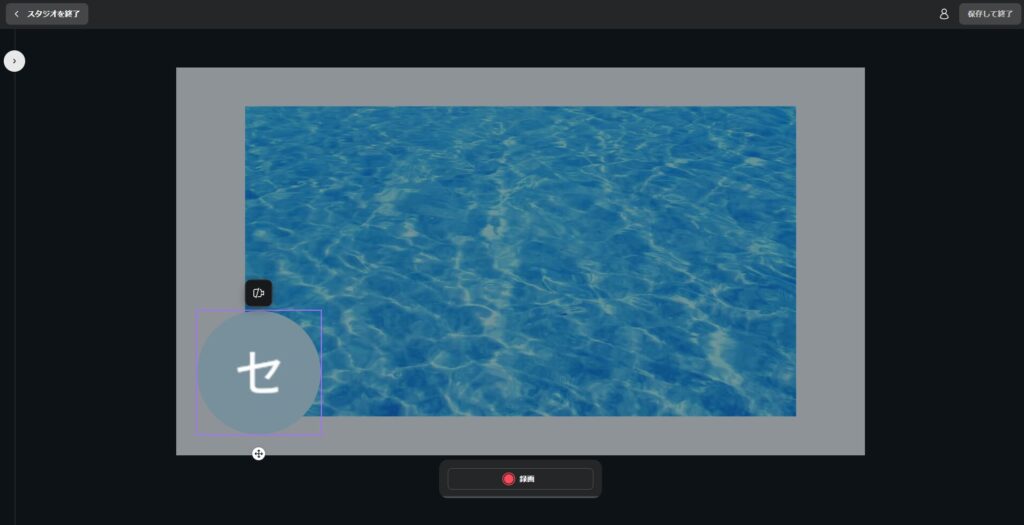
Clicking “Record yourself” shows your camera feed alongside the canvas content — similar to how YouTube gaming commentary videos look. Great for tutorial-style or presentation-style content.
Audio
Canva’s video editor makes it easy to add music. Select “Audio” from the left menu to browse available tracks.
(If “Audio” isn’t in the menu, find it via “Apps.”)
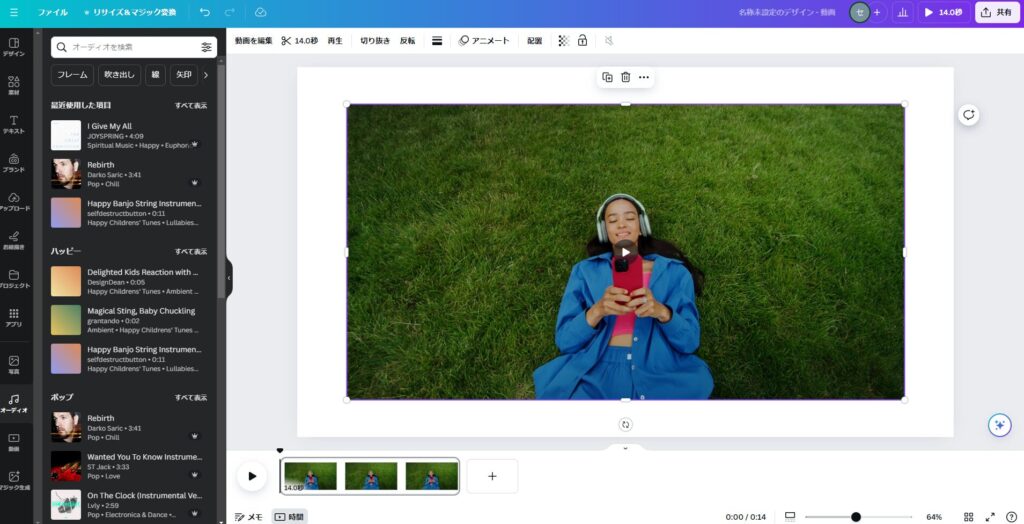
Selected music appears as an audio track below the video timeline. You can add multiple tracks — they’ll play simultaneously — or adjust their lengths to change the music at specific points in the video.
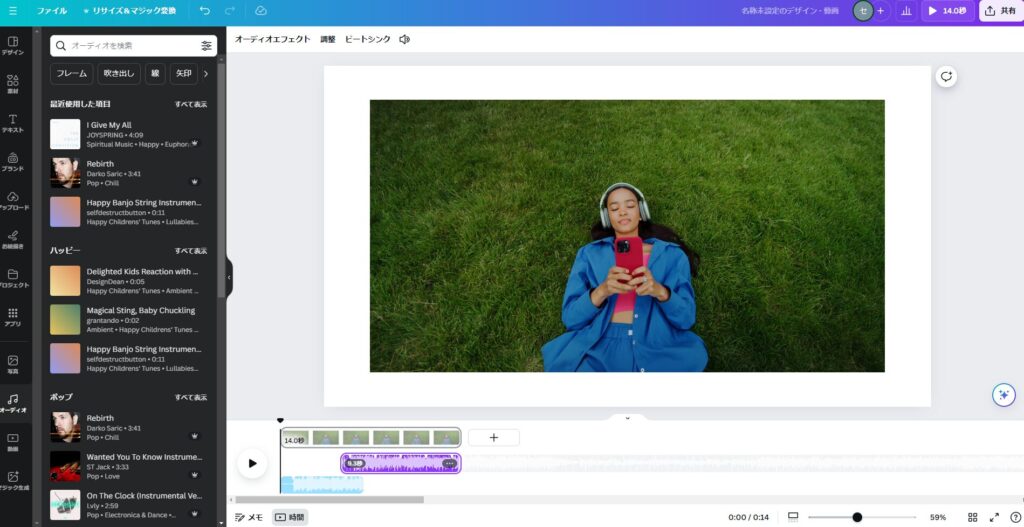
Audio is technically a separate feature from video editing, but music is essential to most videos — make sure to remember this function.
Background Removal (AI)
Canva’s video editor includes AI-powered background removal — the same concept as the image background remover, but applied to video. Select a video clip on the canvas, click “Edit video” at the top, and select “Background remover.”
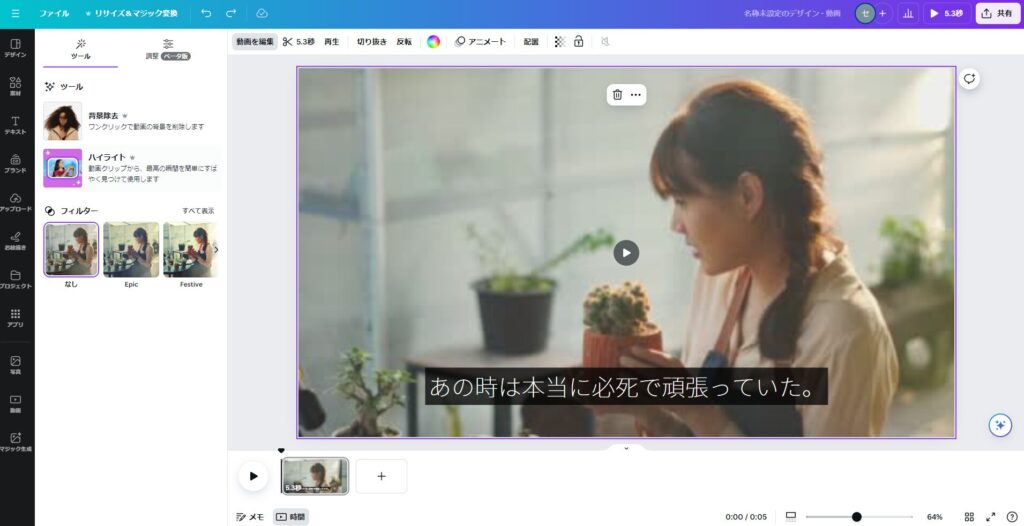
The AI removes what it identifies as background:
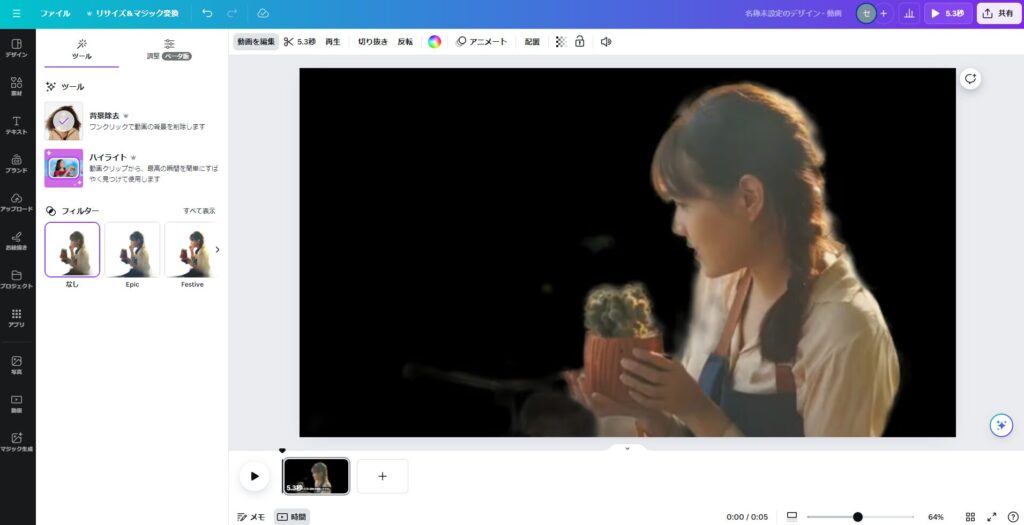
This lets you isolate the subject from footage and composite it against a different background — creating completely new visual contexts for existing video.
Highlights (AI Scene Detection)
Canva’s Highlights feature uses AI to automatically identify the most interesting or important scenes in a video. Select a video clip on the canvas, click “Edit video,” then select “Highlights.”
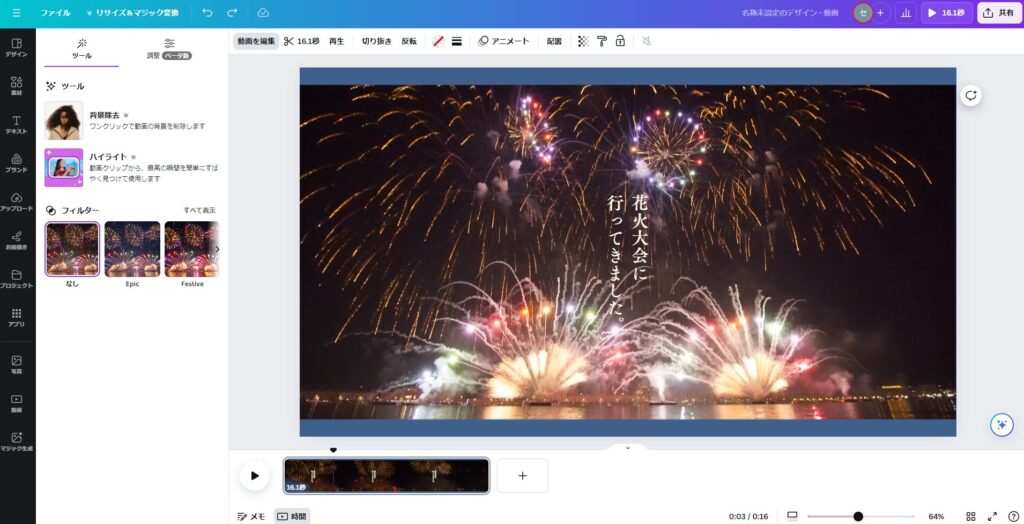
The AI automatically picks out highlight moments:
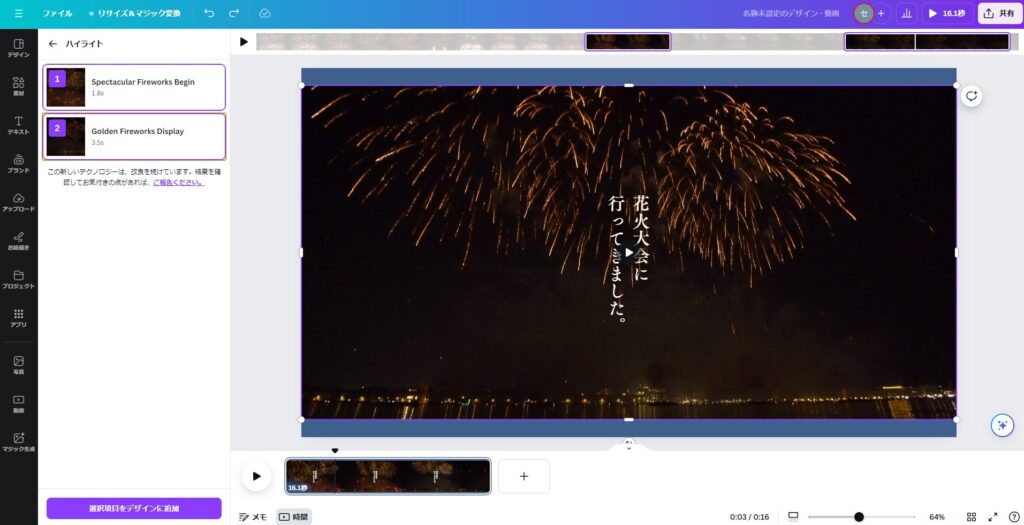
Select the scenes you want to keep and click “Add selection to design.” The timeline at the bottom will be updated to show only the selected highlight clips.
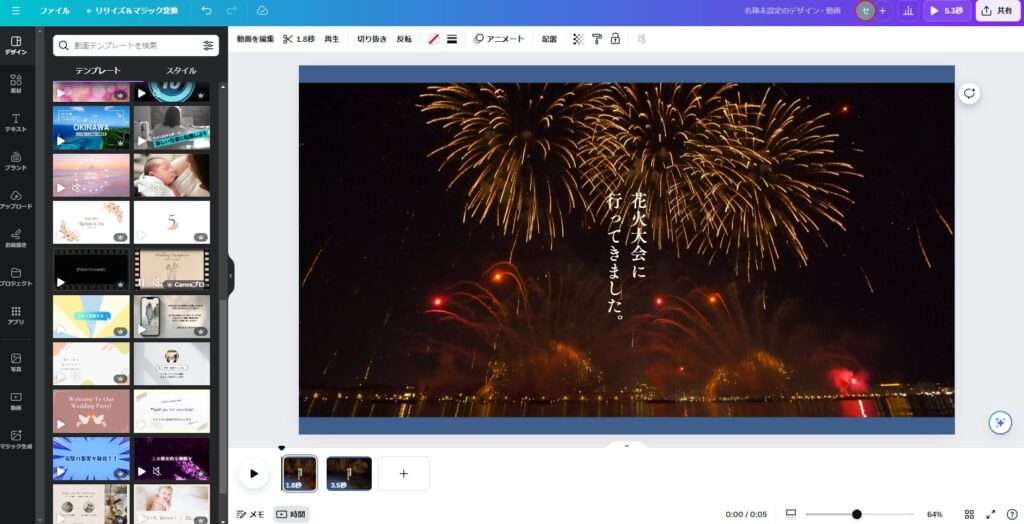
For short clips, this feature may not add much value — but for long recordings where you want to extract only the key moments, it’s very useful.
Magic Generate (AI Video Generation)
Canva’s Magic Generate feature can create AI-generated videos from text prompts. Open Magic Generate from the left menu and select the “Video” tab. Enter a description of the video you want, then click “Generate video.”
For something with dramatic movement, I tried: “Two boxers fighting in a ring.”
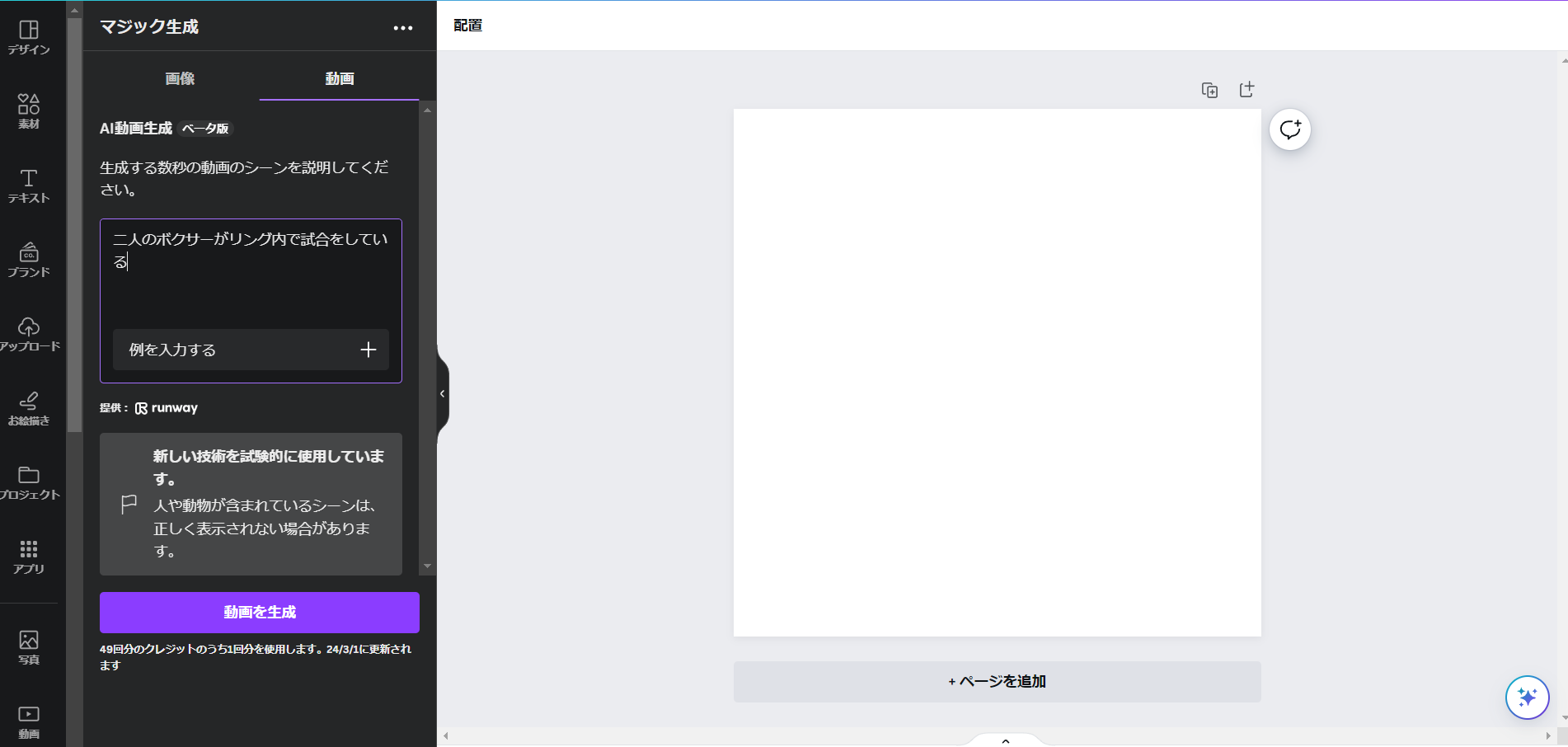
The result? Almost no movement.
I tried different prompts and managed to get some minor motion, but recreating fast, dynamic action wasn’t achievable.
My assessment: AI video generation in Canva isn’t at a practical level yet. The feature is still marked “Beta,” so I’d expect this to improve once it officially launches.
Video generation also consumes credits. Paid users get just 50 generations per month — which reinforces the sense that the feature isn’t ready for regular use. Free users get only 5 (non-refillable), so it’s essentially unusable on the free plan.
Summary
This article covered Canva’s video editing capabilities.
Users of Adobe Premiere Pro or DaVinci Resolve will find Canva’s video editing quite limited — but that comparison misses the point. Canva’s video editing is designed for casual, lightweight editing of existing footage. If that’s what you need, the features covered here are more than sufficient.
Future articles will cover other Canva features — I hope you’ll continue reading.
For the beginner’s introduction to Canva:
Canva for Beginners: How to Use It, AI and Pricing Plans
Also popular with readers