Steam Build Terminology and Overall Structure
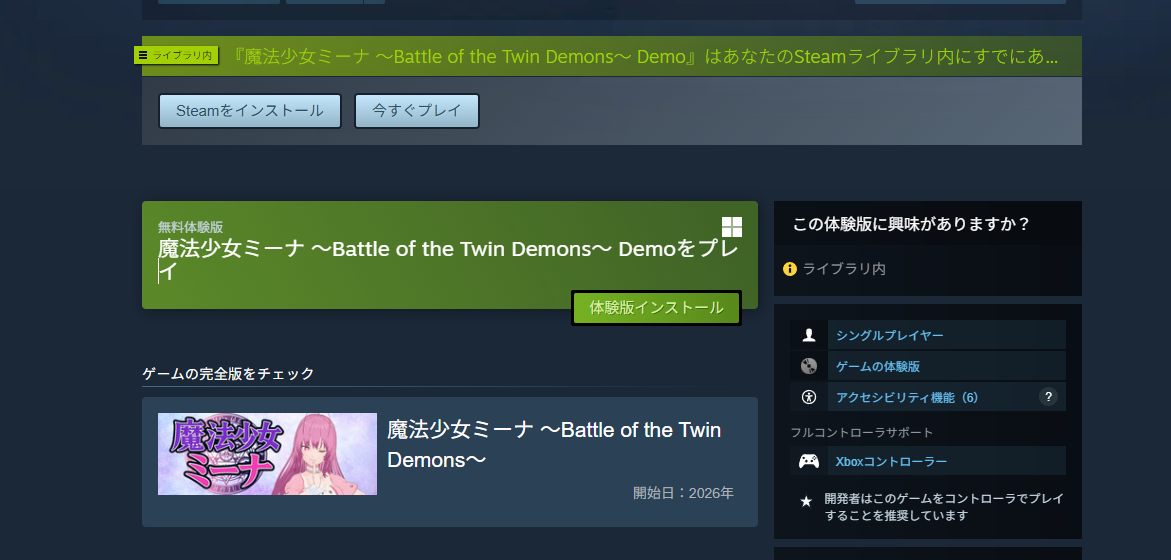
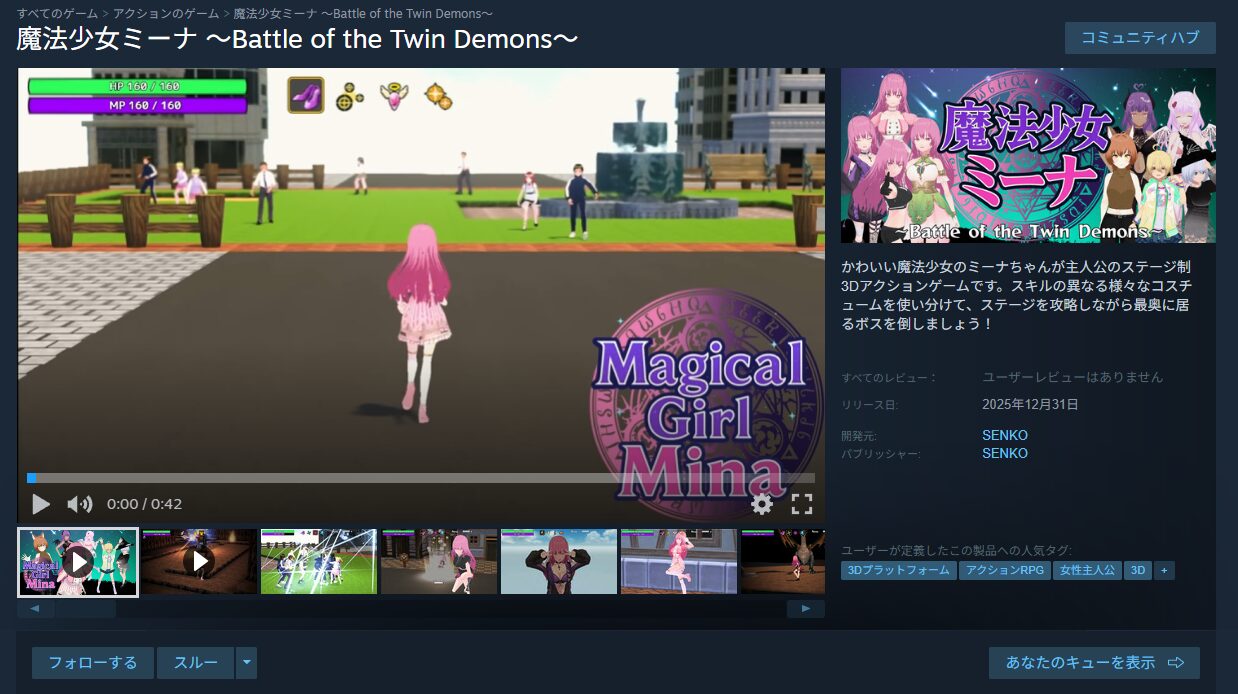
This article explains the specialized terminology and overall structure involved in Steam builds, based on what I learned while building a demo for my game on Steam. For reference, here is the game I submitted to Steam. Feel free to check it out if you’re curious.
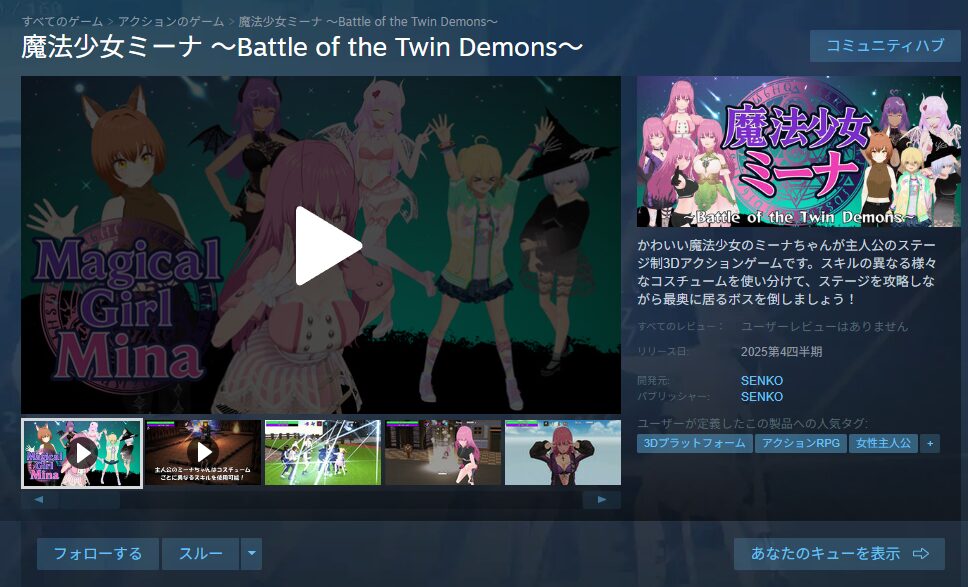
https://twitter.com/FoxEngineer777/status/1974287906367050068
What “Build” Means on Steam
In Steam’s context, “build” has both a broad and a narrow meaning.
The broad meaning refers to the entire set of tasks required to make a game playable on Steam—the full workflow often called a “game build” or “demo build.”
The narrow meaning refers specifically to Steam’s version management system (managed by Build IDs), which is what “build” typically means when used on its own.
In practice, most people use “build” to mean both things interchangeably, so you don’t need to stress over the distinction—but it’s good to be aware of.
Build-Related Terminology
The specialized terms that appear throughout the Steam build workflow include:
- App
- Depot
- Build
- Branch
- Package
- Bundle
Here’s a brief explanation of each.
The official Steamworks documentation also covers these terms, so if you have time, it’s worth reading through.
What Is an App?
“App” may seem self-explanatory, but it’s worth stating clearly. In Steam’s context, “App” is short for “Application” and refers to the game (or software) you’re developing.
Each app is managed by a unique identifier called an App ID, which appears frequently in store page URLs and throughout Steamworks.
This is straightforward so far, but things get slightly more complex when it comes to add-ons like demos and DLC.
In the past, demos and DLC were managed as depots within the main app. Today, both demos and DLC are given their own separate App IDs and managed as distinct apps.
Understanding that a demo is a separate app from the full product (with its own App ID) is essential for making sense of the build workflow. Without this, many build-related steps will be confusing.
That said, demos are treated as “child apps” tied to their parent (the full product), and Steam provides built-in functionality for users to download the demo directly from the full product’s store page—so from the user’s perspective, they feel like the same thing.
What Is a Depot?
The concept that causes the most confusion during the game build process is probably the Depot.
“Depot” in English means something like “warehouse” or “storage facility”—similar to the word “storage” as used in computing. Its role in Steam is analogous: a depot is a container that holds the actual game files (e.g., the .exe file and all associated assets).
Like apps, depots are managed by unique identifiers called Depot IDs. Depot IDs don’t appear on store pages but are publicly visible through tools like SteamDB.
When a user purchases and downloads an app, what’s actually delivered to their local machine is the contents of the depot.
Multiple depots can be created for a single app. For example, you could create a Windows depot and a macOS depot, and Steam will deliver the appropriate one based on the user’s operating system.
What Is a Build?
The second concept that’s easy to misunderstand is Build—in Steam’s context, this is a version management concept.
Developers with a programming background might associate “build” with compiling source code into an executable, or with a deployment pipeline. In Steam, it means something different.
When a developer uploads game files to Steam, those files are stored in a depot, and that state of the depot is registered as a single build (a version). Each time you upload new game files, a new build is created.
The build history screen makes this clear: each row represents a separate upload, each assigned its own Build ID.
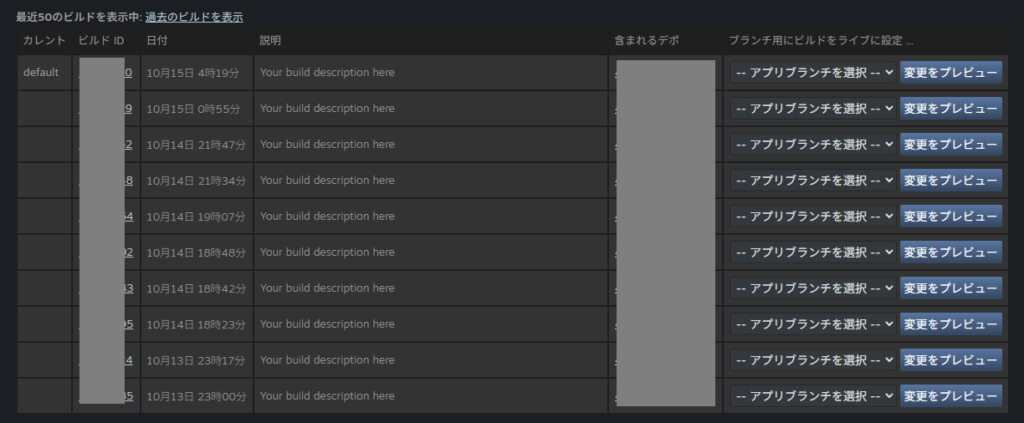
The Build ID itself is essentially just a version number. What matters is the contents of the depot associated with that Build ID.
When users download or update an app, they receive the depot contents associated with the currently active Build ID.
What Is a Branch?
Developers familiar with Git or SVN will find Steam’s branch concept relatively intuitive—it’s similar in principle.
“Branch” literally means “branch of a tree,” which is fitting: just like branches in a version control system, Steam branches let you fork your build history into separate lines.
Looking at the build history screenshot, you can see a “Current” column on the left with the value “default.” This “default” is the branch name, and the top row shows which Build ID it’s currently assigned to.
In practical terms, branches let you control which build version gets delivered to users. When “default” is set to the latest Build ID, users who download or update the app receive that version.
If you change the “default” branch to an older Build ID, users will receive that older version instead.
For solo developers, the typical workflow is simple: always keep the “default” branch pointed at the latest build. Branches are mostly an administrative tool in this case.
For team projects, branches become more useful:
- A “beta” branch can be used for internal builds that aren’t ready for public release
- A “legacy” branch can preserve a specific earlier version
- If a patch introduces a critical bug, switching “default” back to the previous Build ID is a quick way to revert while a fix is prepared
Branch-based build management is a genuinely useful feature. Without it, every uploaded build would immediately be visible to users—which would be problematic.
What Is a Package?
Package isn’t directly related to the build process, but it’s closely tied to apps, so it’s worth explaining.
A Package is essentially a product for sale on Steam. When you publish an app, it’s made available through a package.
The concept may be a bit abstract: when a user “buys” an app on Steam, they’re technically buying a package, which grants them access rights (download and play access) to the apps contained in that package.
Even downloading a free demo is technically “purchasing a free package” that contains the demo app.
Users don’t need to think about this at all—but developers who don’t understand packages may run into confusion during the actual sales setup.
What Is a Bundle?
Bundle also isn’t directly related to the build process, but it comes up in the Steam ecosystem.
If you’ve browsed Steam, you’ve probably seen “bundles”—collections of multiple products offered together as a package deal. That’s exactly what Bundles are.
In Steam’s sales system, a Bundle is a grouping of multiple Packages sold together.
Developers can set up bundles from Steamworks, so it’s worth being aware of—though in practice, bundles only become relevant once you have multiple titles on Steam.
Packages and Bundles are concepts that matter more at the full product release stage—I may move these explanations there if I write a dedicated article for that step.
The Overall Structure of a Steam App
To summarize the terminology:
- App: The game itself; has a parent app and child app (demo/DLC) structure
- Depot: The storage location for uploaded game files
- Build: The version management system for depot contents
- Branch: A feature for switching between builds based on purpose
- Package: A Steam product containing one or more apps
- Bundle: A Steam sales pack containing multiple packages
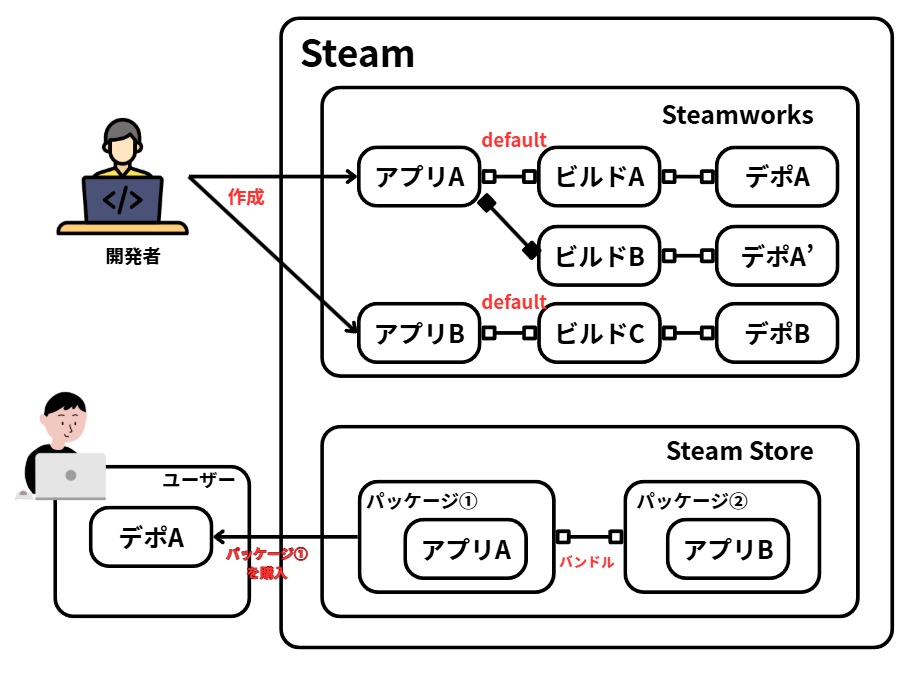
Words alone can be hard to visualize, so here’s a rough diagram I put together:
Here’s the flow illustrated in the diagram:
- A developer creates App A and App B
- The developer creates Build A (linked to Depot A) and Build B (linked to Depot A’) for App A
- The developer sets Build A as the “default” branch for App A
- The developer creates Build C (linked to Depot B) for App B and sets its “default” branch
- The developer publishes Package 1 containing App A and Package 2 containing App B
- The developer sets up a Bundle containing Package 1 and Package 2
- A user purchases Package 1
- When the user downloads Package 1, they receive Depot A—the depot associated with Build A (the current “default” branch for App A). Build B and Depot A’ are not “default” and are invisible to the user.
This may actually make things more confusing than the text explanation—apologies if so.
Note on the Depot naming: I used “Depot A” and “Depot A’” to indicate the same Depot ID with different contents. Other apps and builds have different IDs, so I used B and C for those.
Technically, a depot is a single file storage location, with a manifest file (tied to the Build ID) controlling which assets are used. “Depot A” and “Depot A’” aren’t physically separate locations—but I split them in the diagram for clarity.
This is my best understanding of how Steam builds work. If anything here is wrong, please let me know and I’ll correct it.
Summary
This article covered Steam build terminology and the overall structural model for Steam apps.
Most developers who have published on Steam probably have an intuitive sense of these concepts without ever having them laid out systematically. (Looking at online articles and forum posts, that impression is pretty common.)
So I wrote this as a structured breakdown of each term and how they fit together—though the result may have made things clearer or murkier depending on the reader.
The simple version: master how to upload game files, how to switch branches, and when to publish—and that’s enough to ship on Steam without major issues.
That said, having a conceptual understanding of the underlying system helps enormously when you encounter an unexpected situation that isn’t covered in any tutorial. Whether or not you’ll ever need it, knowing it doesn’t hurt.
I hope this article helped deepen your understanding of Steam builds, even slightly.
That’s all for this article. For other Steam-related articles, see the main overview article linked below.
How Indie Developers Can Sell Their Games on Steam - Senko’s Activity Log (en.senkohome.com)
Also popular with readers
📚 Series: How to Sell Your Game on Steam (7/7)