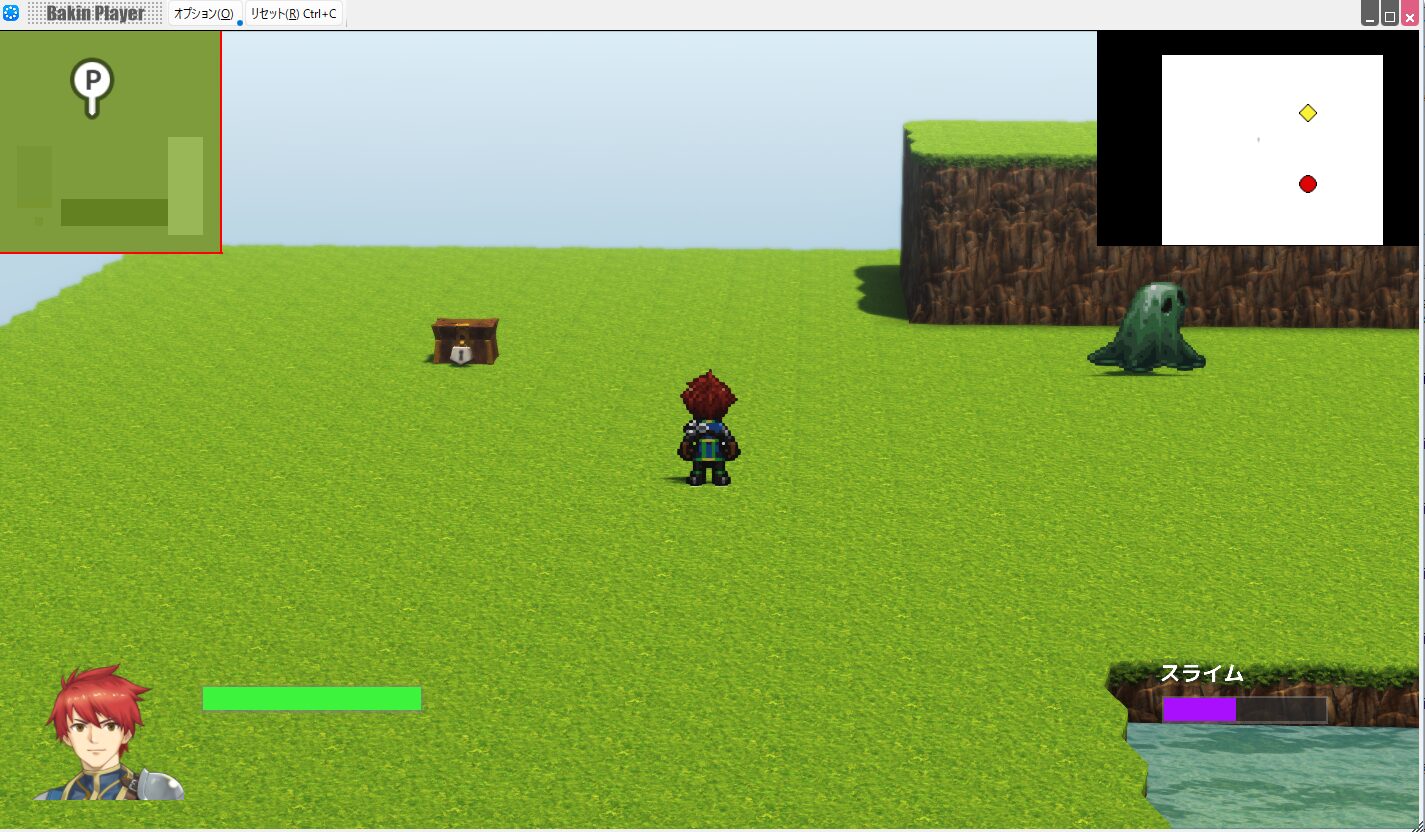
Displaying a Minimap in Bakin
In the previous article, I covered how to display HP bars for allies and enemies on-screen. In this article, I’ll explain how to implement the “minimap” feature in the Layout Tool—something almost every action game includes.
The official Wiki has a brief entry on minimap display as well, so feel free to check that too.
How to Display the Minimap
Displaying a minimap isn’t actually that complicated. The “Event Free Layout” covered in the previous article is all you need.
First, open the “Layout Tool” from Bakin’s master menu, go to “Event Free Layout,” and click “Add Layout” to add a layout named something like “Minimap Display.”
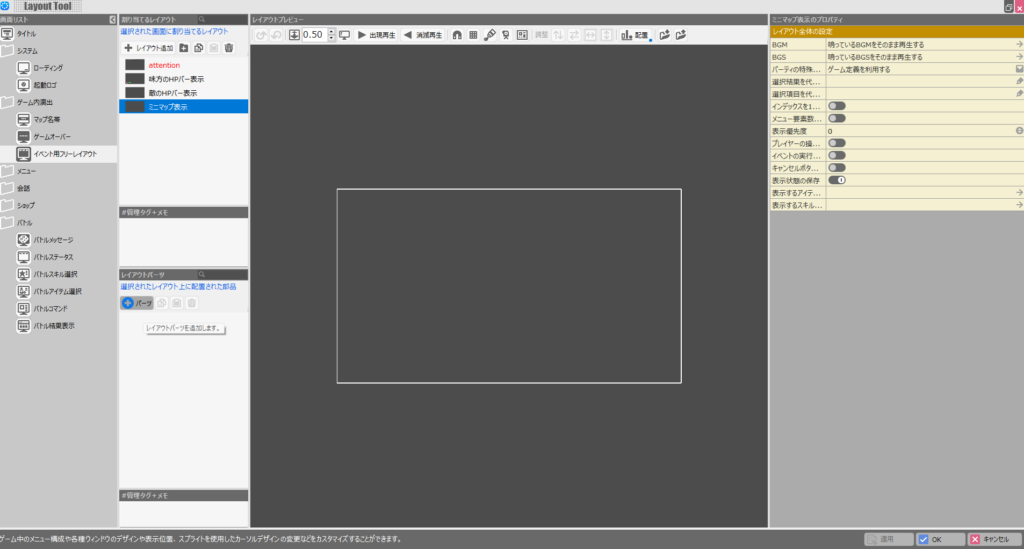
With the new layout selected, click the ”+ Parts” button under “Layout Parts” to add a new part. From the “Game General” tab, select “Minimap” and click “OK.”
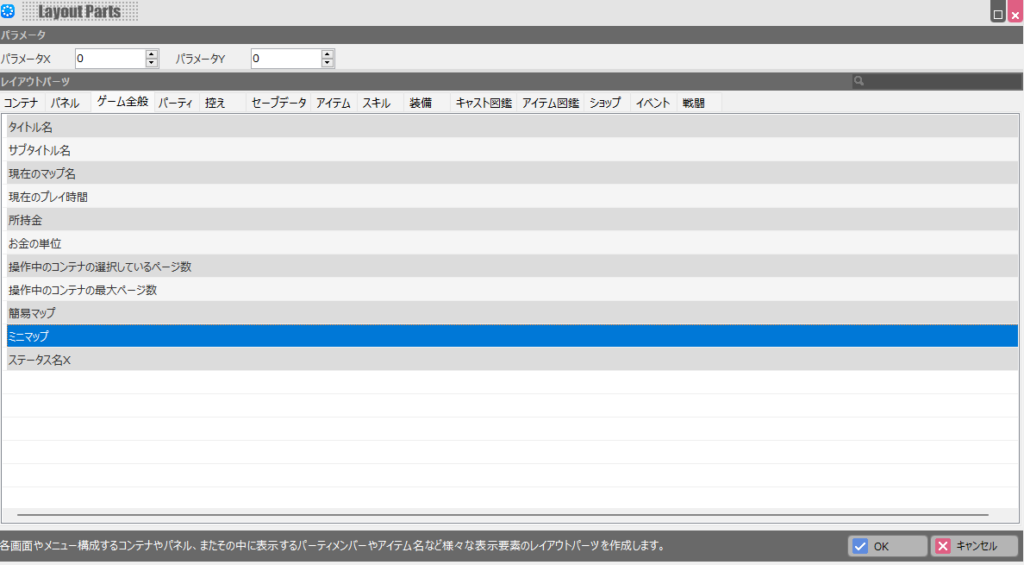
A minimap will now appear in the upper-left of the preview area.
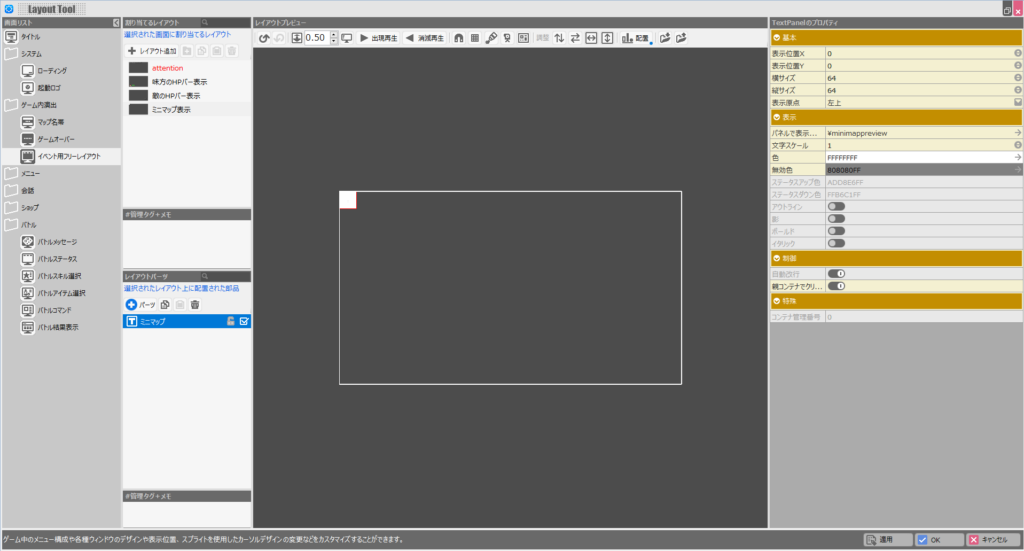
The default position and size aren’t ideal, so reposition it to the upper-right and make it a bit larger.
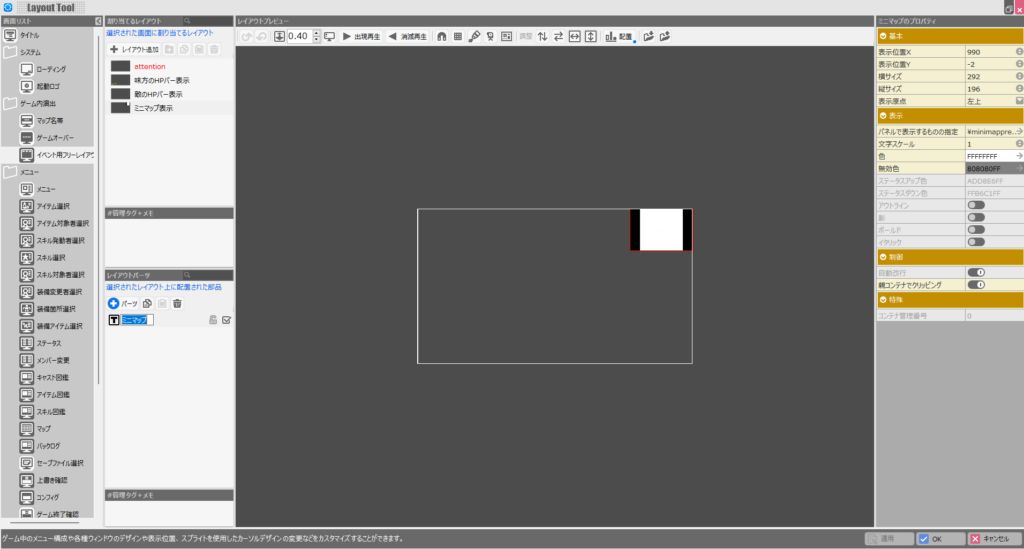
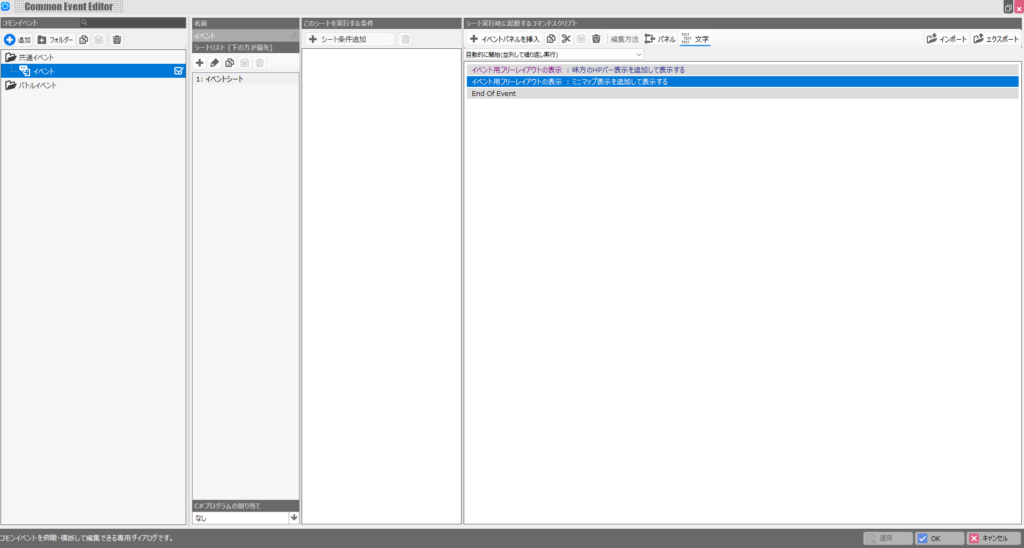
Once the minimap layout is set up, add the Event Free Layout display command in a Common Event, just as in the previous article.
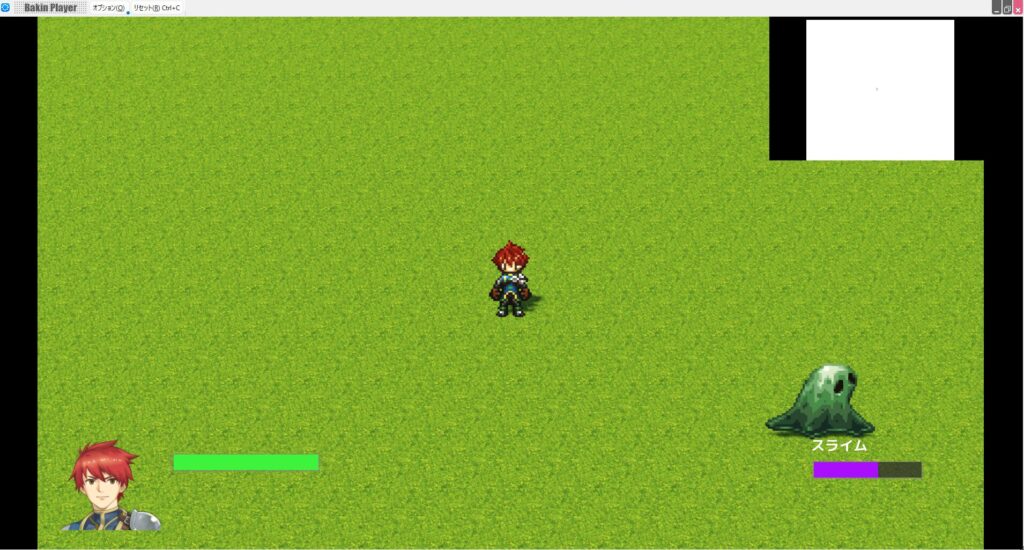
Launching the game with this configuration should show the minimap in the upper-right corner. As you’ll quickly notice, Bakin’s minimap is honestly not very impressive in its default state.
On its own it provides very little useful information, but with the extra step described later, it becomes much more functional.
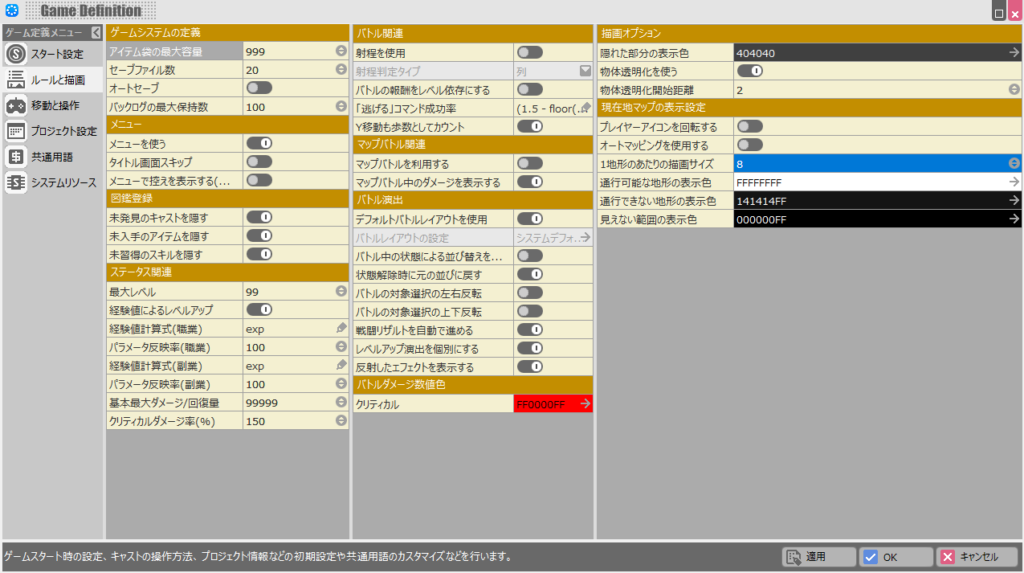
Minimap display options can also be adjusted in “Game Definition” → “Rules and Drawing” → “Current Map Display Settings” on the right side.
For example, enabling “Rotate Player Icon” makes the player icon rotate to match their facing direction.
Enabling “Use Auto-Mapping” gives the minimap an exploration feel—the map progressively reveals itself as the player moves through it.
“Drawing Size per Tile” can be decreased to zoom the minimap in (narrower view), or increased to zoom it out (wider view).
The colors for walkable and unwalkable terrain can also be customized freely. Adjusting these settings will make the minimap more appropriate for your game.
How to Display the Simple Map
In addition to the minimap, Bakin also includes a “Simple Map” feature. Unlike the minimap (which shows the area around the player), the Simple Map displays the entire map with color-coded elevation.
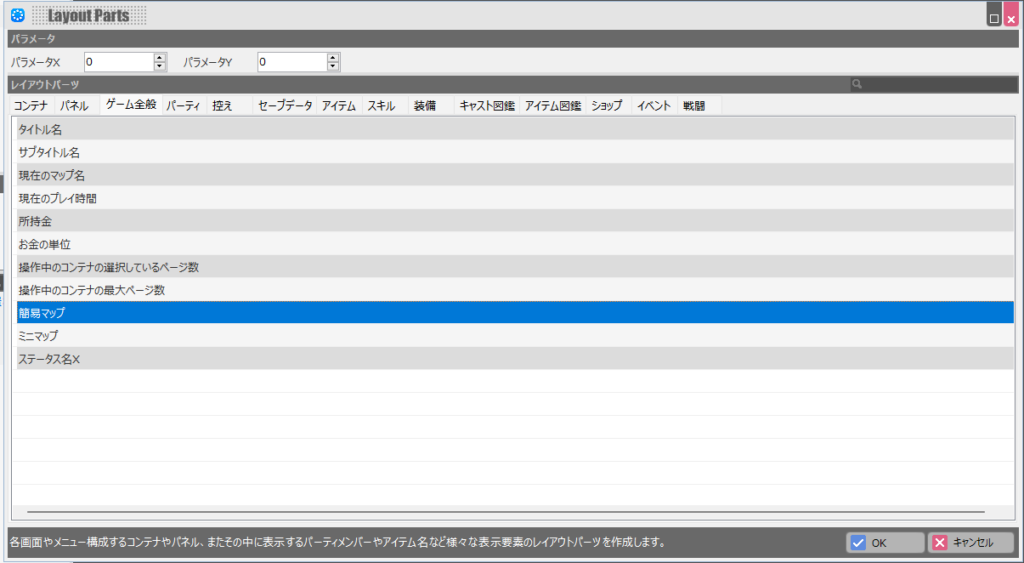
To display it, go to the Layout Tool, click the ”+ Parts” button, and select “Simple Map” from the part list (it appears above “Minimap”).
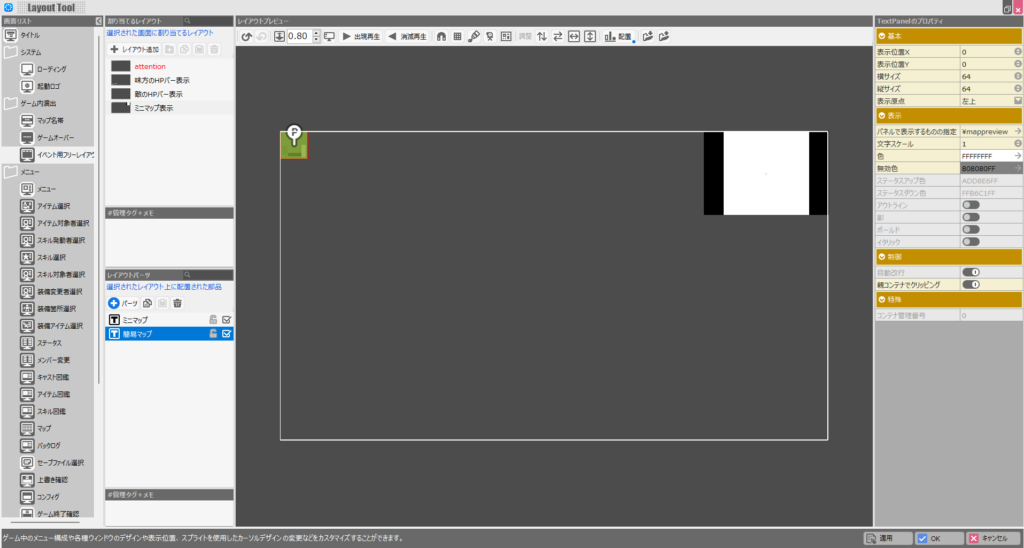
A small Simple Map will appear in the upper-left of the layout preview.
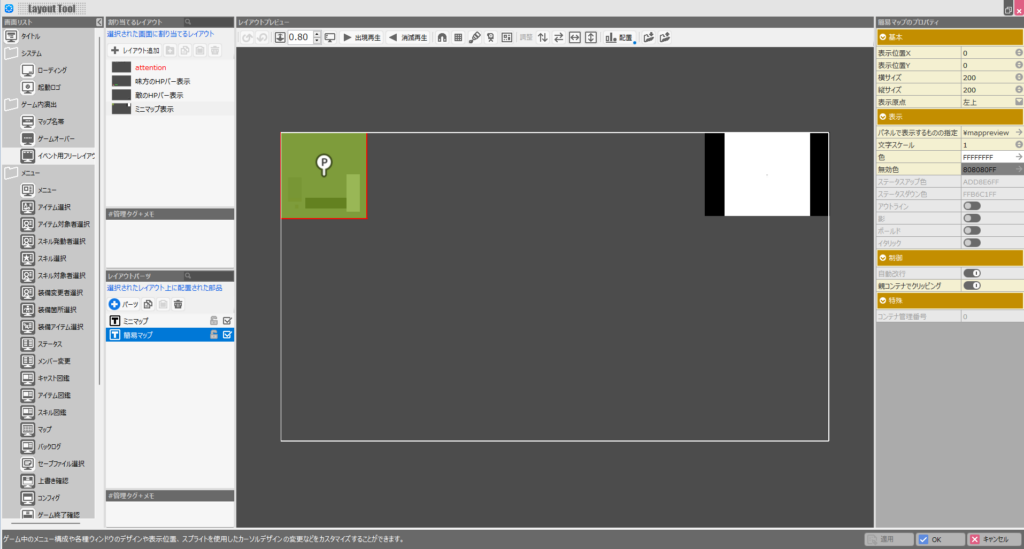
Increase the size to make it more legible in the actual game view.
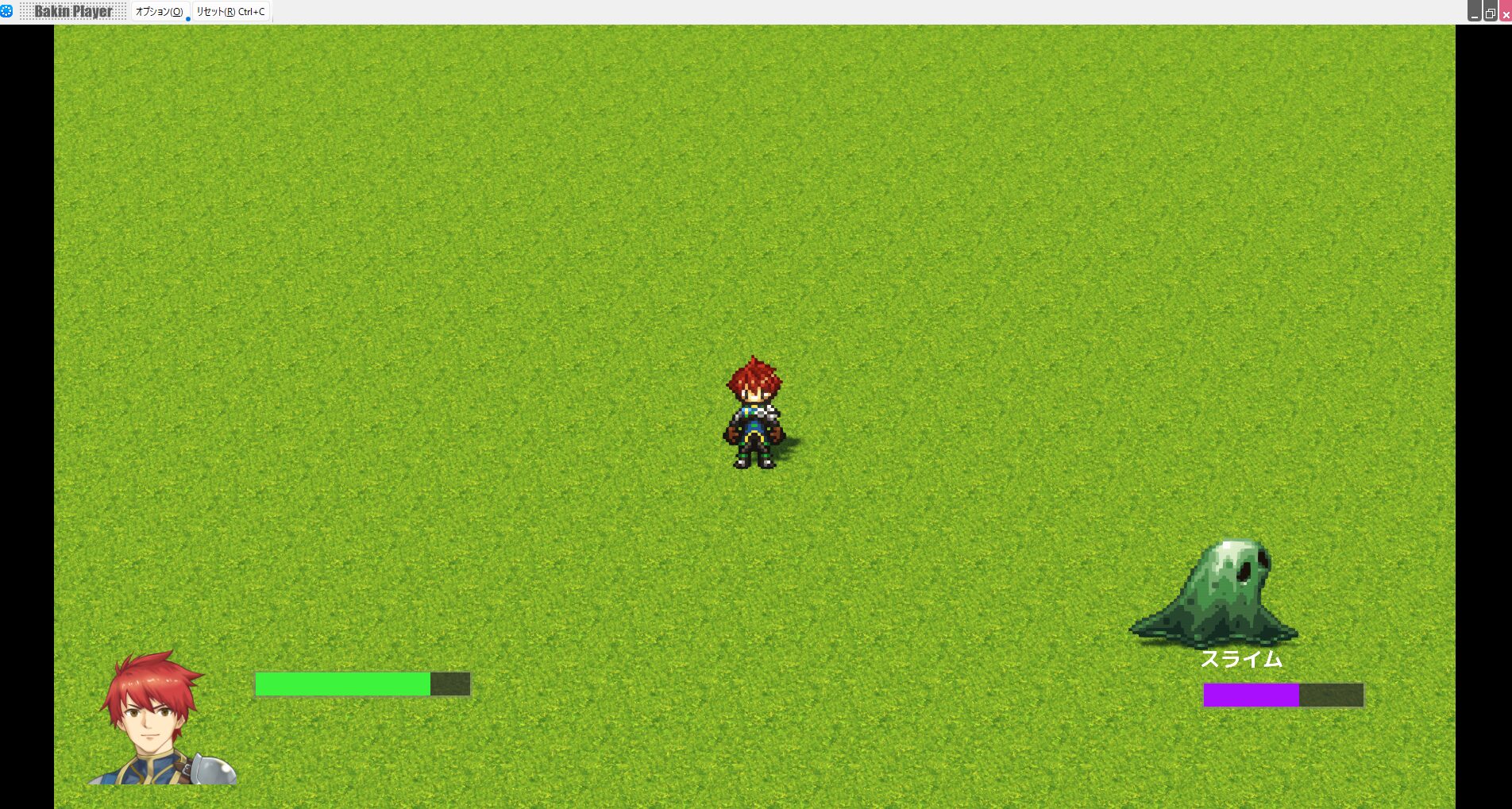
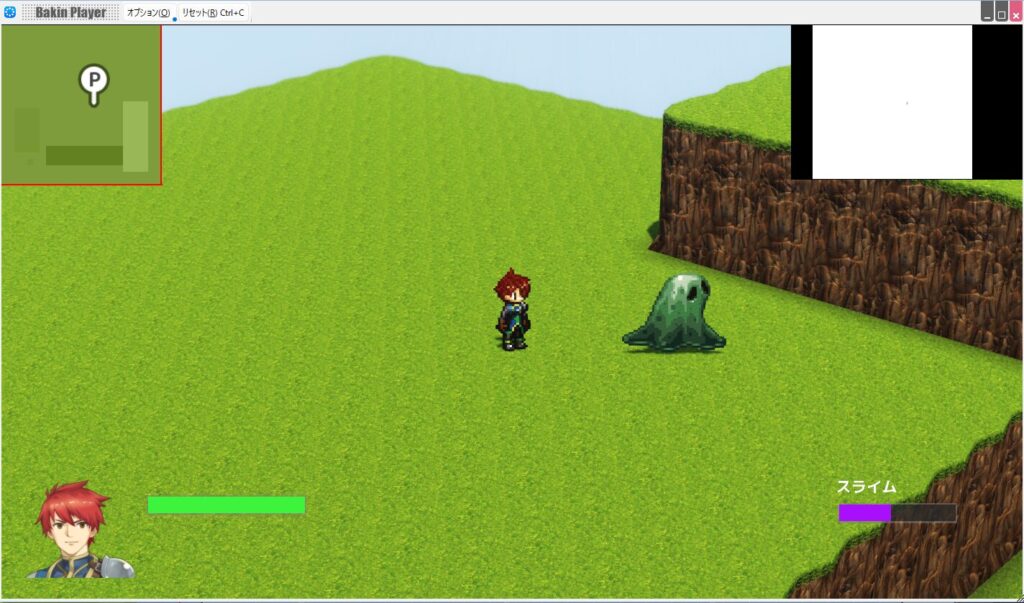
In the actual game, the Simple Map looks like the screenshot below. You can see that compared to the minimap, it clearly shows terrain colors and elevation across the whole map.
At first glance the Simple Map alone might seem sufficient, but the minimap has one unique feature the Simple Map lacks: the ability to display enemy and treasure icons. That distinction is covered next.
Displaying Enemy and Treasure Icons on the Minimap
The minimap appears to be the weaker option at a glance, but it actually supports displaying icons for enemies and treasure chests—a feature the Simple Map doesn’t have.
To use this feature, first open “Game Definition” → “System Resources” and configure the “Event Image” entry under “Current Map.”
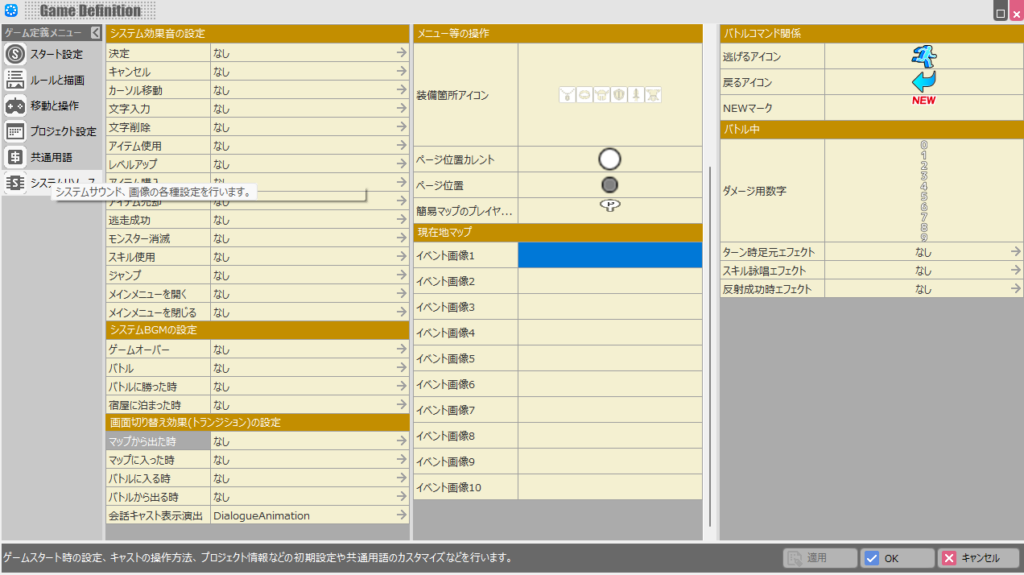
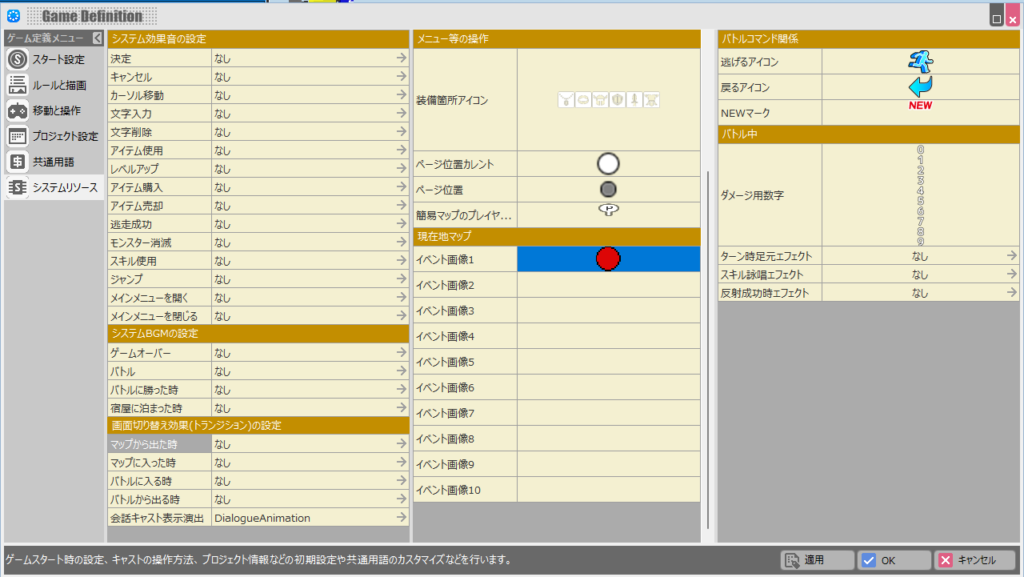
You’ll need to prepare the icon images yourself. For this example, I created a simple 16×16 red circle in pixel art (easily made in Paint or any similar tool) and registered it.
By assigning this red circle to an enemy character, the enemy will appear as a red dot on the minimap.
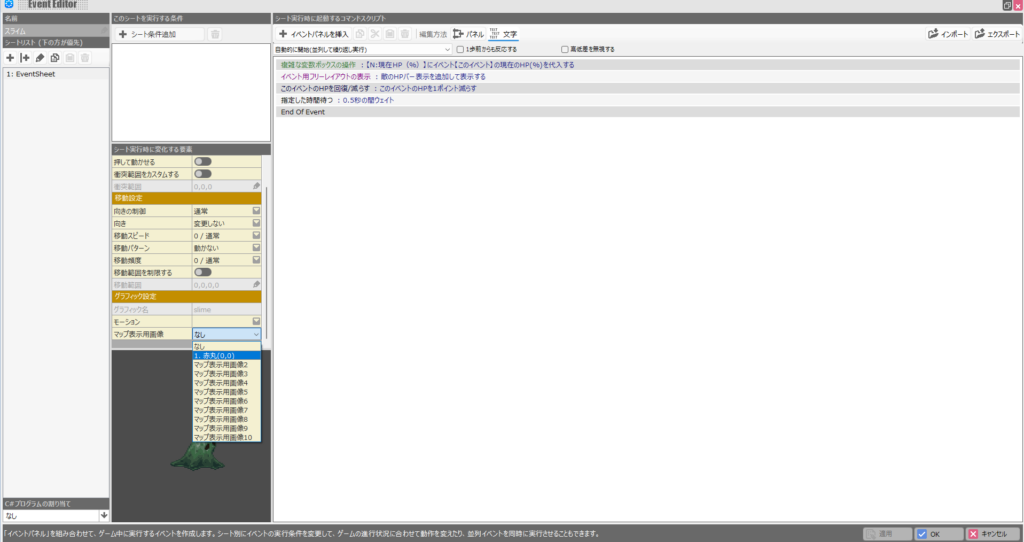
Open the enemy character’s “Cast Event,” then in “Graphic Settings” set the “Map Display Image” to the red circle registered in Game Definition.
Running the game, you’ll see the enemy character displayed as a red dot on the minimap. You’ll also notice that no red dot appears on the Simple Map, confirming the distinction between the two.
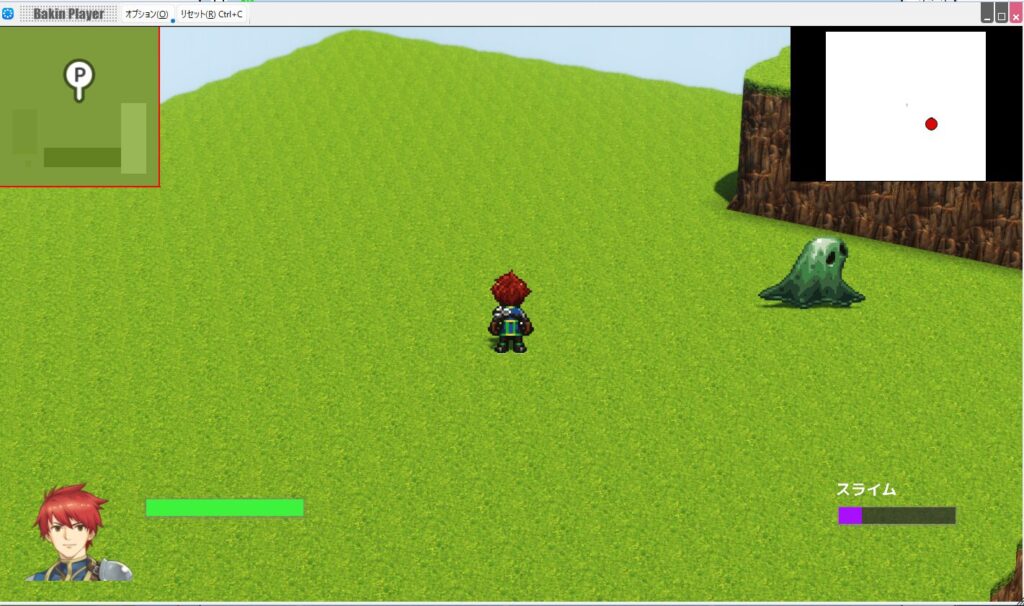
Using the same approach, you can create a treasure chest as a custom event, register a yellow diamond icon in Game Definition, and assign it as the chest’s map image—giving you separate icons for enemies and treasure.
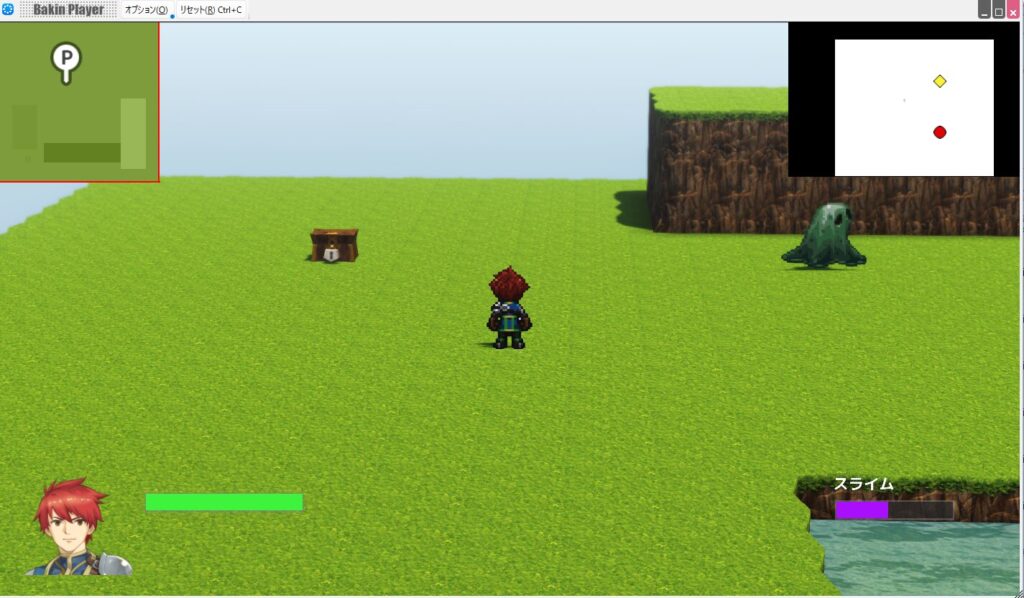
Personally, I think the Simple Map should have the icon display feature too, but Bakin apparently intends for both maps to serve distinct roles—or so I assume.
Summary
This article continued from the previous one, covering more practical uses for Bakin’s Layout Tool.
Personally, I’d recommend the Simple Map over the minimap in terms of visual clarity, but its inability to differentiate enemies and treasure icons is a significant limitation.
Hopefully Bakin will improve the map features in a future update. Until then, this is what we have to work with. I’ll continue covering how to build games in Bakin going forward—check back if you’re interested.
Also popular with readers
📚 Series: RPG Maker Bakin: Game Development Guide (11/17)