Can VRM Animation (VRMA) Be Applied in Bakin?
Previous articles covered how to import VRoids into RPG Developer Bakin and how to bring in animations from Mixamo.
That said, people who have become comfortable with VRoid often wonder: “Is it possible to bring VRM Animation (VRMA) files into Bakin?”
The short answer is yes—it’s possible, but it requires a slightly involved process. This article explains exactly what steps are needed to get VRMA into Bakin.
Honestly, I’m still not entirely certain this is the “correct” method, so if anyone knows an easier way, I’d love to hear it.
What Is VRM Animation (VRMA)?
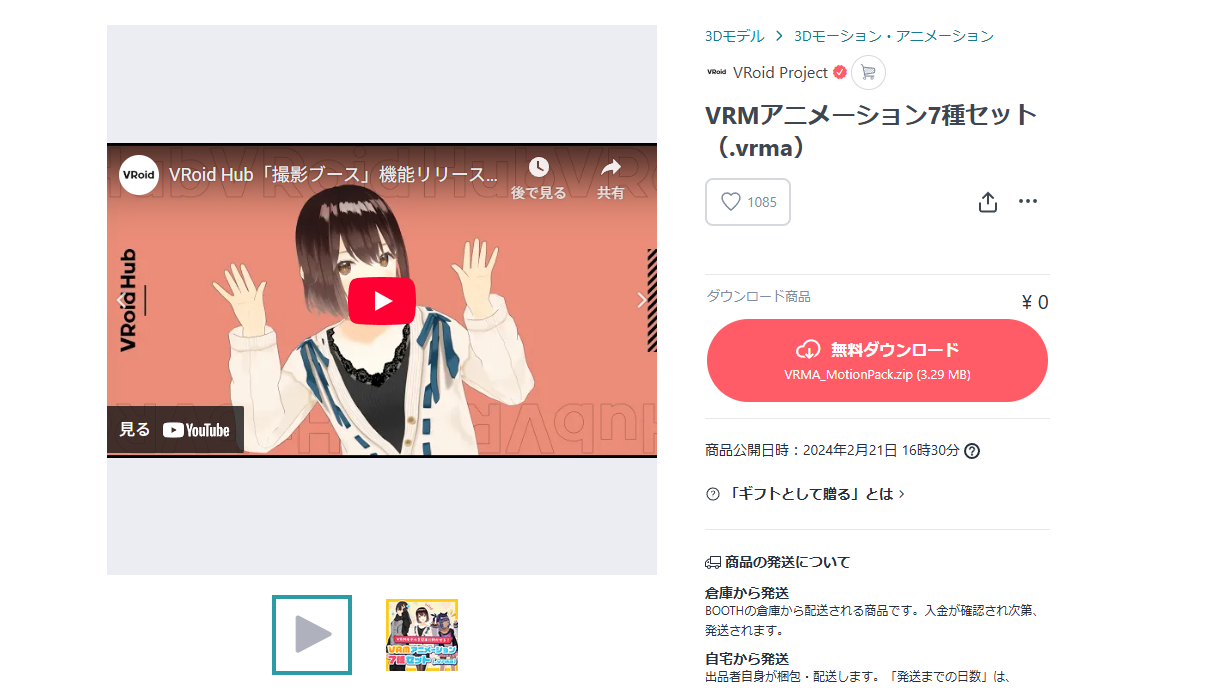
First, a brief explanation of “VRM Animation (VRMA).” Simply put, it’s a dedicated file format (.vrma) for adding various movements (animations) to 3D characters created in VRoid.
More specifically: 3D characters created in VRoid use a proprietary file format called VRM when used externally, and VRMA is what’s used to animate those VRM characters. As a result, VRMA cannot be used to animate characters created outside VRoid (such as FBX files).
If you want to see it in action, check out the official VRoid sample page—it shows various VRMA animations applied to VRoid characters.
For now, understanding that VRMA is “the thing that makes VRoids move in different ways” is sufficient.
[Preparation] Installing Blender Add-ons (One-Time Setup)
From here the instructions get a bit more technical, because the process requires Blender—a 3D creation tool.
Blender is a free yet extremely capable tool. For anything 3D-related, it’s typically the first thing to consider.

The VRMA import process primarily uses Blender, so if you haven’t installed it yet, download it and get it running on your PC first.
Installing the VRM Format Add-on
Once Blender is running, you’ll need to install add-ons (extensions for Blender). This installation is a one-time setup—you won’t need to repeat it.
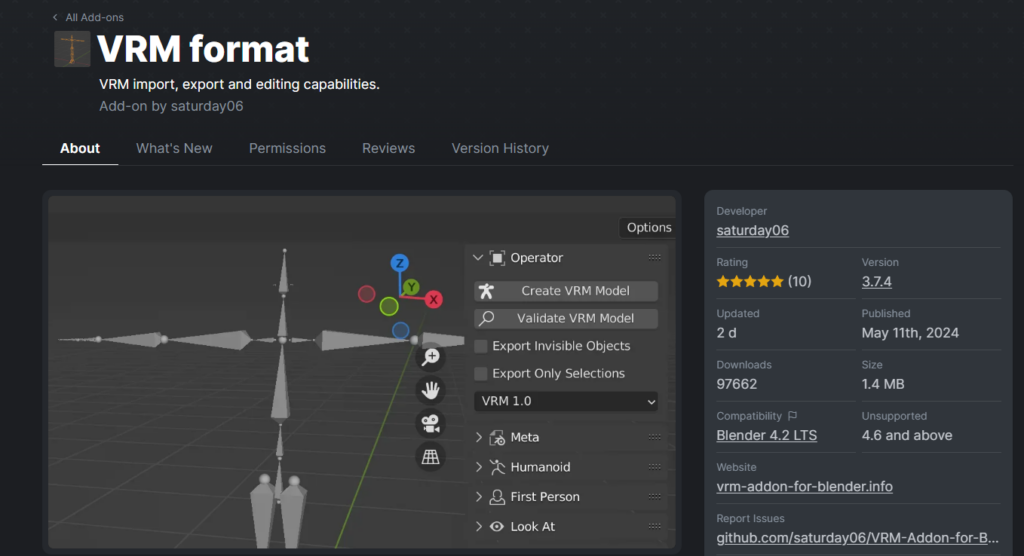
The first add-on is “VRM format.” Installing it enables Blender to handle VRM and VRMA files, making it an essential add-on for working with VRoids in Blender.
For installation instructions, refer to the official VRM format page.
Installing the Bakin Motion Export Add-on
The second required add-on is “Bakin Motion Export.”
This add-on is provided by Bakin on its official Wiki. It handles fine-tuned adjustments when exporting a VRoid 3D character (VRM) as FBX for use in Bakin.
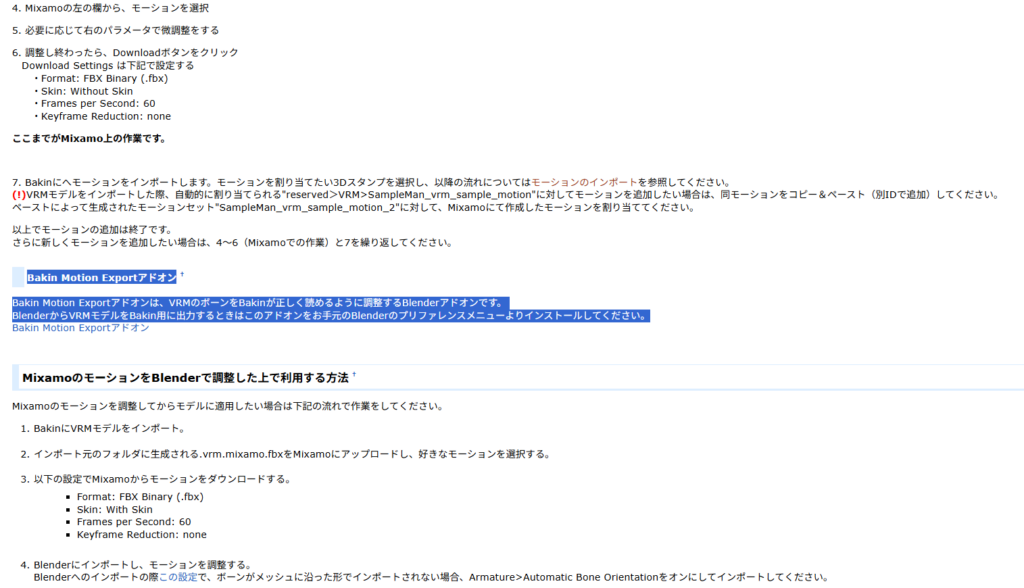
While Bakin can now import VRoid files directly, this is understood to work by converting them to FBX format internally. Since it’s difficult for users to determine exactly how Bakin structures that converted FBX, this add-on provides a way to export FBX files with a compatible structure.
I’m being vague here because the official Wiki doesn’t include a detailed explanation of the add-on’s purpose, so I’m inferring its intent.
In practice, since VRoids can be imported directly and Mixamo FBX animations can be imported as-is, this add-on doesn’t come up often. It’s mainly useful in two situations: when you want to add custom Blender-created animations to an existing VRoid in Bakin, or when importing VRMA files—as in this article.
Setting that aside, download “Bakin Motion Export” from Bakin’s official Wiki.
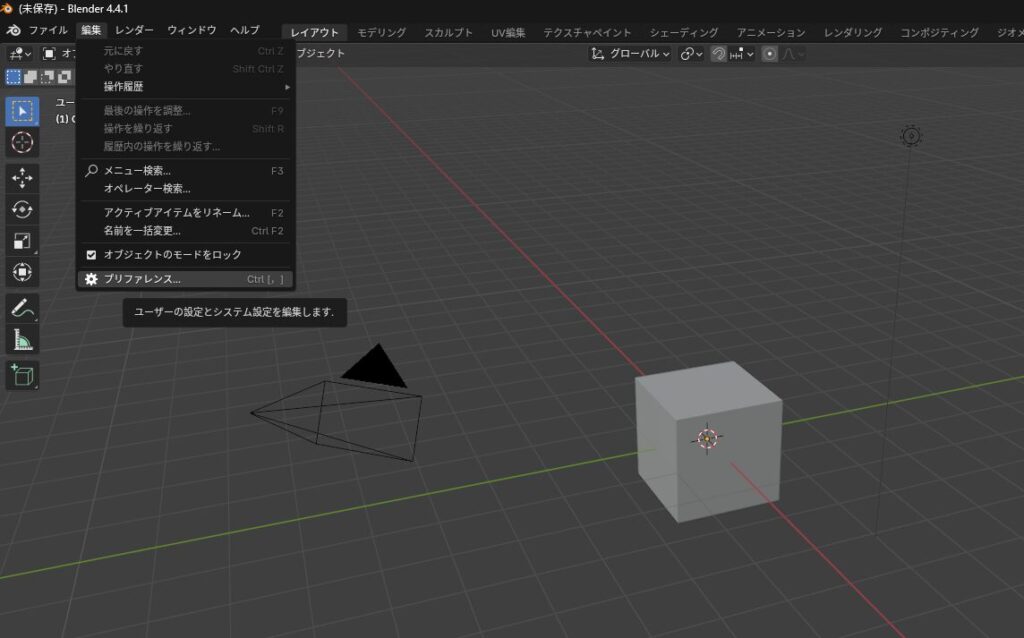
This will give you a file called “bakin_motion_export.py.” Save it somewhere on your PC. Then in Blender, go to “Edit” → “Preferences.”
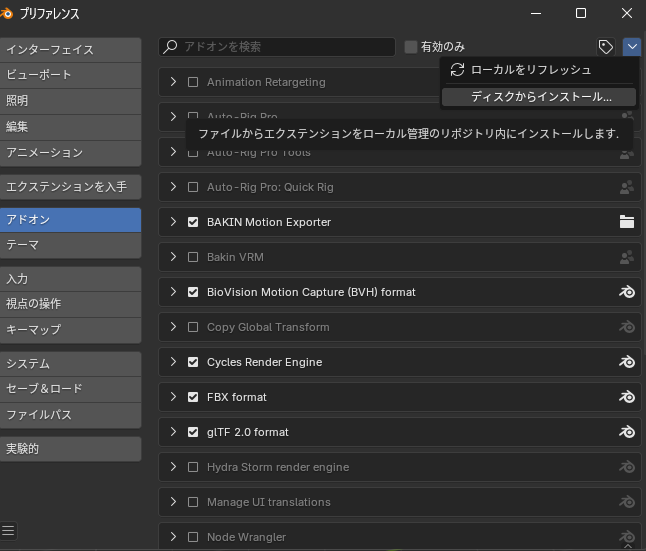
In the Preferences screen, select “Add-ons” from the left menu, then click the down arrow in the upper right and select “Install from Disk.”
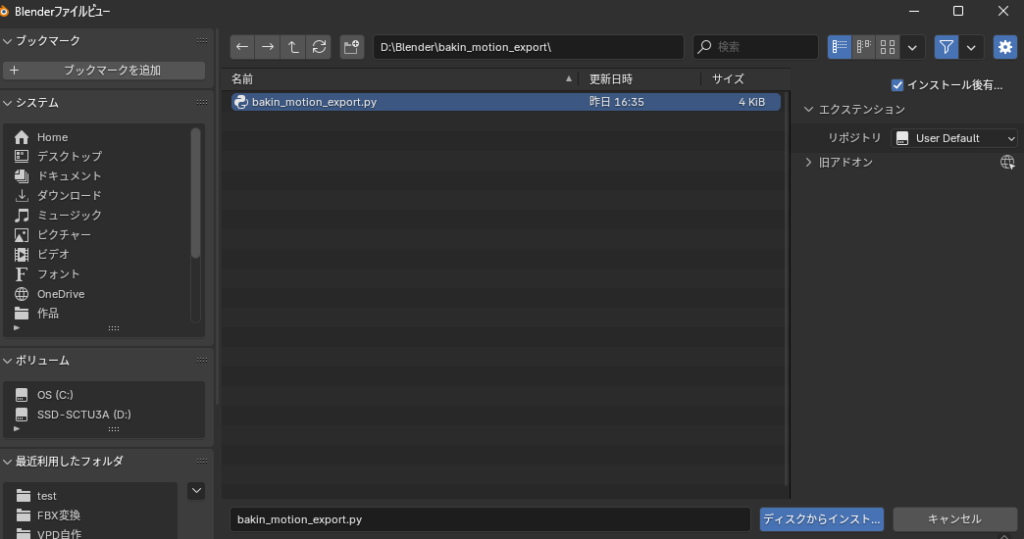
Select the “bakin_motion_export.py” file downloaded from the Bakin Wiki, then click “Install from Disk.”
If “BAKIN Motion Exporter” appears in the add-on list, the installation was successful.
Preparing the VRM and VRMA Files
Now let’s go through the steps for getting VRMA into Bakin.
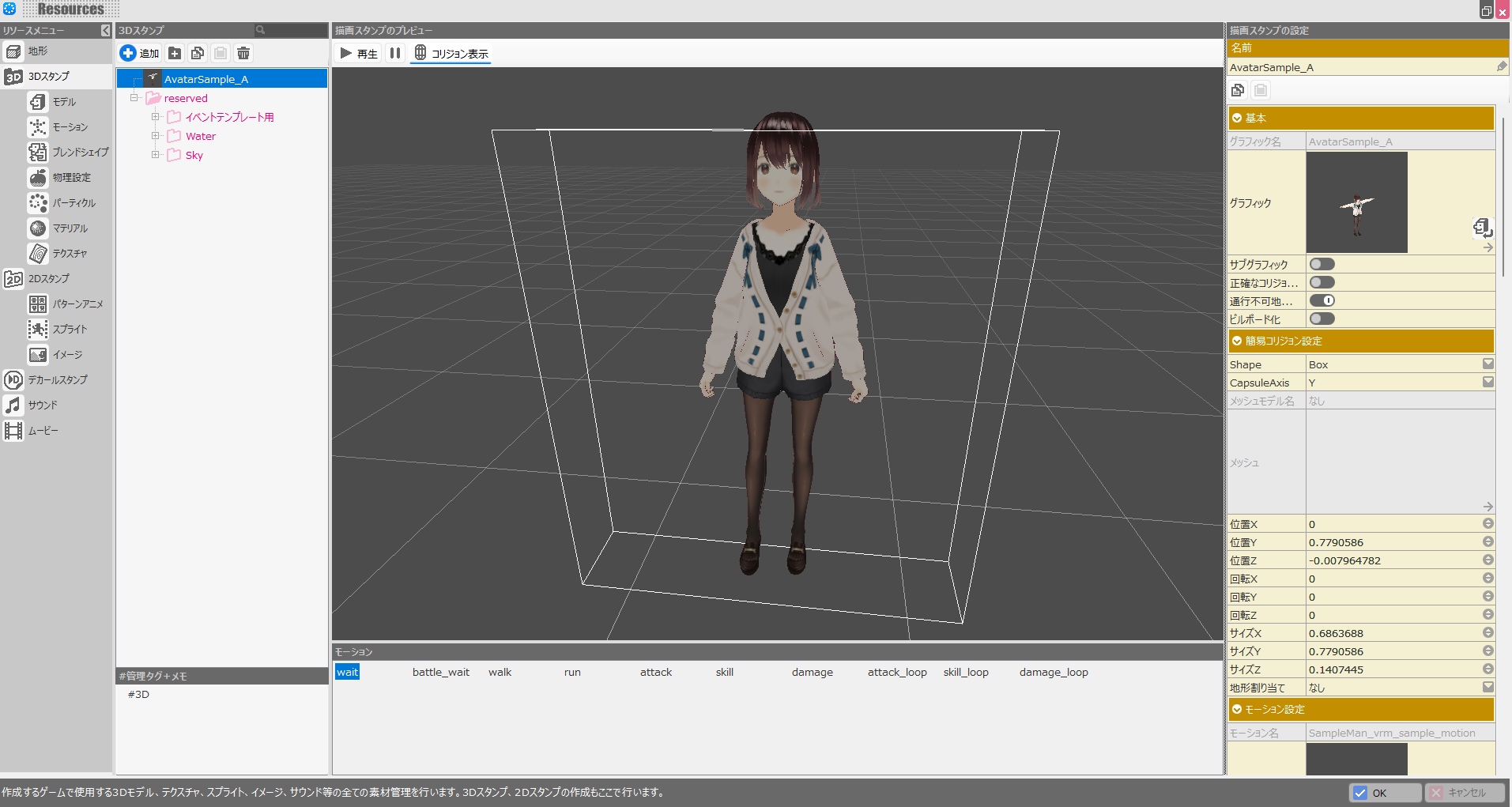
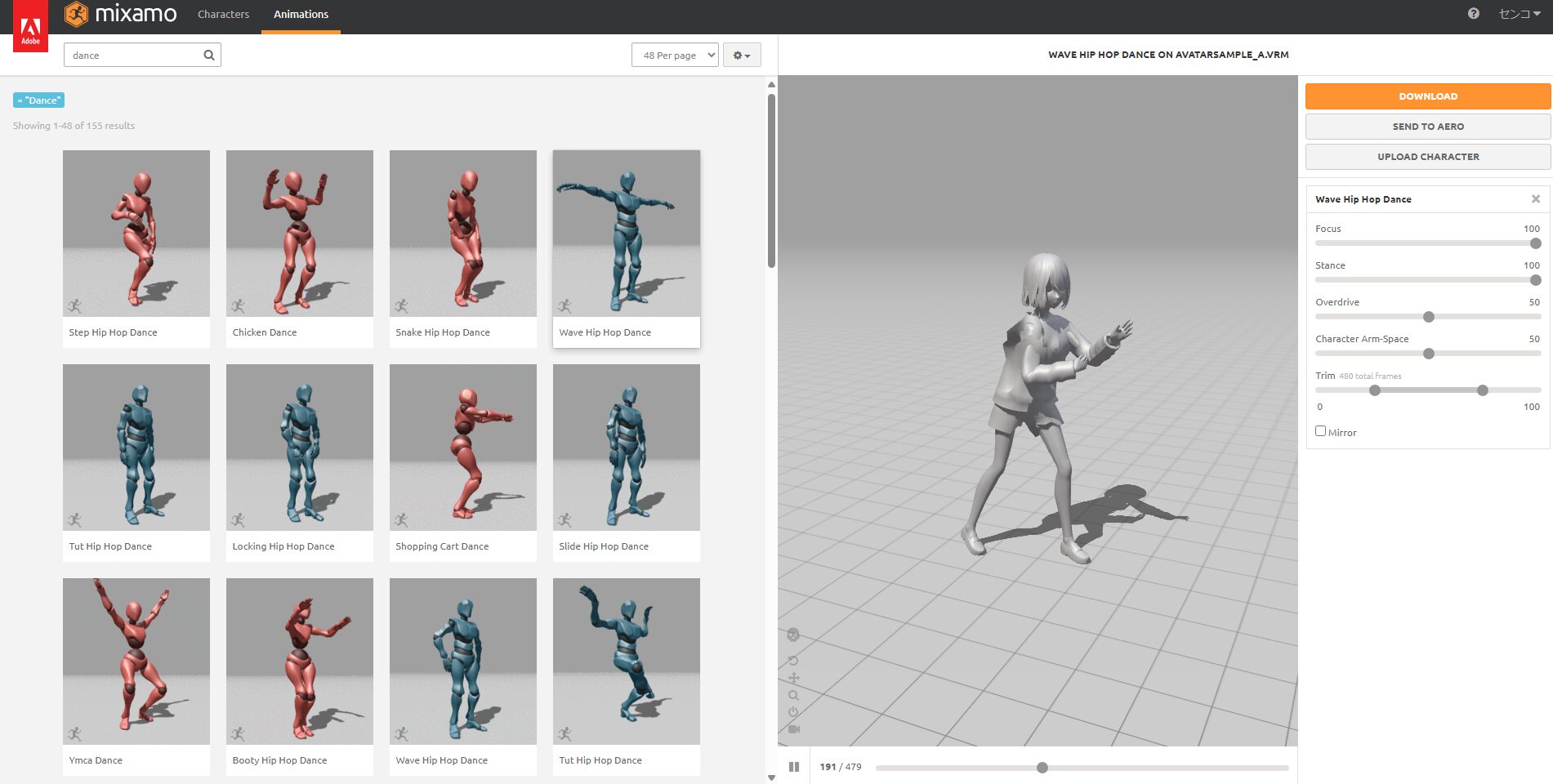
If you’re not yet familiar with how to import VRoids into Bakin, please read the following articles first.
Preparing the VRM File
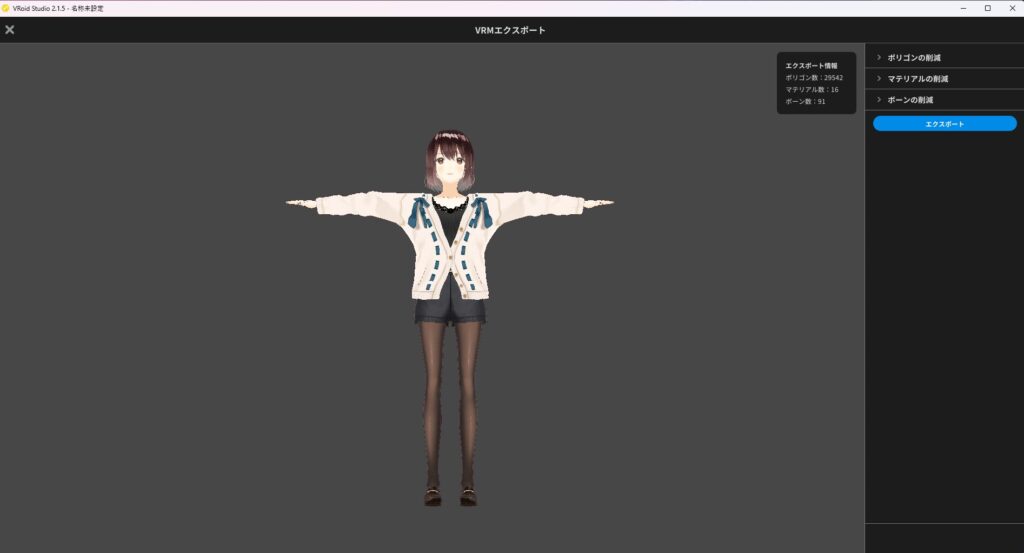
First, get a VRM file from VRoid for whatever character you want to use. The VRM export steps are covered in the articles linked above.
Any character is fine, though very unusual body shapes may cause issues. The sample model “AvatarSample_A” is a safe choice.
Preparing the VRMA File
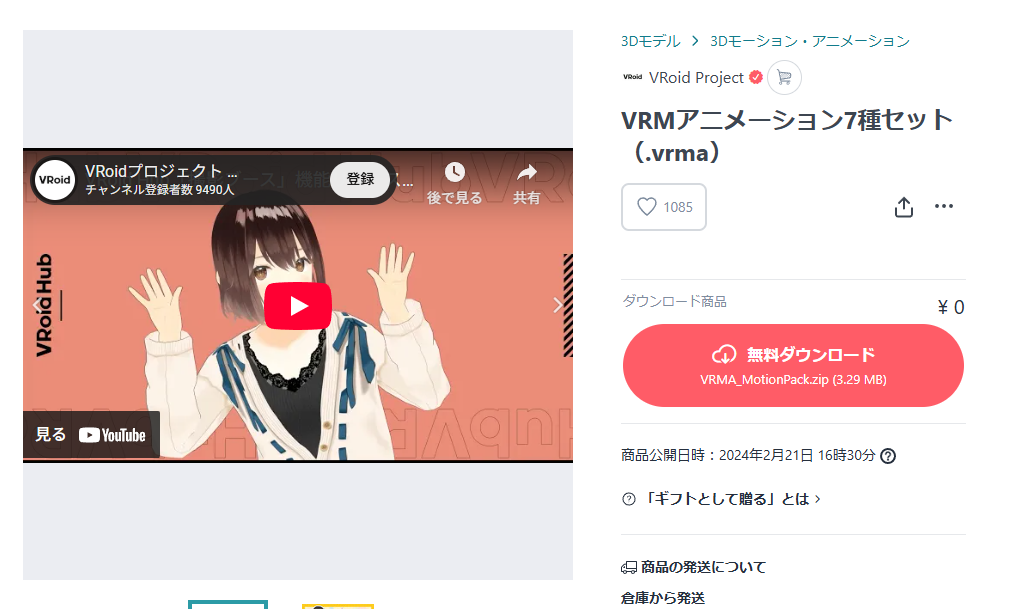
Next, get a VRMA file containing the animation you want to apply.
You can create VRMA files yourself, but for this walkthrough, download an official sample VRMA file from the link below (free download).
Creating custom VRMA files will be covered in a future article.
Once you have both the VRM file (the 3D character) and the VRMA file (the animation), the file preparation is complete.
Applying VRM and VRMA in Blender and Exporting as FBX
With both add-ons installed and both files ready, it’s time to work in Blender.
First, open Blender, click the default Cube that appears, and delete it.
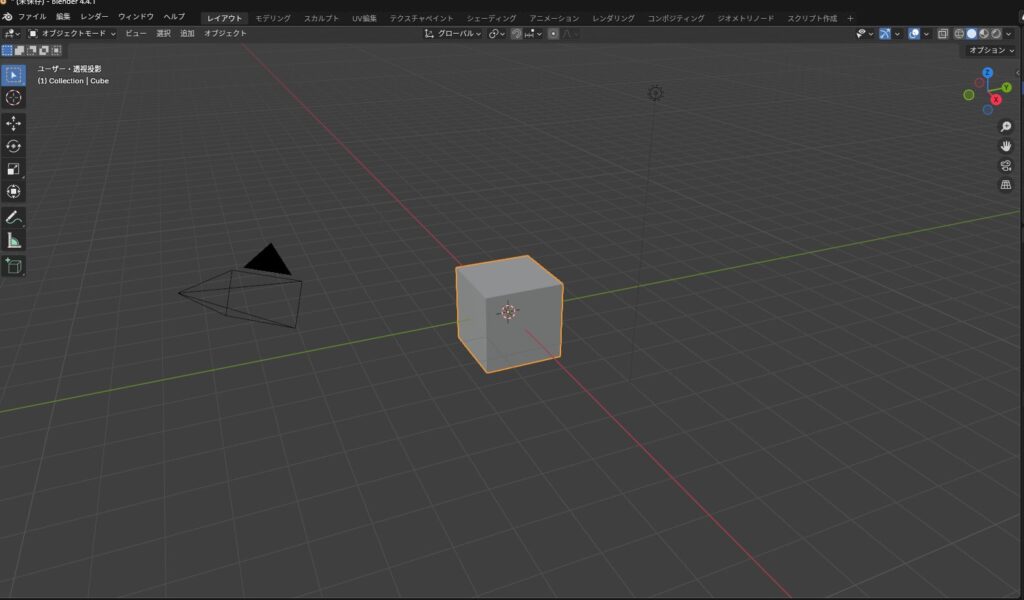
Then drag and drop the VRM file into Blender (or use “File” → “Import”).
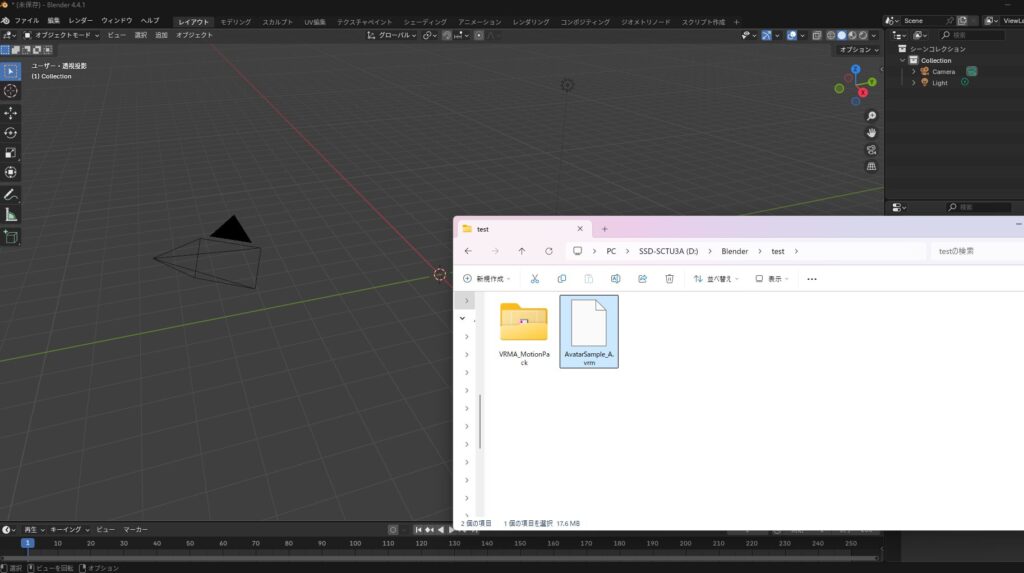
After a moment, the VRoid character will appear in Blender. Now drag and drop the VRMA file in the same way.
For this example, I used “VRMA_01.vrma” from the downloaded ZIP file.
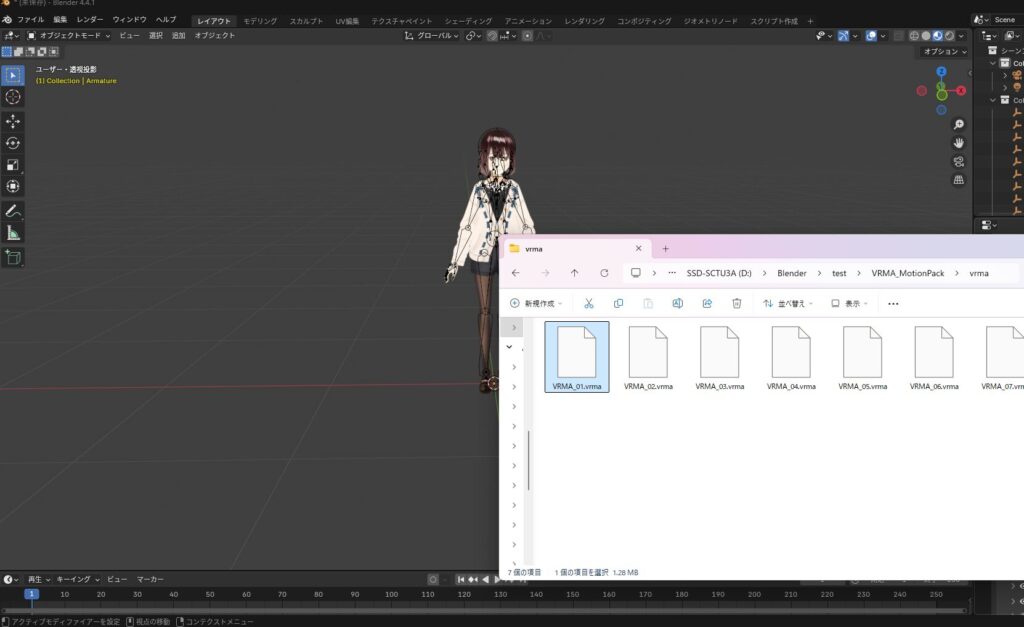
With both files loaded into Blender, click the “Play (right triangle)” button at the bottom of the Blender screen to test the animation.

If everything has gone correctly, the 3D character should animate according to the VRMA file.
If it doesn’t work, there’s likely an issue somewhere in the previous steps. Investigate the step where things went wrong (asking ChatGPT or a similar tool can be quite helpful here).
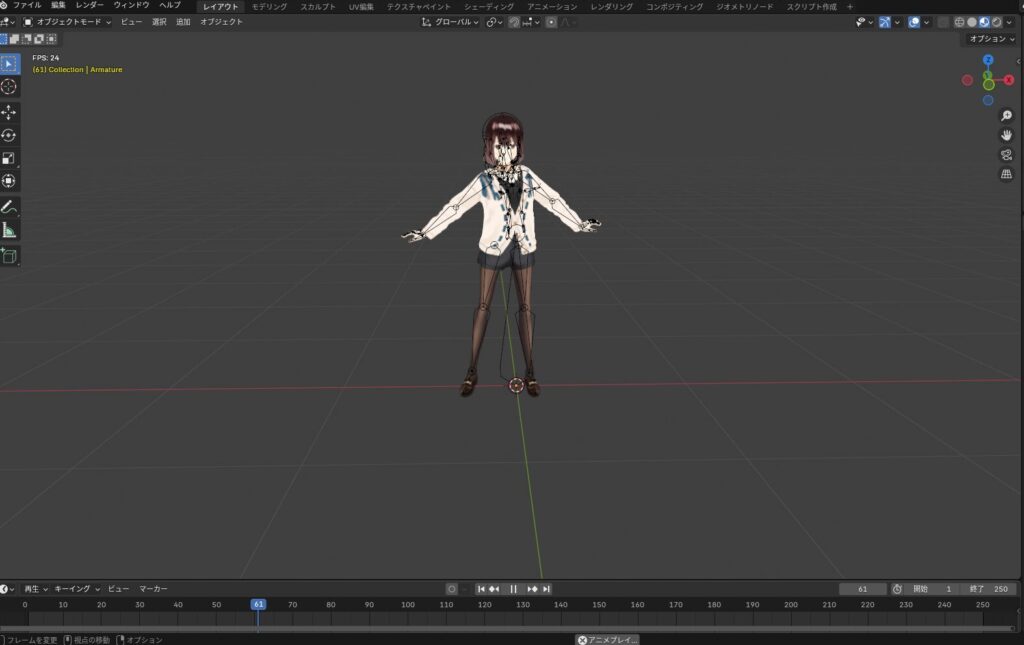
Finally, export the current project—with both VRM and VRMA loaded—as FBX. However, exporting as a standard FBX will result in a bone structure incompatible with Bakin’s VRoid import.
Instead, use the “Bakin Motion Export” add-on to export.
Go to “File” → “Export” at the top of the screen, and select “Bakin Motion Export (.fbx).”
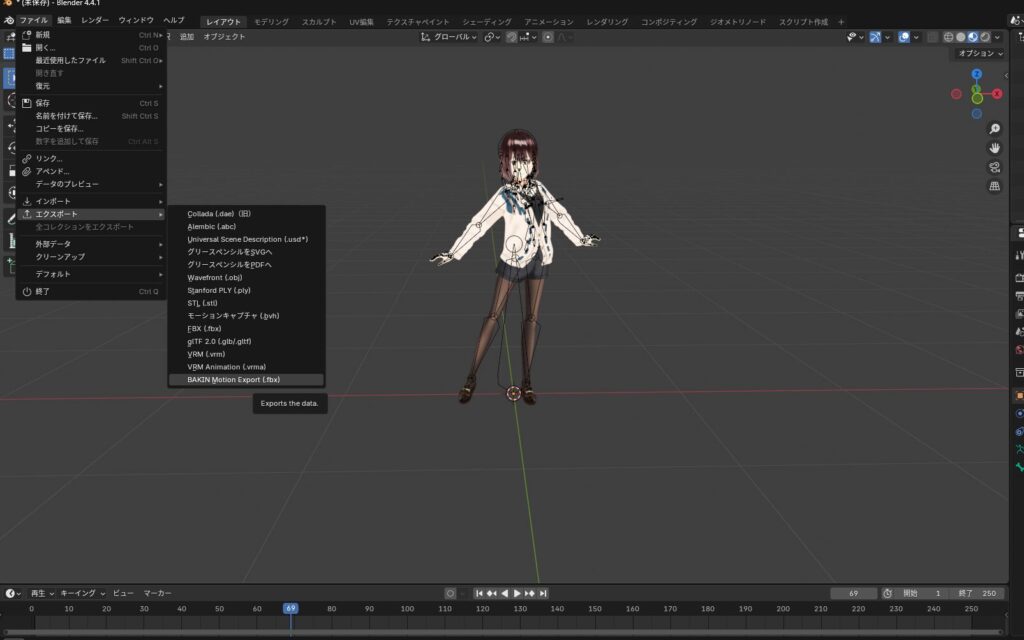
Save the exported FBX file to a folder of your choice with any name you like.
Note: Bakin cannot handle two FBX files with the same name, so use unique filenames (I’m using a simple name here since this is just a test).
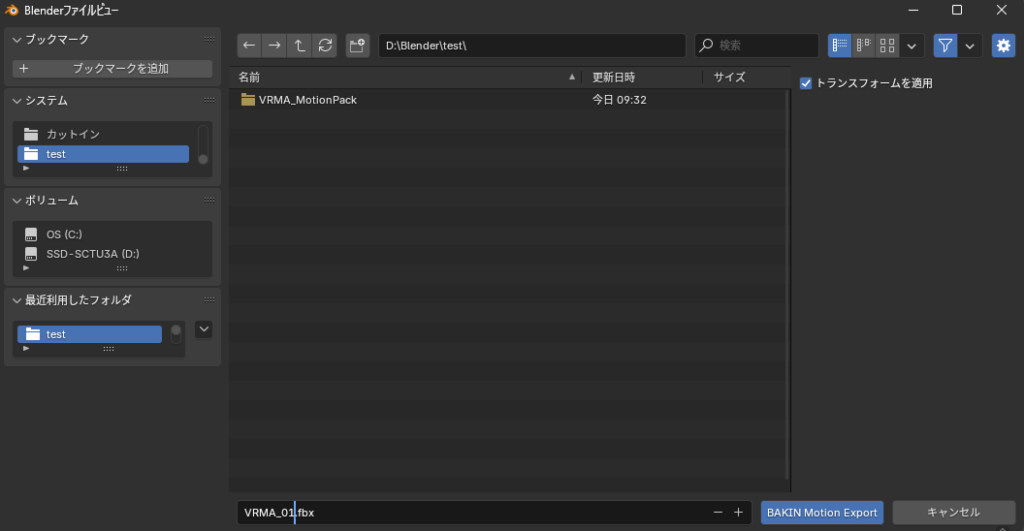
With the FBX file exported, the Blender work is done. All that remains is importing the file into Bakin.
Importing the VRMA into Bakin
Let’s import the FBX exported from Blender (the combined VRM + VRMA) into Bakin and see the result.
First, import the VRM file into Bakin as a 3D stamp—this step is covered in the previous articles.
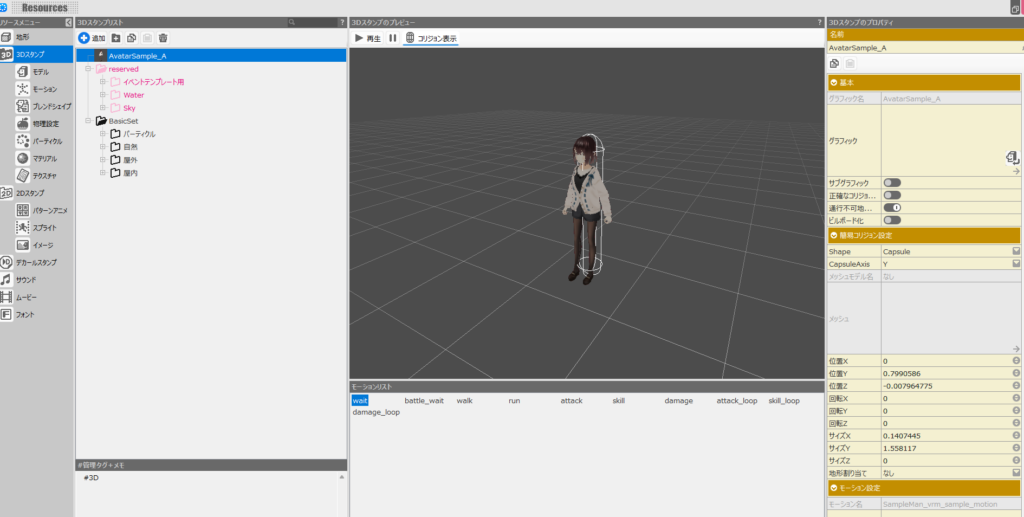
Next, import the Blender-exported FBX as a “Model” (a 3D stamp also works, but you’ll only use it as a model here).
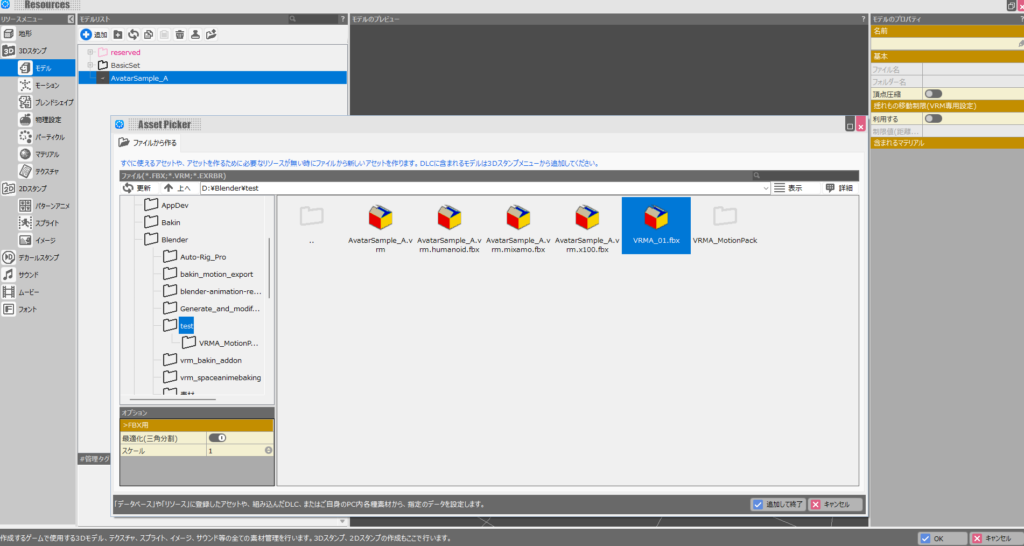
Leave the settings at default, but set the scale to “1.”
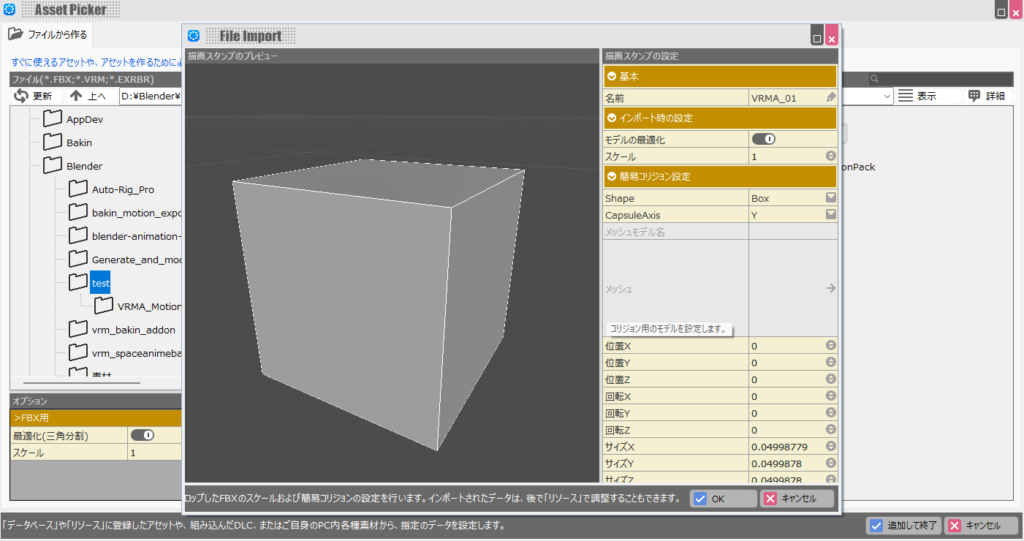
After importing, you’ll see a mysterious cube registered as the model. You might wonder where the VRoid character went—but this method imports animation data only, so there’s no character mesh. (That’s actually the right approach for performance.)
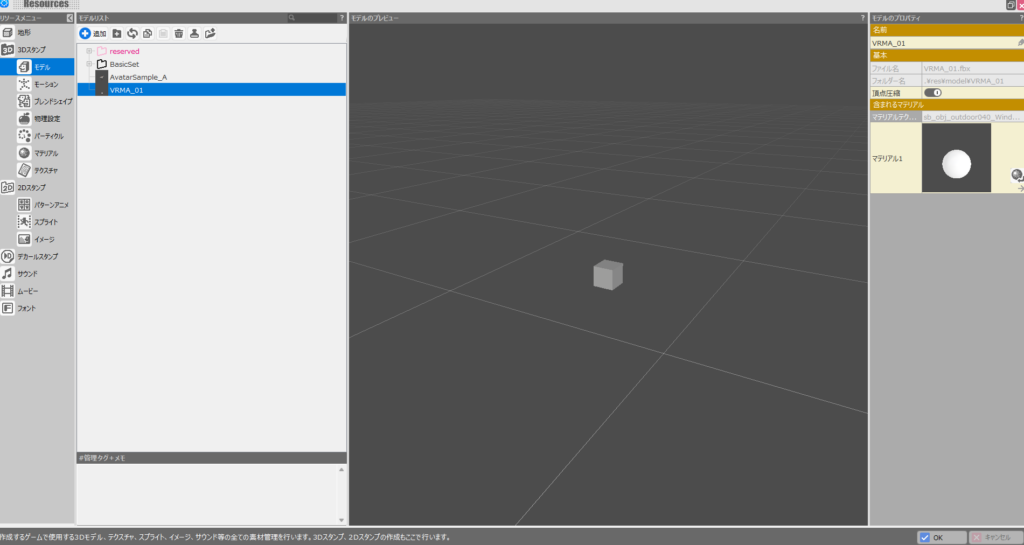
The mystery cube isn’t useful on its own, but it does contain the animation. To extract it, click the “Add Motion” button, select the mystery cube you just registered, and click “Add and Finish.”
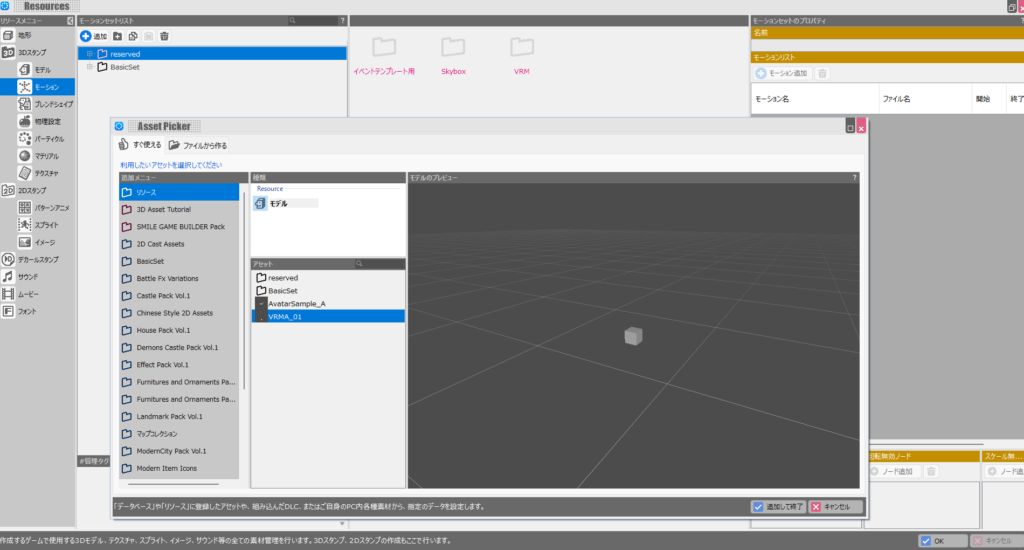
Now apply the mystery cube’s motion to the VRoid 3D stamp. You should see that the second motion matches the VRMA animation imported in Blender.
The first motion appears to be a slice of the start of the animation—unclear why—but as long as the second one shows the VRMA animation, that’s the main goal achieved.
Note: attempting to import the mystery cube FBX directly as a motion (without going through Model first) will trigger a Bakin warning. Using the Model route is recommended.
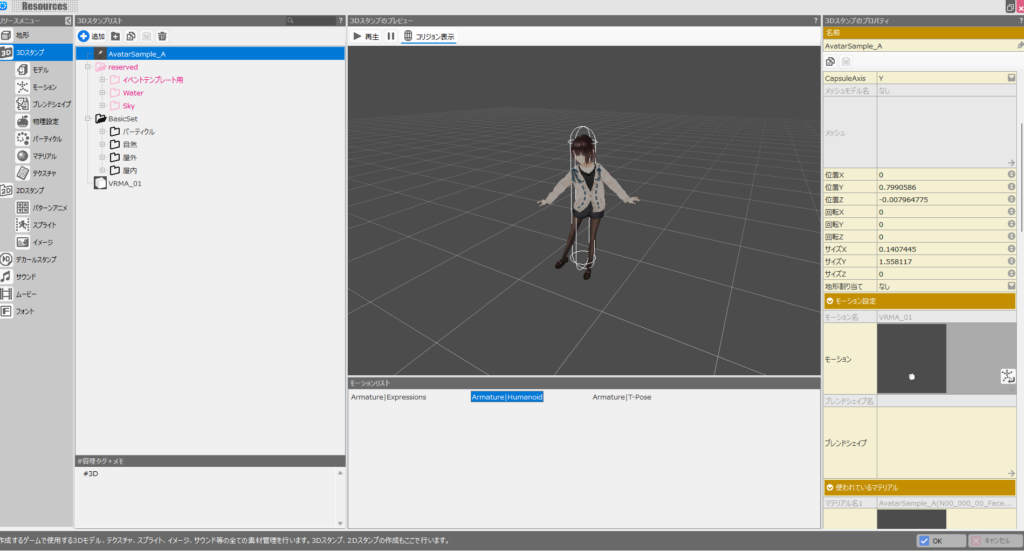
The VRMA has now been successfully applied to the VRoid in Bakin. The primary goal is achieved.
That said, there are a few things worth verifying before using this in a full project.
Verification After VRMA Import
Can VRMA Motions Be Used Alongside Mixamo Motions?
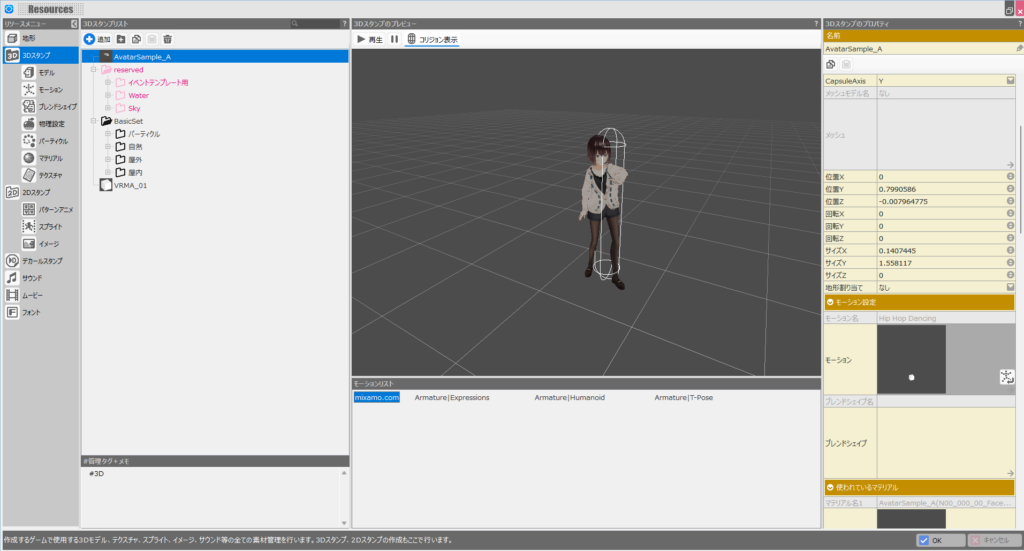
Conclusion: Yes, they can coexist. As shown in the image below, adding a Mixamo motion works normally alongside the VRMA motion. You can also add the VRMA FBX file to an existing Mixamo-based motion set.
Can Multiple VRMA Files Be Applied in Blender at Once to Bring Them All into Bakin?
Conclusion: Not automatically—but it is possible if you name each animation individually in Blender first.
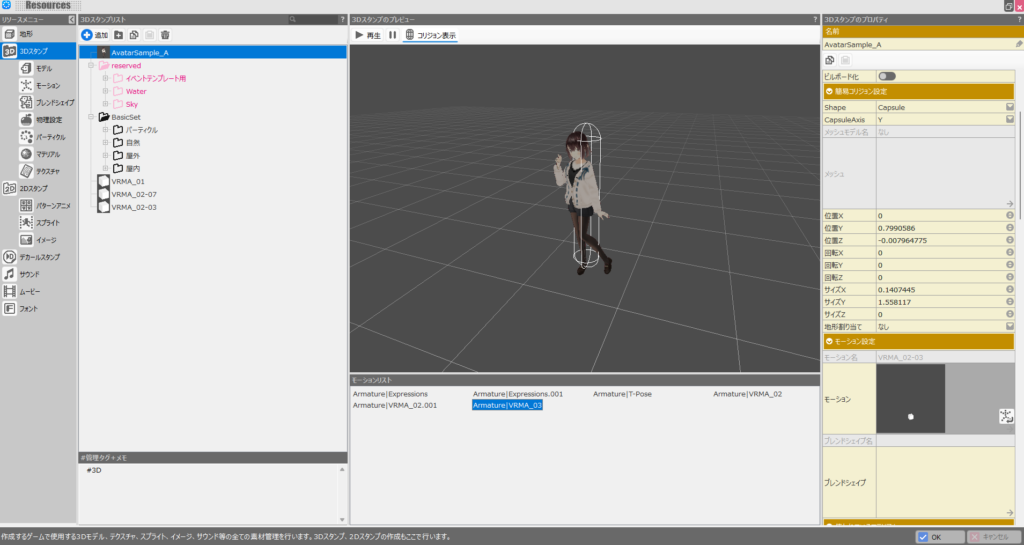
You might think adding multiple VRMA files in Blender and then exporting all at once would bring them all into Bakin. But that doesn’t work automatically—only the first registered animation gets exported to Bakin unless you take an extra step.
The workaround is to give each animation a unique name in Blender before exporting. With that done, multiple VRMA animations can be brought into Bakin in one export, as shown in the image.
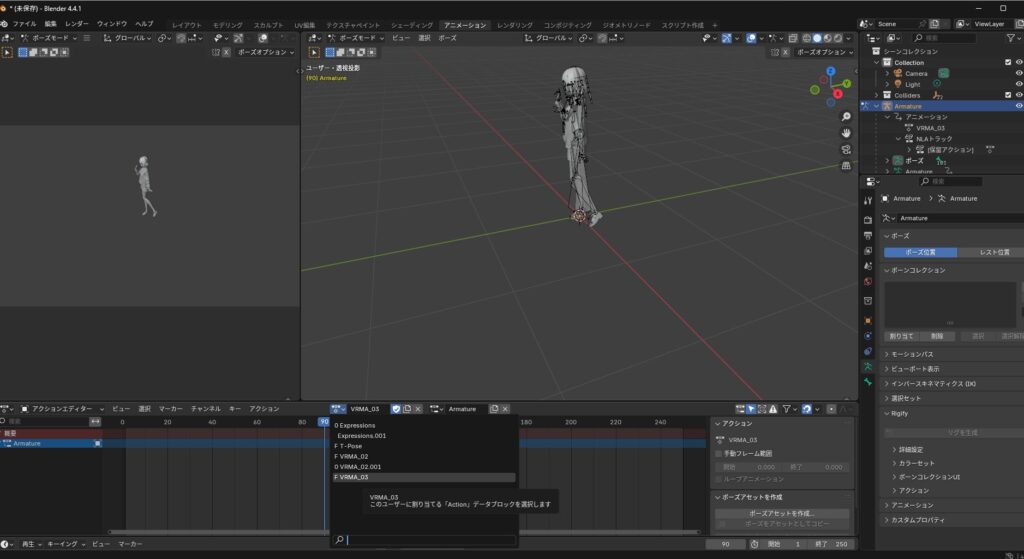
Naming animations in Blender isn’t particularly difficult, but it can be a stumbling block for those unfamiliar with Blender.
As a reference, here’s what the process looks like: in the “Animation” tab, switch to the “Action Editor,” then give each animation a unique name before adding the next one.
Can the Imported VRMA Be Reused Across Other VRoids in Bakin?
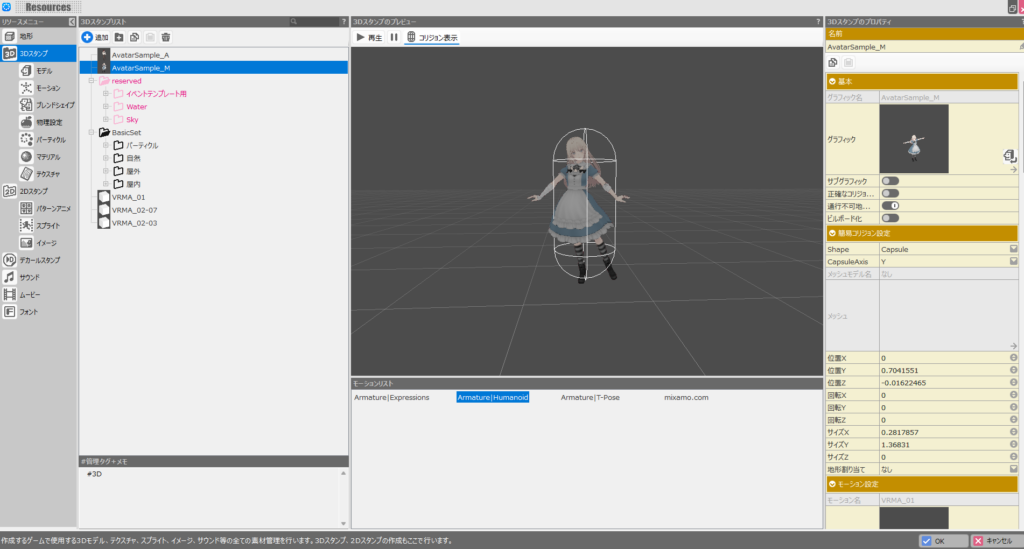
Conclusion: Yes, it’s reusable across different VRoids. Since VRMA is designed to work with any VRoid character, this was expected—and confirmed. The animation works correctly on VRoids with different body types too.
That’s why I said at the beginning that any VRM character works for the initial step—the VRM itself is interchangeable.
Summary
Ever since Bakin added support for direct VRoid imports, I kept wondering why VRMA support wasn’t included too.
While trying to figure out if there was any way to bring VRMA into Bakin, I noticed that the official team had published the “Bakin Motion Export” add-on on the Wiki.
My guess is that VRMA—being animation-only, with no model data—is technically difficult to import into Bakin on its own. So the team provided a way to bundle the animation with the VRM in Blender, and then bring the whole package over via the add-on.
That said, I want to point out: reading the official Wiki description alone, I genuinely can’t imagine anyone figuring out this import method. (And I’m honestly not entirely sure this is the intended use case—it’s more of a discovery than a documented workflow.)
Ideally, direct VRMA import support would be added to Bakin, and I believe the team will eventually get there. For now, knowing this workaround exists is already a significant step.
One more thing I didn’t cover in this article: VRMA files can be created easily using an app called “VRM Posing Desktop.” This means the method described here enables adding all kinds of custom animations to VRoids in Bakin—beyond just what Mixamo offers. When you think about it that way, being able to bring VRMA into Bakin opens up some exciting possibilities.
The Blender requirement will keep the audience for this method relatively small, but it’s a worthwhile option for those who are willing.
This article serves as a personal reference so I don’t forget the steps—I hope it’s useful to someone else. I’ll continue covering how to build games in Bakin going forward—check back if you’re interested.
Also popular with readers
📚 Series: RPG Maker Bakin: Game Development Guide (14/17)