Where We Left Off
I’m developing a game independently, and the game I’ve built with Bakin is also published on Freem. I’d love for you to play it, but you can get a good idea of what the game is like from this video:
In the previous article (linked below) we implemented the player’s sword-swing motion and the launch of the attack hitbox for an action game.
In this article, I’ll explain how to create a monster and implement the logic that deals damage to it when the player’s attack hitbox collides with it.
Implementing Enemy Characters (Monsters) in Bakin
When making an action game in Bakin, enemy characters are just as important as the player.
Enemy characters are more interesting when they have personality, but for now let’s implement a monster using free assets available in Bakin.
On Cast Motions
If you selected “Normal” for the initial asset amount when creating a Bakin project, some monsters are already registered as Casts in “Database” by default, as shown below.
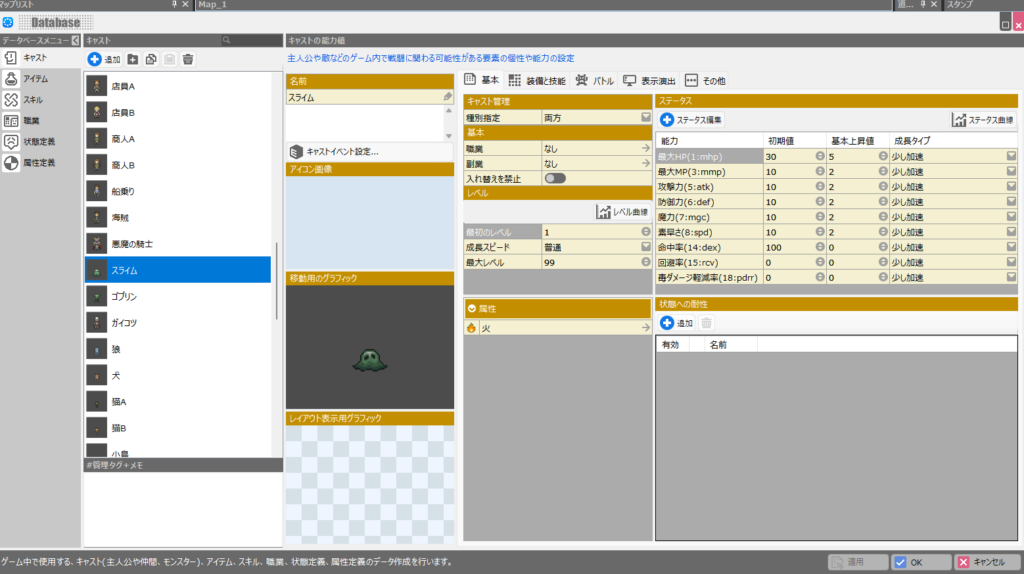
However, these default monsters are designed for RPG use and are not well suited for action games. You can see why by clicking the “Movement Graphic” and checking the “Motion” section in the bottom-right of the preview.
Notice that the “Motion” only has “walk” and “wait.” This “Motion” field is extremely important—especially for action games.
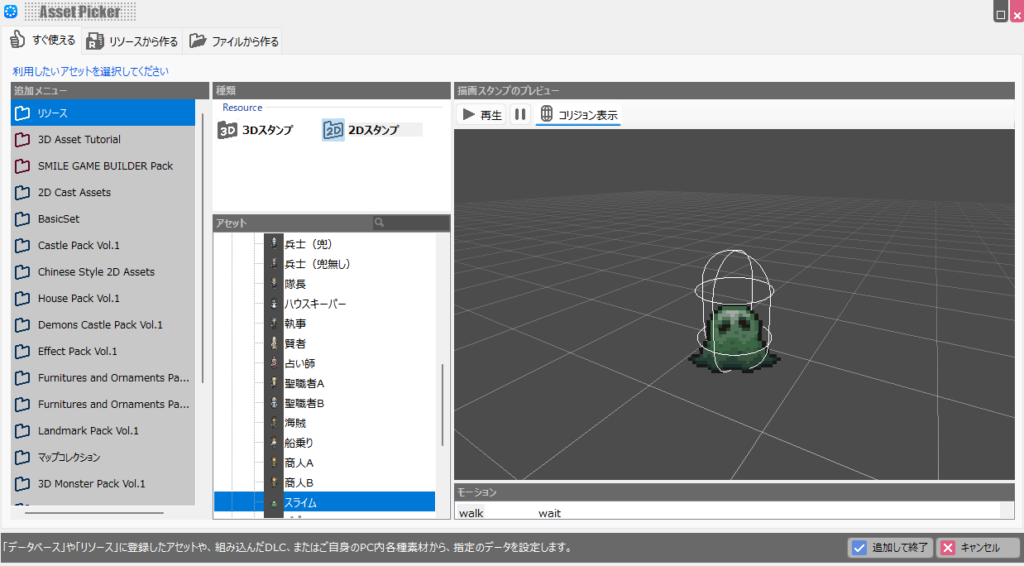
In Bakin, casts can only perform actions that are registered in their “Motion” list. In other words, if a motion isn’t registered, it cannot be used in the game.
So if you tried to implement an enemy’s attack but the cast had no attack motion, you’d end up with an enemy that attacks without any animation—very unnatural.
From a player’s perspective, an enemy that attacks out of nowhere without any warning is the height of unfairness, and it would cause immense stress and frustration, as you can imagine.
While you could technically work around this with magic-style effects, it’s generally much better to have enemies animate their attacks before dealing damage.
Checking the other casts, you’ll find that Bakin’s default casts with the most motions are those created for the player and their allies.
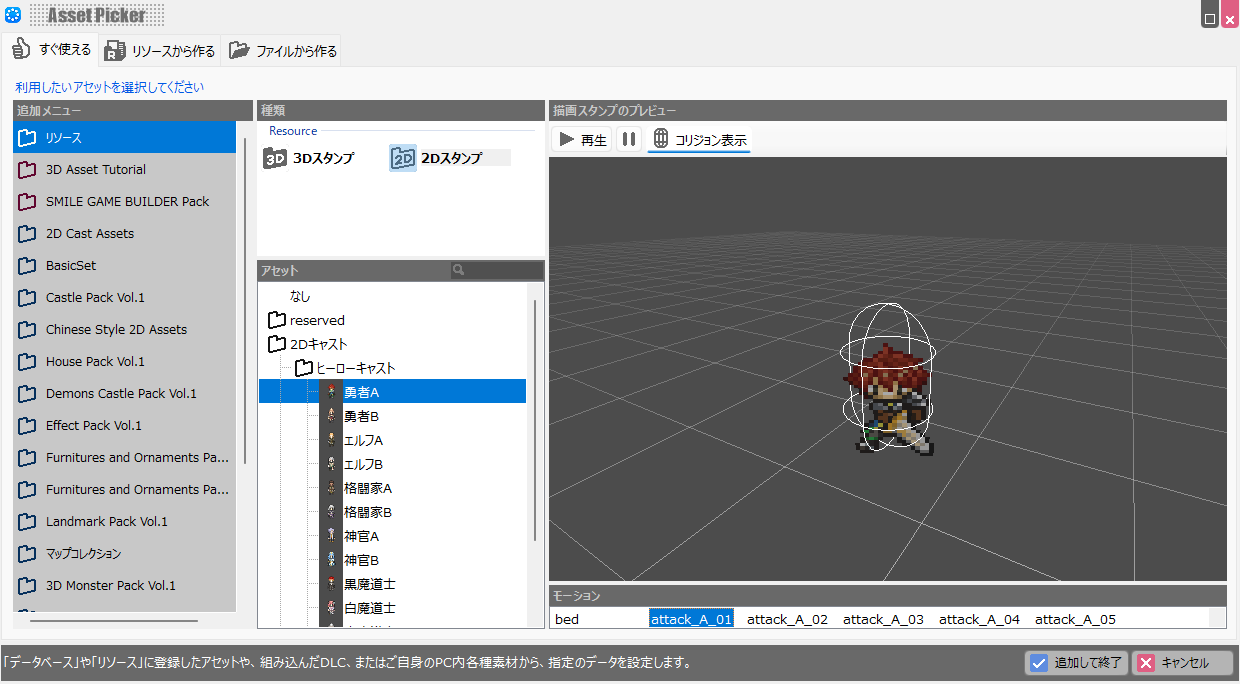
For example, the “Hero A” cast from the “hero” category used in the previous article to implement the sword-swing has a large variety of motions—attack motions, hit-stagger motions, sleeping-in-bed motions, and many more.
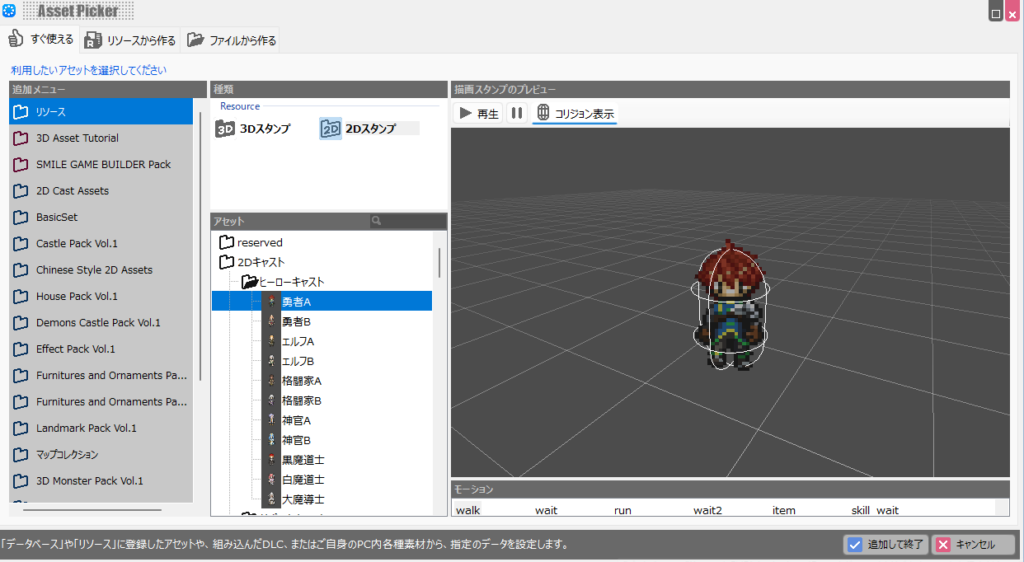
The more varied a material’s motions, the wider the range of things it can do in Bakin action games—keep that in mind.
After hearing all this, you might think the default monster assets have too few motions and that human casts would be better for enemies. Don’t worry—the free DLC “3D Monster Pack Vol.1,” included with Bakin from the start, contains monsters with a wide variety of motions.
Creating the Enemy Character (Monster)
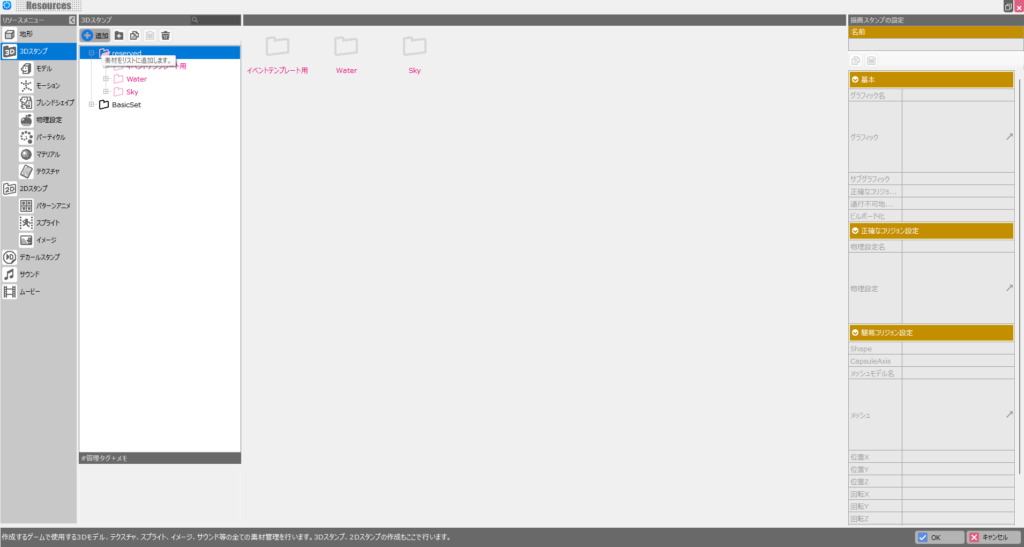
Let’s actually create the monster to use as the enemy character. First, go to “Resources” in Bakin’s master menu screen and select “3D Stamp,” then press the ”+ Add” button.
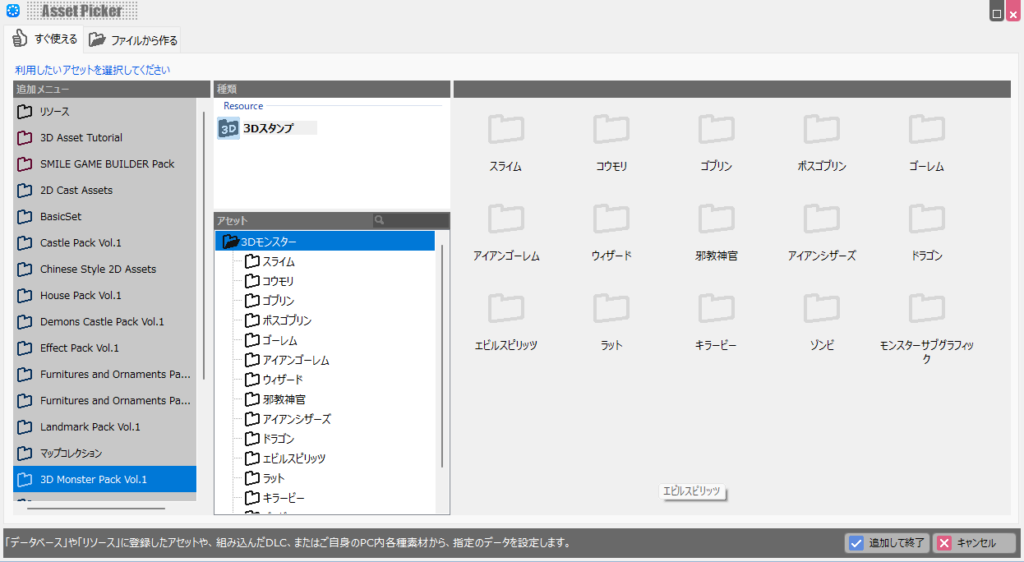
A screen appears to select the 3D stamp assets to add. Choose “3D Monster Pack Vol.1” from the “Add Menu.”
If “3D Monster Pack Vol.1” doesn’t appear in the list, restart Bakin and download it from “Asset Showcase.”
“3D Monster Pack Vol.1” contains a variety of monster assets with motions. For now, select the entire “3D Monsters” folder and press “Add and Finish.”
Ideally you’d add only the resources you need, but this amount won’t slow things down, so adding all monster assets is fine. Also, Bakin can strip unused assets when packaging the final game, so adding everything up front makes development easier.
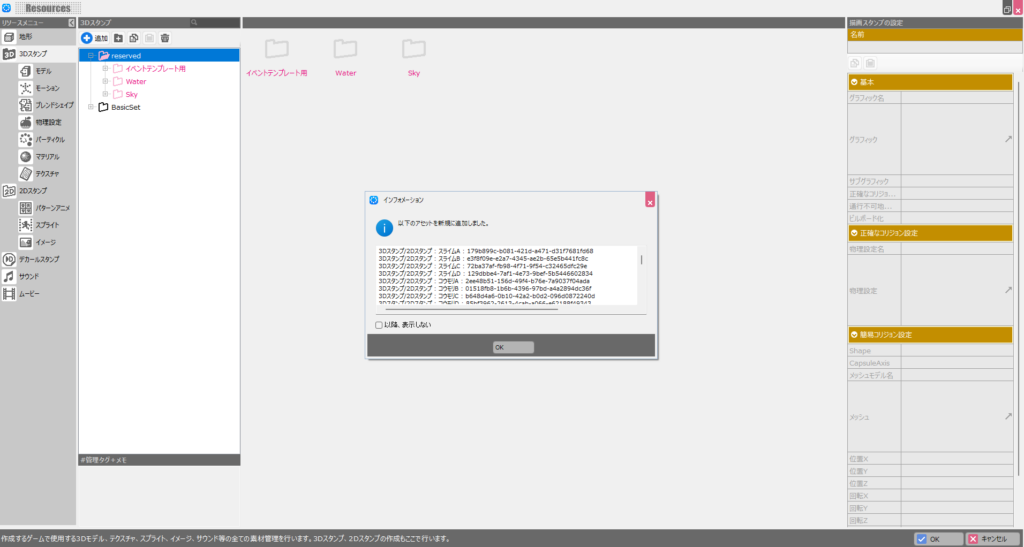
When the resource addition completes successfully, an info dialog appears—click “OK.”
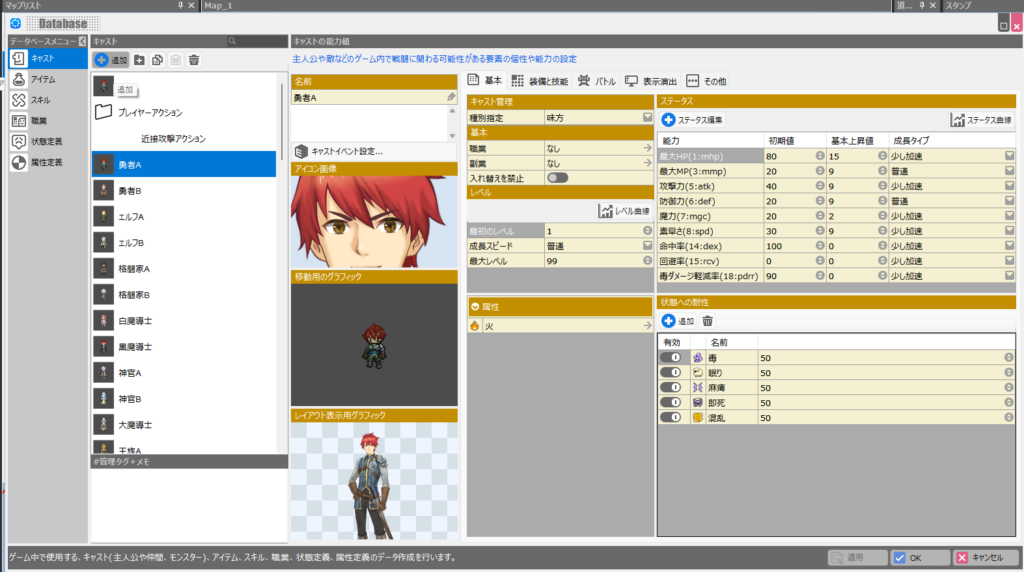
Next, go to “Cast” in “Database” and press ”+ Add” in the upper-left to add a new cast.
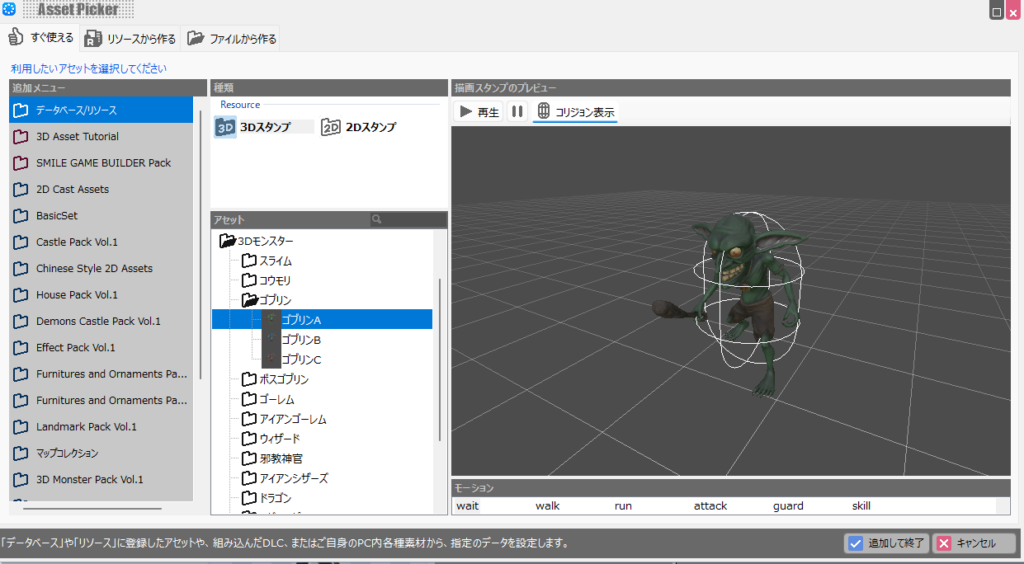
A screen to select the asset for the cast appears. Navigate to “3D Stamps” under “Database/Resources” → “3D Monsters” folder and select “Goblin A.” Then click “Add and Finish.”
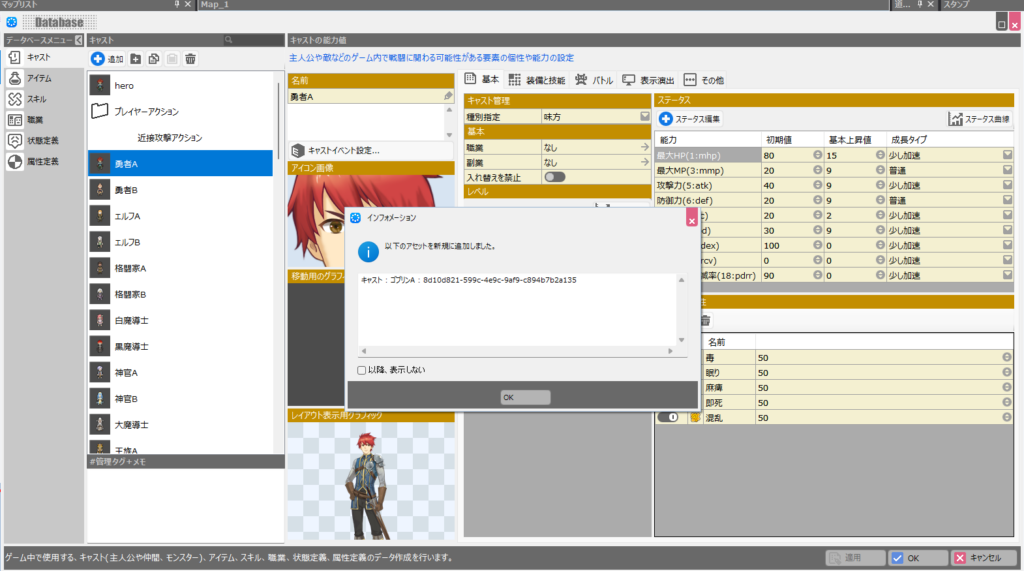
A confirmation dialog appears saying Goblin A has been added, and it will also appear in the actual Cast list.
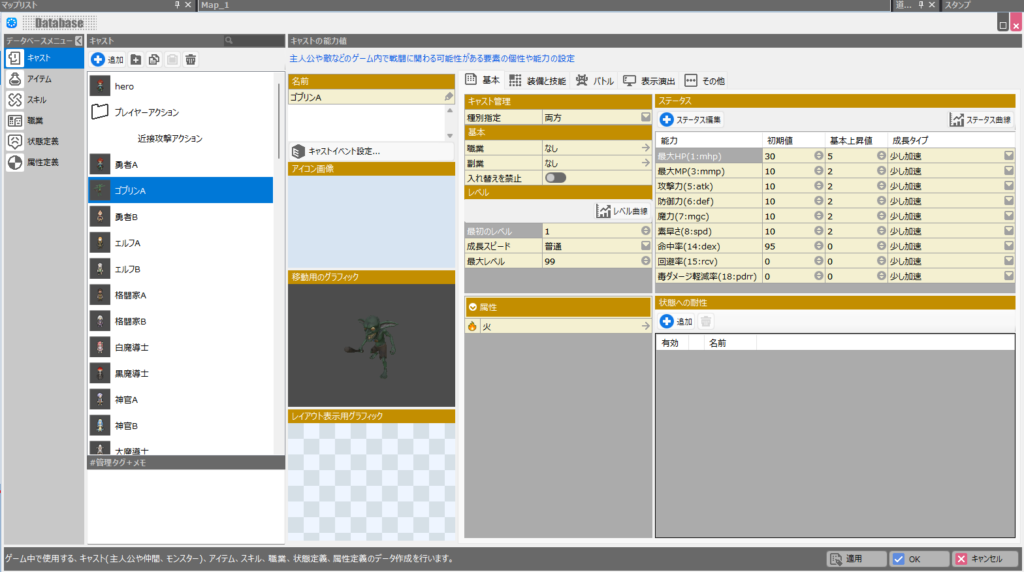
The enemy character with a variety of motions is now created. Next, let’s build the attack motion and attack hitbox launch for this monster.
Moving the Enemy Character (Monster) on the Map
Placing the Enemy on the Map
Let’s place the newly created enemy character on the game screen. The “Goblin A” cast we created can be found under the “Enemy Cast” tab on the right side of the Bakin screen.
Technically, whether a cast is an enemy or ally is set in the cast’s “Type Designation” field—newly created casts default to “Both” ally and enemy.
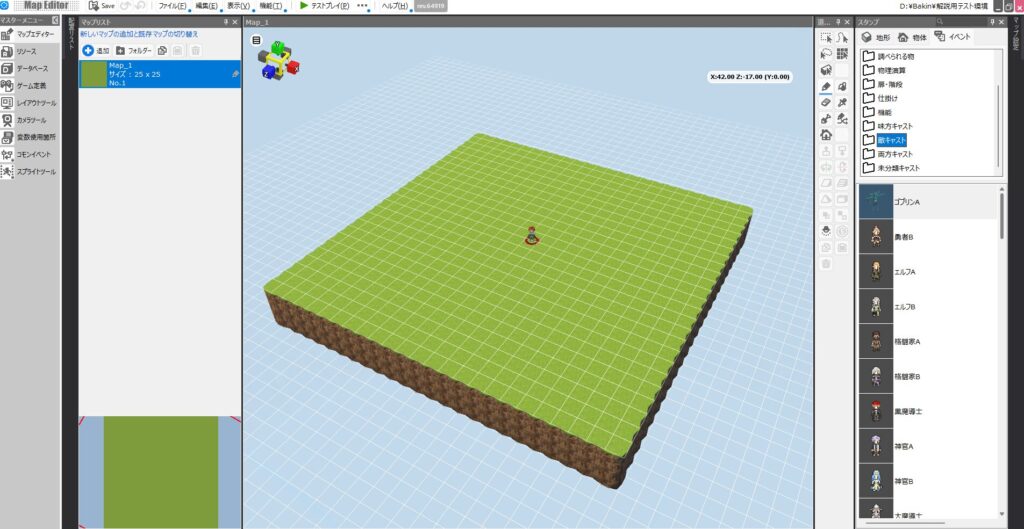
Go ahead and place “Goblin A” on the map. To place it, just select it and click on the map.
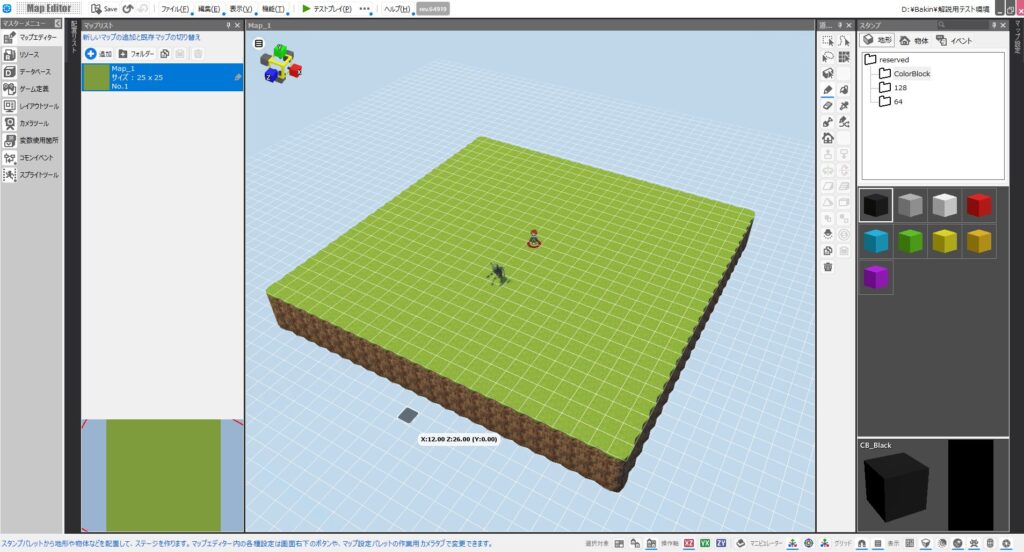
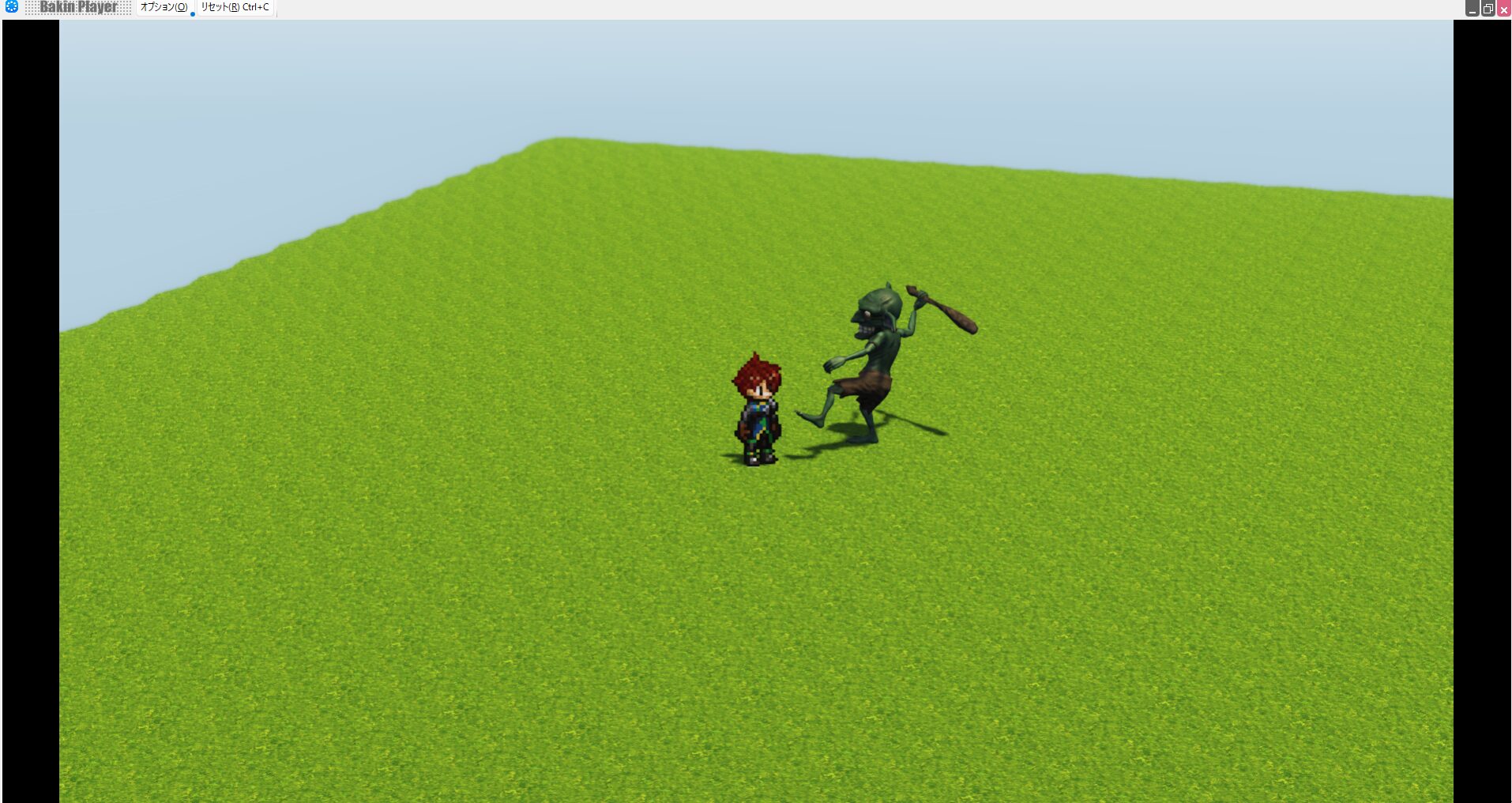
Press “Test Play” and check it in the game. Since Goblin A has no behavior configured yet, it just stands there, but you can see it moving slightly because it has motions set up.
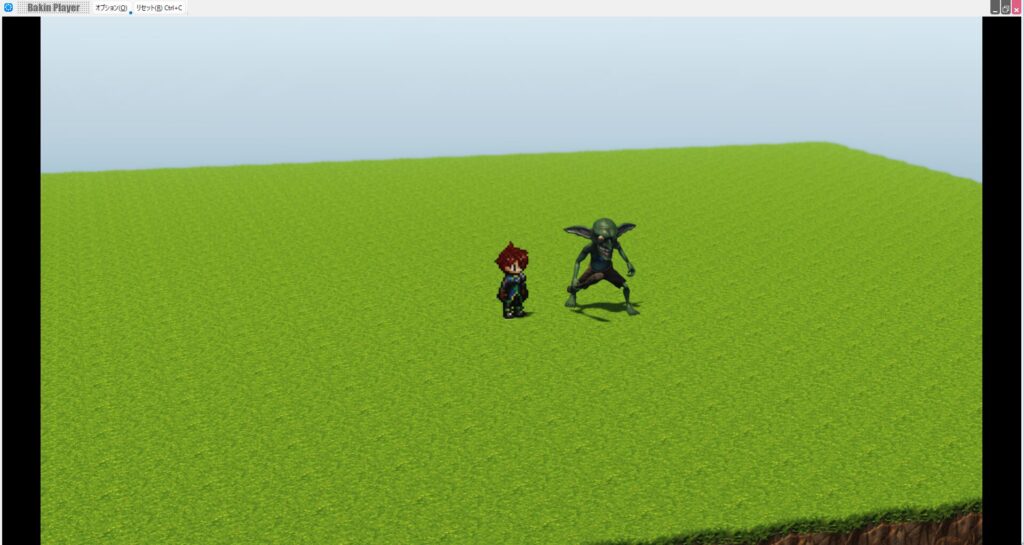
This is how you place enemy characters on the map and have them fight the player to build an action game. Now let’s create the enemy character’s attack motion.
Creating the Enemy’s Attack Motion
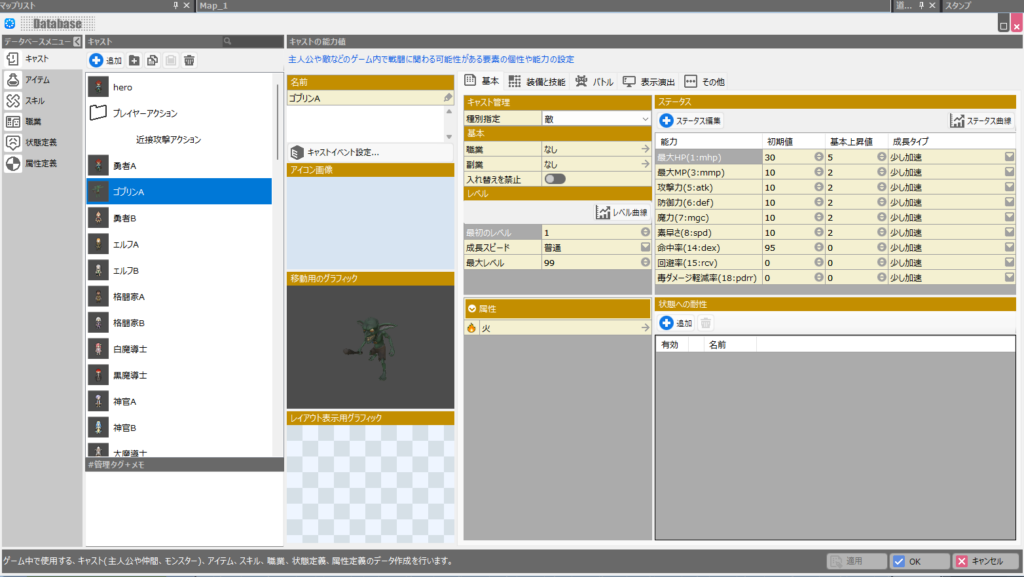
First, change the settings for “Goblin A” in “Database” → “Cast.” In the “Basic” tab’s “Cast Management” section, change “Type Designation” to “Enemy.”
This change means the cast will only appear under “Enemy Cast” when placing on the map, and it also lets the game distinguish between allies and enemies in subsequent settings.
Next, create the “Goblin Attack” cast as the hitbox cast that Goblin uses when attacking. The creation method is the same as for the player’s attack action in the previous article, so I’ll skip the details.
For this “Goblin Attack,” set the “Type Designation” to “Enemy.”
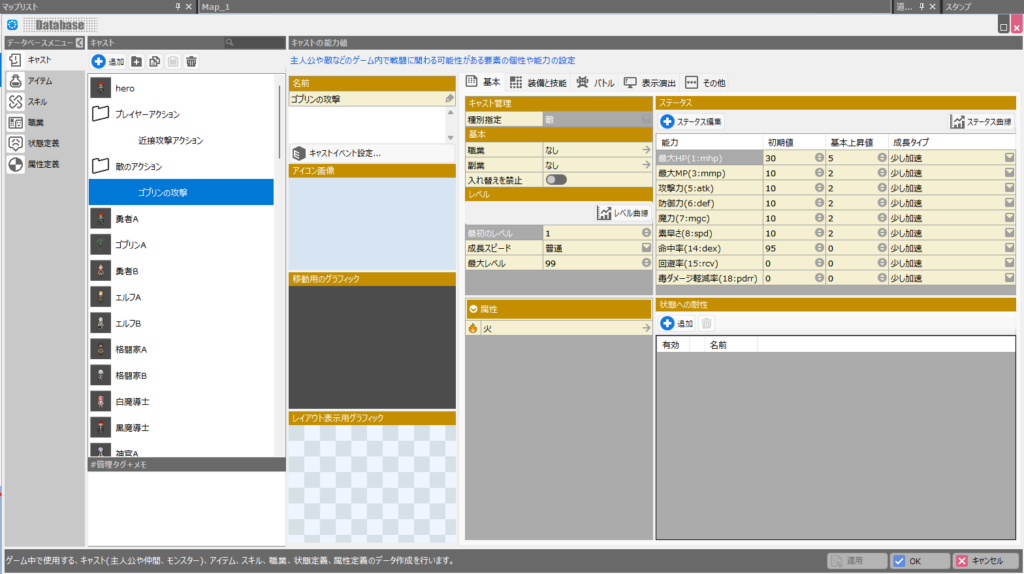
The “Other” settings are basically the same as the player’s attack action, but set the “Elapsed Time” in “Event Disappear Condition” to a short value like “0.1” or “0.2.”
If this time is long, the enemy’s attack hitbox lingers, causing the player to take unreasonable damage more often.
Also, enable “Disappear on Ally Collision” and disable “Disappear on Enemy Collision.” This creates an attack that doesn’t disappear when hitting an enemy cast but does disappear when hitting an ally cast.
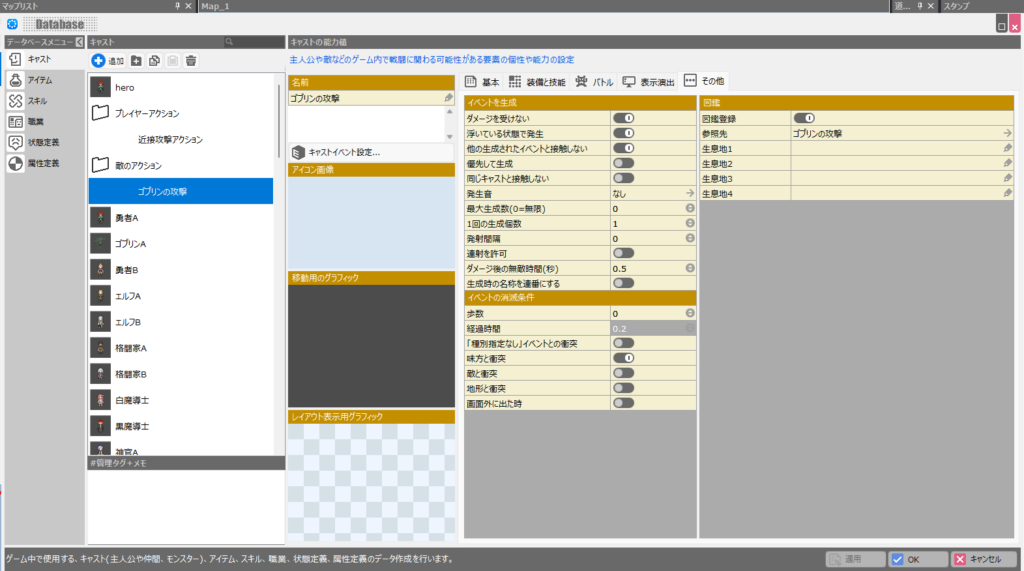
The “Cast Event” for “Goblin Attack” is as follows. Unlike the player, this one only contains “Attack Sound” and “Attack Hitbox.”
This is because normal casts are treated as “Events,” so attack motions must be configured in the cast event of “Goblin A” itself.
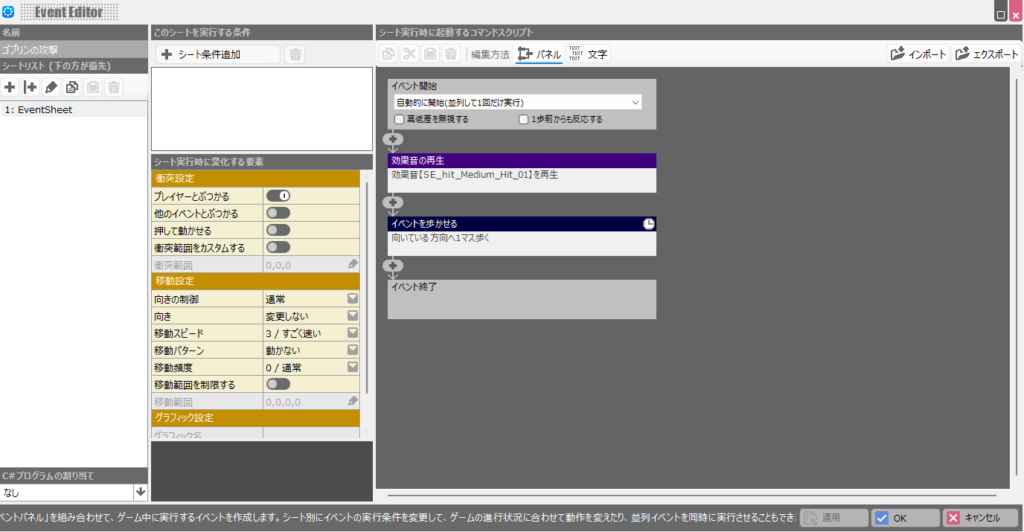
As a prerequisite, the “Event Start” for attack hitbox casts should be set to “Start Automatically (Execute Once in Parallel).” The “Goblin A” cast event is built as follows.
It would be better to make this a bit more complex for future flexibility, but let’s prioritize getting something working first.
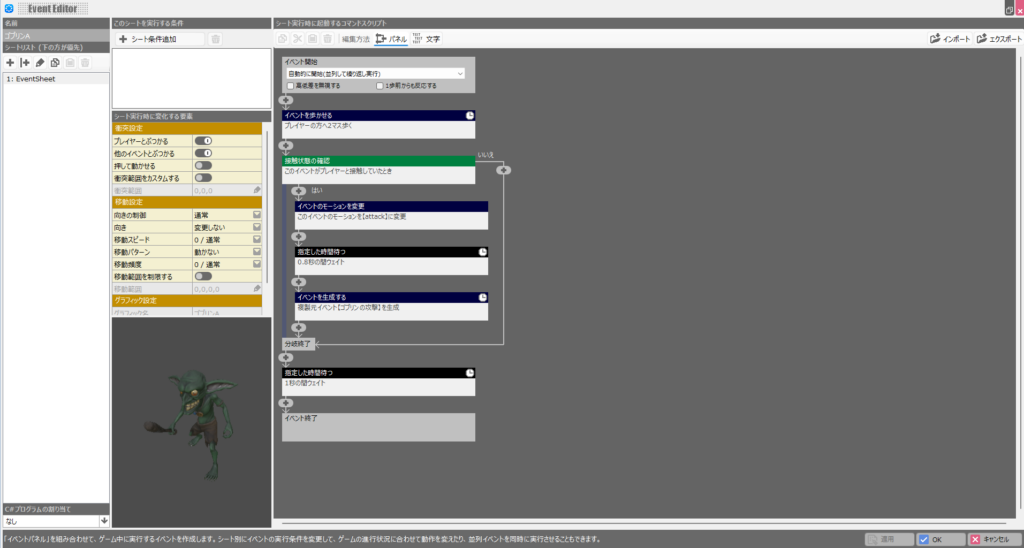
Remember to set the “Event Start” for casts like this to “Start Automatically (Repeat in Parallel).”
Without this condition, certain cast events running can freeze the player’s movement and cause other problems.
The flow of the “Goblin A” cast event is as follows:
① Move toward the player (face the player direction) ② Check if the player is in contact with Goblin A — ②-1 If in contact, attack — ②-2 If not in contact, do nothing ③ Stop action for 1 second
Explanation: ① is needed because the “Movement Pattern” in the left “Movement Settings” is set to “Don’t Move,” which means the goblin stays in place without it.
You might think that setting “Movement Pattern” to “Approach” would make ①—“Walk 2 tiles toward player”—unnecessary, but that doesn’t work.
The left movement settings operate independently of cast events. If movement is controlled from those settings, spontaneous movement can interrupt an attack motion in progress, canceling it.
Therefore, for action-game enemy casts, the cast’s movement settings should in principle always be set to “Don’t Move.”
Of course, in a normal RPG casts don’t change motions on the map, so using movement settings is fine, but for an action game it’s not recommended.
Next, ② checks whether the goblin and player are in contact before attacking—but this approach has a latent problem.
Only attacking when actually touching means the goblin won’t attack even when the player is clearly within reach—which makes for a very weak, unnatural enemy.
I’ll explain how to handle that in a later article, so for now just understand that the current spec only attacks when contact occurs.
②-1 is similar to the previous article, but now instead of the player it applies motion changes, a stop during the motion, and then the attack hitbox launch to the “Event.”
The stop is needed for the same reason as before—without it the attack hitbox launches the moment the goblin begins the wind-up, making the attack feel very jarring.
So generally you need to debug and tune how long to wait after each monster’s attack motion before launching the hitbox to avoid that jarring feel (it varies per monster).
The stop in ③ is simply to prevent the enemy from acting continuously at high speed without any pauses, which would make the enemy far too strong. For a boss you could intentionally shorten this to enable rapid-fire attacks, but this goblin is a generic enemy so one-second intervals feel about right (once implemented you’ll see that even one second is fairly fast).
Now try running “Test Play” again. Goblin A, which previously just stood there, should now actively move toward and attack the player.
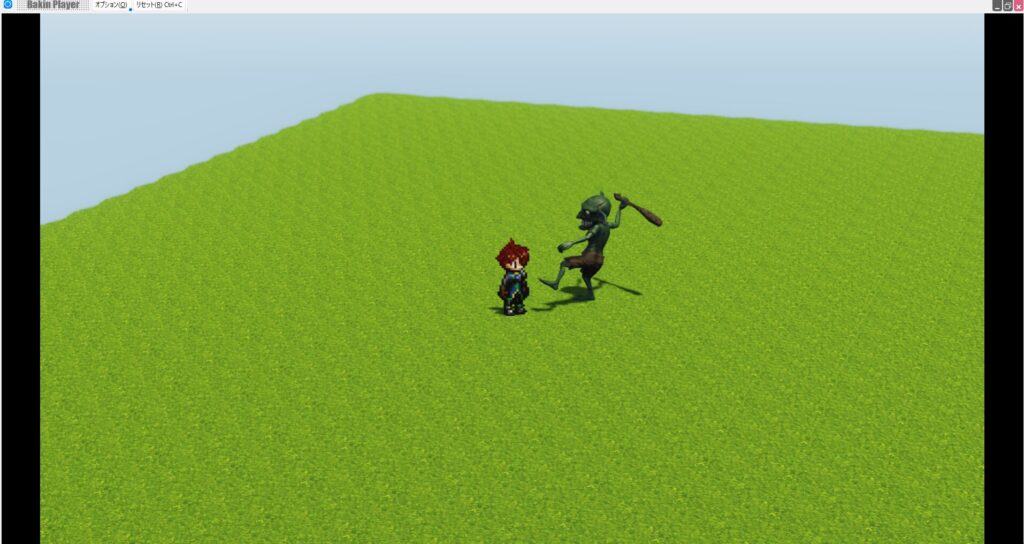
Just to be safe, check “Options” → “Show Collision” → check “Player and Events” to verify the attack hitbox appears when the goblin attacks.
The player’s damage logic isn’t implemented yet, so the goblin is just shadow-boxing, but you should now understand how to implement an enemy character.
Summary
In this article I explained how to implement an enemy character in Bakin and have it launch an attack motion and attack hitbox.
Combined with the previous article where the player can swing a sword, all that’s left is to add damage processing to both the player and enemy to have a functional action game.
Next time I’ll explain how to implement damage processing for both the player and enemies, so check it out if you’re interested.
Also popular with readers
📚 Series: RPG Maker Bakin: Game Development Guide (5/17)