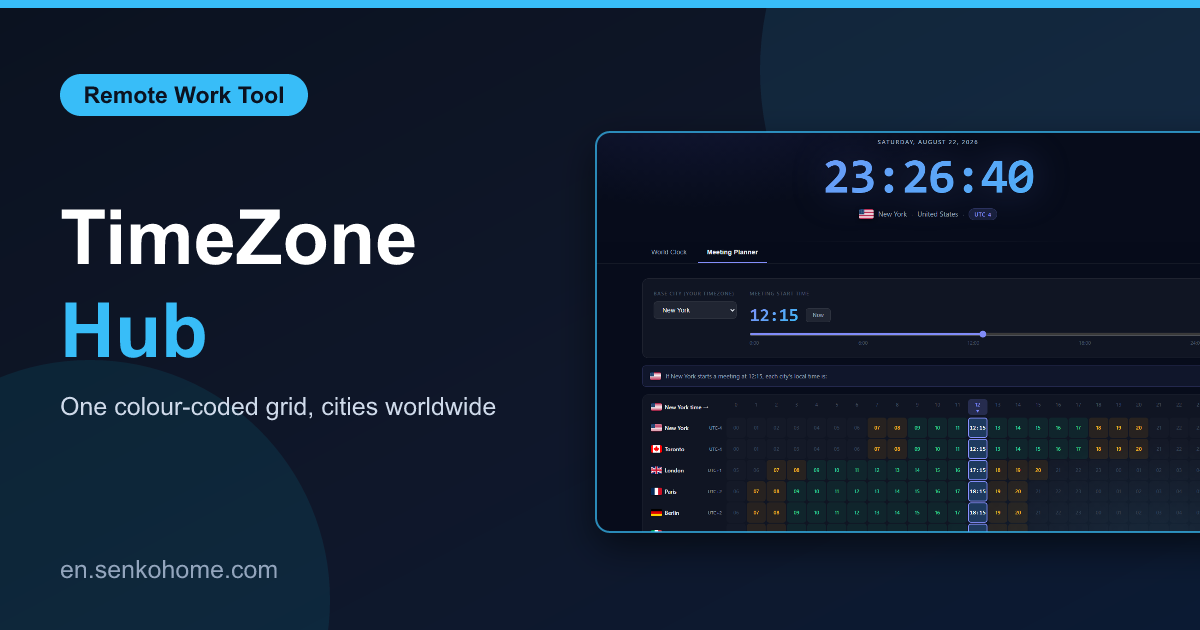
Thank you for visiting the site. This article is about “TimeZone Hub”, a free browser tool for the question that every remote team asks several times a week: if we meet at this hour, who is asleep?
I work with people in Japan, Europe and the United States, and I got tired of the ritual of opening three clocks, doing the arithmetic, forgetting about daylight saving, and proposing a time that turned out to be 4 a.m. for somebody. So I made a page that does the arithmetic and, more usefully, shows the answer as colours.
🌍 Open TimeZone Hub (free)No sign-up, nothing to install. Pick a city and drag the slider
The Clock Wall
The first screen is a wall of live clocks for cities all over the world, grouped by region, from Tokyo and Sydney through Dubai, London and Paris to New York, São Paulo and Los Angeles. Each shows the local time, the date, and the offset from UTC, and they tick every second. Daylight saving is handled by the browser’s own time zone database, so the offsets are right on the day the clocks change without anyone updating a table.
That is already most of what people want from a world clock, but the clock wall is the part I use least.
The Meeting Grid
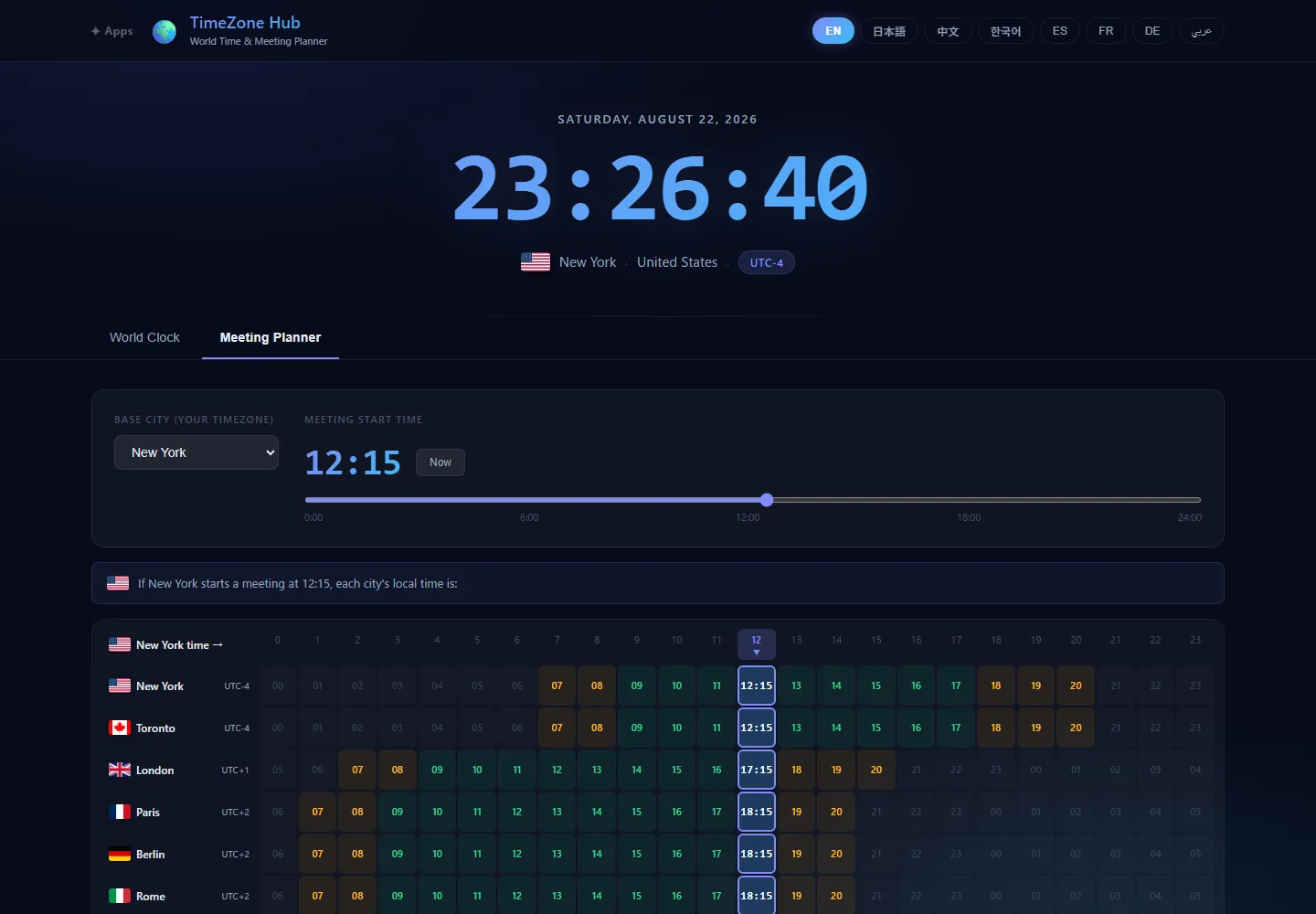
The second screen is the reason the tool exists. You pick a base city and drag a slider to a candidate meeting time, and a grid of the whole day appears, one row per city, one column per hour. Each cell is coloured, roughly like this.
| Colour | Local time | Meaning |
|---|---|---|
| Green | 9:00 to 18:00 | Business hours |
| Amber | 7:00 to 9:00, 18:00 to 21:00 | Possible, if people are willing |
| Dark | 21:00 to 7:00 | Asleep, or should be |
Slide the time and the column of colours moves. “A time that works is a column that is green or amber all the way down”, and you can see whether one exists within about five seconds. When there is no such column, you can at least see who would be paying the price, and whether it is the same person who paid last week. The exact local time in the chosen column is written in each row, with a “previous day” or “next day” note where the date rolls over.
It Speaks Your Colleague’s Language
The interface is available in Japanese, English, Chinese, Korean, Spanish, French, German and Arabic, and picks one from the browser’s language, with a switch if it guesses wrong. That was a deliberate choice for a tool whose whole purpose is people in different countries looking at the same screen: you can send the link to a colleague in Seoul or Madrid and they see it in their language, with the same grid.
There is nothing to install and no account. It is a single page that runs in the browser and uses the browser’s own time zone data, which is why it can stay free.
Summary
This article introduced TimeZone Hub.
A world clock with a meeting grid attached, and the grid is the part that saves time: one slider, a column of colours, and you know whether the hour you were about to propose is polite. If you schedule across time zones more than once a month, I think it will replace the arithmetic.
I hope you will read the next article as well.
Also popular with readers
📚 Series: Free Browser Apps I Built (8/11)